
 In an earlier blog, I mentioned the requirement for an external load balancer when co-locating Exchange server roles, because Failover-Clustering and Network Load Balancing (NLB) are mutually exclusive. However, there are also situations when a load balancer is a better solution over Windows built-in NLB, mainly because there are some things NLB can’t do or doesn’t do well, like:
- Service awareness: NLB distributes clients over member nodes, even over nodes of which required services, like IIS or RPC Client Access Service, are not responding;
- Experience: Clients need to reconnect after adding or removing nodes;
- Scalability : it’s not recommended to scale NLB beyond 8 nodes;
- Affinity (also known as persistence or sticky sessions): NLB can only do Source IP affinity, i.e. distribute clients based on their IP address, while load balancers can utilize cookies or SSL session IDs.
Note: Why affinity is important and why Source IP can be bad sometimes, you can read in one of my earlier blogs on load balancing Exchange ActiveSync here.
To show you setting up a load balancer doesn’t have to be rocket science, I’ll demonstrate how to implement a load balancer for Exchange 2010 using a KEMP Virtual Loadmaster (VLM); setting up other load balancers should be similar, hardware appliances included, but keep in mind implementations by vendors vary, so check the product documentation as well. However, the basics are same, you only need to understand what you’re trying to achieve.
Note: The KEMP’s VLM used for this article runs on Hyper-V, but there are virtual load balancers for different hypervisors as well.
The setup we’re going to work with is roughly as follows:

In the sample environment, I’ve installed two Exchange 2010 servers, L12EX1 and L12EX2; both hold the Client Access, Hub Transport and Mailbox server roles. The domain name used is litware.com, and we have no site nor subnet definitions, so everything is located in the default Active Directory site, Default-First-Site-Name. Clients will access Exchange services (HTTPS, MAPI) using a single FQDN, outlook.litware.com.
The Exchange servers are located in a dedicated subnet, so we’ll use a so called two-armed setup (2 NICs); one NIC will connect the VLM to the subnet where the Exchange servers are located; the other one will be used for client access. In order to have the VLM work transparently, we configure the VLM as default gateway on the CAS servers. The result is that the CAS servers will see the original client IP addresses instead of the VLM’s address, which is not only helpful in log files, but is also needed for throttling or when limiting SMTP connections to Receive Connectors based on IP addresses for example.
Note: This article doesn’t describe implementing SSL offloading; for more information on SSL offloading and how to configure it, check this Technet article. Also, this article doesn’t go into any built-in ability of load balancers to mirror or create standby copies, meant to prevent the load balancer from becoming a Single Point Of Failure (SPOF) or improve Availability level.
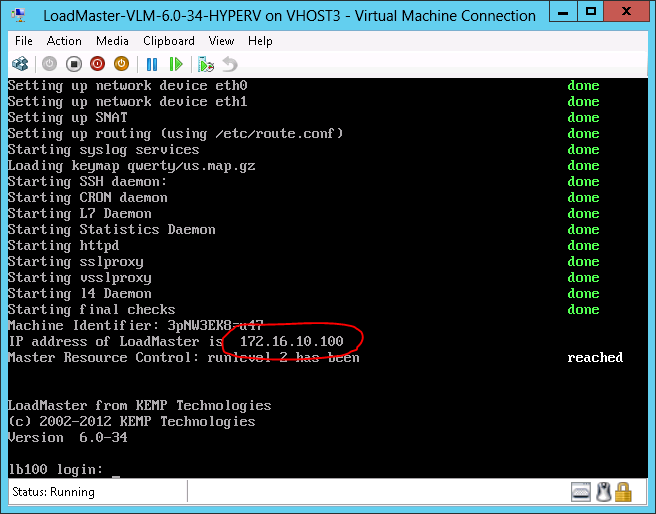
We’ll start off by downloading the KEMP Virtual Loadmaster here. After downloading, extract the contents and import the VM in Hyper-V. After firing it up, it will use DHCP or 192.168.0.1 if DHCP is unavailable. You can check the console to see what IP address is used:
Now, before we can configure the VLM, we need to perform the initial setup:
- Use the console to log in using the administrator account or connect with a browser to the VLM’s IP address;
- If you haven’t got an activation key, you can apply for a trial key;
- Complete licensing of the VLM;
- Configure VLM network interfaces;
- Import Configure certificate
Note: Make sure you set the MAC addresses of your NICs to static. When going through the licensing process, the access code is based on MAC address. If you don’t, the license will be invalidated if you migrate to a different host.
Note: We’re going to load balance services over port 443 and the administrative web interface uses that port as well, so configure the GUI on a different IP address or port.
Next, we need to create a Client Access Server Array. Note that creating a CAS Array before creating or moving mailboxes is best practice, as it prevents having to reconfigure Outlook MAPI profiles when clients have already connected (unless you want to perform mailbox move tricks to force MAPI reconfiguration). Basically, the steps to perform are:
- Create a DNS record with FQDN which is going to be used for clients to connect. In our example, the FQDN used is outlook.litware.com using IP number 172.16.10.100;
- Create a CAS Array object using New-ClientAccessArray, i.e.New-ClientAccessArray -Name outlook-default -Fqdn outlook.litware.com -Site Default-First-Site-Name

- As per best practice, we’re fixing the RPC (59531) and Addressbook (59532) ports by setting the following registry keys on each CAS server and restarting the related MSExchangeRpc and MSExchangeAB services:
HKLM\System\CurrentControlSet\Services\MSExchangeRPC\ParametersSystem\TCP/IP Port = 0xe88b (59531) REG_DWORD
HKLM\System\CurrentControlSet\Services\MSExchangeAB\Parameters\RpcTcpPort = ”59532” (REG_SZ)
You can verify Exchange is listening on these ports using netstat –an | find “5953”.

- Finally, we need to configure the mailbox databases with the new RPC endpoint using Set-MailboxDatabase in conjunction with the RpcClientAccessServer parameter:Get-MailboxDatabase | Set-MailboxDatabase -RpcClientAccessServer outlook.litware.com
Note: More information on creating CAS Arrays, check here.
After creating the CAS array, fixing the ports on Exchange and reconfiguring the RPC endpoint configuration on mailbox databases, configure the Exchange URLs to match the new client endpoint FQDN, outlook.litware.com. To so so, use cmdlets like Set-OWAVirtualDirectory –InternalURL https://outlook.litware.com/owa or Set-WebServicesVirtualDirectory –InternalURL https://outlook.litware.com/EWS/Exchange.asmx. In addition to InternalURL, set the ExternalURL as well depending on your setup, i.e. HTTPS services may be load balanced at the reverse proxy.
Now we’re ready to configure the VLM. We start off by creating Virtual Services, which are a combination of IP address and ports. Each Virtual Service has it’s own characteristics, like persistence, scheduling (distribution), can have its own certificate, distribution mechanism and appointed set of real (backend) servers and related service monitors.
We decided to use a single IP address for the various Exchange services, so we only need to configure a single Virtual Service for each port, via Virtual Services > Add New:
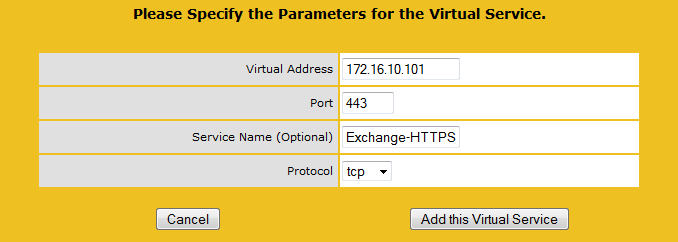
In the next screen you need to configure the Virtual Service settings like persistence and scheduling, as well as configure the real servers, i.e. the backend servers actually providing the service. You can also configure how the service health on the real server is monitored, i.e. is the service up or down. If a service on a real server is considered down, the load balancer won’t send clients to that server for that particular Virtual Service.
Note: The overview below is taken from a non-SSL offloading (SSL acceleration) configuration; when enabled, it will show additional options on the certificate to use.

Note: When using “Least Connection” persistence as recommended in the KEMP documentation, be advised a client traffic storm can occur after the Real Server comes online. Reason is it starts without connections, so all new clients will be directed to this server. Other products have mechanisms in place to prevent this by throttling traffic, gradually increasing the connections; F5 calls this feature Slow Ramp Timeout in their F5 BIG-IP Local Traffic Manager products.
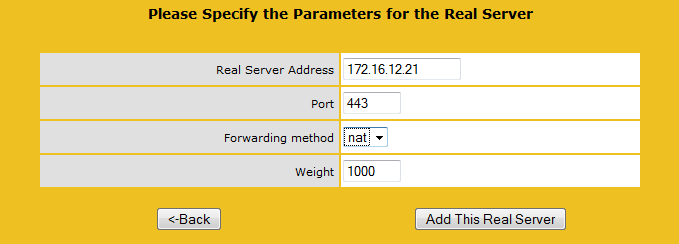
When configuring the Virtual Service, click Add New to add a Real Server to the Virtual Service.
A suggestion on how to configure the Virtual Services:
| Virtual Address | Port | Service Name | Persistence | Scheduling |
| 172.16.10.101 | 443 | Exchange-HTTPS | Super HTTP | Round Robin |
| 172.16.10.101 | 59531 | Exchange-RPC | Source IP | Round Robin |
| 172.16.10.101 | 59532 | Exchange-AB | Source IP | Round Robin |
| 172.16.10.101 | 135 | Exchange-EPM | Source IP | Round Robin |
Note: When required, you can also load balance inbound SMTP traffic using ports 25/587, IMAP4 (ports 143/993) and POP (110/995) using no persistence.
Note: Using Source IP can result in an unbalanced distribution of client load, when SNAT devices come into play. For an example scenario, see my earlier article on Load balancing, ActiveSync and Affinity.
And that’s basically it. When you want to channel specific HTTP services (Outlook WebApp, Exchange ActiveSync, Autodiscover etc.) you can appoint different FQDNs for each service and configure different FQDN/IP addresses per service in DNS, after which you can configure separate Virtual Services with more specific options. For example, you can not only configure specific persistence or scheduling settings for per Virtual Service, but also Real Servers checks (depending on the protocol). Instead of checking if a Real Server responds on port 443, you can check if the server responds on a different URL, e.g. https://<server>/owa.
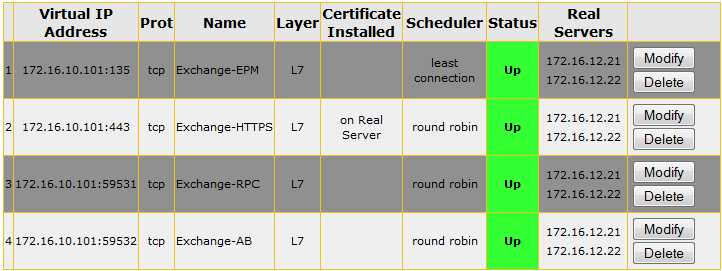
Another bonus of using a load balancer, depending on functionality of the product used of course, is that you can (temporarily) disable a real server from the VLM. After doing this, clients won’t be directed to the corresponding Exchange server, which is very useful when you want to perform maintenance.

In this article we quickly went through setting up a KEMP VLM to load balance Exchange 2010 services. However, the article is based on certain decisions regarding the configuration, which can differ from organizational to organization. For more information on deploying KEMP VLM and its possibilities, check out the KEMP Virtual LoadMaster Deployment Guide here.
Most vendors, like KEMP, provide template functionality, which enables you to quickly set up the load balancer using preconfigured settings; make sure you inspect those settings afterwards (i.e. know what you’re doing). You can download KEMP templates here. Unfortunately, these files are in binary format so you can’t edit them nor can you export Virtual Services, otherwise I could have provided you with the template for the above settings.
Be advised that I am in no way connected to KEMP and this article hasn’t been sponsored or commissioned by KEMP technologies, apart from providing an NFR license for writing and testing purposes.





 EighTwOne (821)
