Update 22feb2021: Added note about enabling SMTP Authentication.
Not too long ago, the Exchange product group enabled Modern Authentication (or OAuth2) support for IMAP and SMTP in Exchange Online, and shortly after for POP3 as well. This support was much needed with the imminent deactivation of Basic Authentication. With Modern Authentication available, vendors, developers as well as organizations running custom scripts are given time to adopt Modern Authentication where applicable.
By delaying the original end date of Basic Authentication from October 13, 2020 to Q3’ish 2021 due to the Corona situation, the adoption period is increased significantly. That does not mean however developers and organizations can sit back and relax: Act sooner rather than later, the end of Basic Authentication is nigh.
The benefits of Modern Authentication are of course that it is a more secure model (e.g. resistant to password spray attacks), as well that it can leverage Microsoft 365 functionality like Conditional Access to limit protocols to certain locations.
That said, in this article I will show you how to approve usage of a popular 3rd party e-mail application Thunderbird, using IMAP protocol in conjunction with the Modern Authentication scheme. The procedures below have been run against Thunderbird 78.0b4 on Windows as well as Ubuntu.
Third Party Applications Before we move on to Thunderbird, we first make sure the organization settings allow for third party applications to access your mailbox Exchange Online. This process has been blogged about for common popular applications, such as the native iOS Mail app or the Gmail app on Android. So, how to go ahead if your organization restricts access to third party applications, and they only want to allow specific applications, which is of course good practice.
The easiest way to add Thunderbird to the allowed applications and grant consent to the organization, is by constructing an admin consent URL. To construct the consent URL, take the following URL:
Replace <TenantID> with your Tenant ID. This piece of information can be found under the Azure Active Directory blade in the Azure portal.
Replace <AppID> with the Application ID (sometimes also referred to as Client ID) of the application you want to provide consent for. As we can see in the table below, the ID of Thunderbird is 08162f7c-0fd2-4200-a84a-f25a4db0b584.
Application
ID
Thunderbird
08162f7c-0fd2-4200-a84a-f25a4db0b584
Gmail app
2cee05de-2b8f-45a2-8289-2a06ca32c4c8
iOS Accounts (Apple Mail app)
f8d98a96-0999-43f5-8af3-69971c7bb423
Open your browser, and visit this URL as an administrator. You will be greeted with a consent form, in which you will be asked to accept for your organization. Because the redirect_uri is empty here, you will likely be send to a non-existing location after giving consent, but that’s OK.
When you look at the Enterprise Applications blade in the Azure Portal, you will notice the Thunderbird app has been added. Here you can further customize it, like any enterprise application supporting Modern Authentication, e.g.
Restrict access to specific users or groups.
Use Conditional Access to restrict access to certain locations.
Another thing to note is that permissions for Thunderbird app will have been translated to the following Graph permissions:
API
Permission
Type
Microsoft Graph
Read and write access to mailboxes via IMAP.
Delegated
Microsoft Graph
Read and write access to mailboxes via POP.
Delegated
Microsoft Graph
Read and write access to mailboxes via SMTP AUTH.
Delegated
Microsoft Graph
Sign in and read user profile.
Delegated
We should now be ready on the back-end.
Thunderbird Now as an end user, start Thunderbird. Do not start configuring the account yet, as we first need to modify a Thunderbird setting to allow for successful Modern Authentication through a browser popup. Click the ‘hamburger’ menu to open the Options window. Scroll all the way down, and open the Config Editor. Click ‘I Accept the risk’. In the settings overview, set General.UserAgent.CompatMode.Firefox setting to True:
Preference Name
Status
Type
Value
general.useragent.compatMode.firefox
modified
boolean
True
Close the Config Editor and Preferences tab. We can now set up our account in Thunderbird.
Select Add Mail Account, and enter your name and e-mail address. You can leave the password empty, as we will be using an Oauth token which we will retrieve later on. Press Continue to have Thunderbird figure out where your mailbox is hosted. When it properly discovers the mailbox location, it will set the configuration as follows:
If Thunderbird can’t figure out your settings (for some reason the Windows build could, but the Ubuntu build couldn’t), configure them as indicated above. We can’t select OAuth2 for authentication here, so leave Authentication as is; we will correct this right after we click Done.
Note: Configure manually would be the place you expect to set authentication to OAuth2 straight away, but with the build we used, the OAuth2 option is not available from the manual account setup dialog. Therefore, we need to set up the account and correct settings afterwards.
In the Server Settings window related to your account, select OAuth2 authentication:
In the Outgoing Server (SMTP) settings, select Offic365 (Microsoft) – smtp.office365.com, click Edit and set authentication for outbound SMTP to OAuth2 as well. Note: The Thunderbird build running on Ubuntu doesn’t provide the OAuth2 authentication option for SMTP.
When finished, click ‘Get Messages’. The familiar Microsoft 365 authentication browser dialog should show up. After signing in, the next question will be to grant consent to the Thunderbird application to it can access your mailbox data and send e-mail:
Note that this dialog can not be suppressed, as currently only interactive applications are supported. If you are working on an app or script which needs unattended access, please use Graph API.
After the user provides consent, Thunderbird is ready and will start fetching your default folders and mail items. If you want to view additional folders, you need to subscribe to them by right-clicking the account and picking Subscribe. Only folders with mail-items are supported, despite you can select every folder in your mailbox including Calendar or Contacts.
Note: If you encounter problems sending messages, please check the CASMailbox setting SmtpClientAuthenticationDisabled. If it is set to $true, you need to disable it to enable SMTP authentication, e.g.
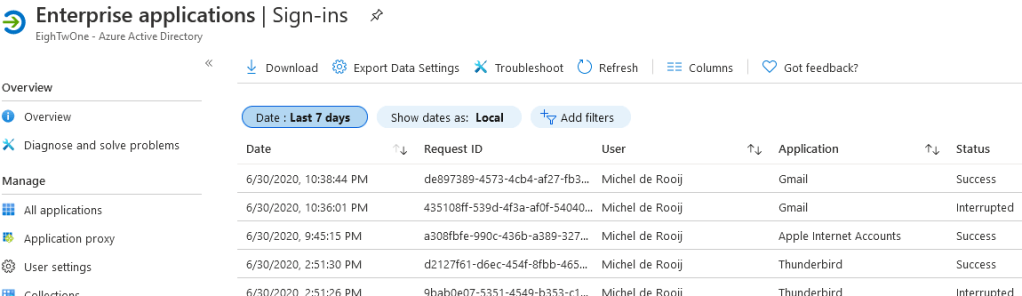
Logging If you have people in your organization requiring some form of proof that Modern Authentication is being used, you can use the Enterprise Applications / Sign-Ins view from the Azure Active Directory portal.
Alternatively, you can use Thunderbird’s built-in logging capabilities. To accomplish the latter, set the following environment variables before starting Thunderbird:
Episode 61 of The UC Architects podcast is now available. This episode is hosted by Pat Richard, who is joined by Tom Arbuthnot and Stale Hansen. Editing was done by Andrew Price.
Topics discussed in this episode are:
Top Stories
Microsoft Teams released to preview
Office 365
Office 365 and Azure now available from U.K. datacenters
Lync/Skype for Business
SfB Response Group; Exchange UM holidays – multi-add, multi-assign, import from CSV and CAL
Australian RGS/Response Groups Holiday Sets for 2016/2017
Holiday set editor
Response Group Timeframe Editor Powershell GUI
Skype for Business Cloud Connector Edition: Release 1.4.1
Skype for Business, Bandwidth Calculator Version 2.70
Add a Skype Menu Item for Meet Now Dedicated (Anthony Caragol)
Skype for Business Online Multi-Region, Automated Meeting Migration and Exchange Server Voicemail
Video Based Screen Sharing (VbSS) comes to iOS and Android Mobile SfB Clients
Certificate Expiry Checklist
Two new posters for SharePoint 2016 and Skype for Business architectural models
Running #Polycom Trio with #Skype4B? Make sure to upgrade to the latest 5.4.3AD release
CustomInvite by Modality
VMware Horizon VDI Skype for Business Support Tech Preview Q1 2017
Outlook Skype for Business “Contacts” folder doesn’t sync with Skype for Business contacts
Update to Hybrid Handbook 2.1
Free Skype for Business Online Network Assessment Tool from Microsoft, Hands On
You can download the podcast here or you can subscribe to the podcasts using iTunes, Zune or use the RSS feed.
About
The UC Architects is a community podcast by people with a passion for Unified Communications; our main focus is on Exchange, Skype for Business or related subjects.
Update 5/31/16: The glitch has been addressed in iOS 9.3.1.
Note: Be advised that iOS 9.3 contains a glitch which might prevent users from opening links from applications like Safari or other browsers, Mail or Outlook. The glitch causes the link not to work or the app to hang. Apple is aware of the issue and a fix is in the works. It is reported that, as a temporary workaround, disabling Javascript support in Settings > Safari > Advanced makes links work again in Safari.
Apple released iOS 9.3 today, which contains lots of enhancements and fixes. One of these fixes solves an issue with the Calendar app (for those still not using the Outlook app), where it would send multiple responses for an invite.
Resolves an issue for some Exchange users that caused Calendar to send multiple responses to the same invitation
The fix supposedly solves issue 1.15 from the “Current issues with Exchange ActiveSync and 3rd-party device” overview (KB2563324), “Meeting organizer receives multiple responses from attendee. The related KB article, KB3108212, also contains instructions on how to identify users experiencing this problem. Note that the problem has also been addressed server-side in Cumulative Update 1 for Exchange 2016.
It’s almost a law that, for every bug that is fixed, new ones are introduced. So, some organizations may therefor want to test and accept this iOS update before giving it the green light for their Exchange environment. To block a specific version of iOS from Exchange, consult the instructions here.
A short notice on an update received today for Outlook for iOS 2.09. This update adds the much requested feature of integrating Outlook for iOS with the (native) Contacts in iOS:
“Your Office 365 and Exchange Contacts can now be saved to the iOS Contacts app. This will allow you to easily see the name of a contact when you receive a call or text message from them. Head to your Advanced Settings to turn on this feature.”
This does away with the requirement of resorting to setups like having the iOS Mail app sync with your Office 365 or Exchange On-Premises account, just to sync those contacts with your device. To disable syncing contacts through the Mail app, go to Settings > Mail, Contacts, Calendars and click the account you wish to disable syncing contacts for. Then, disable syncing its Contacts by toggling its switch:
You will get a warning contacts synced through this contact will be removed from Contacts, but since we are going to use Outlook for this, you can proceed.
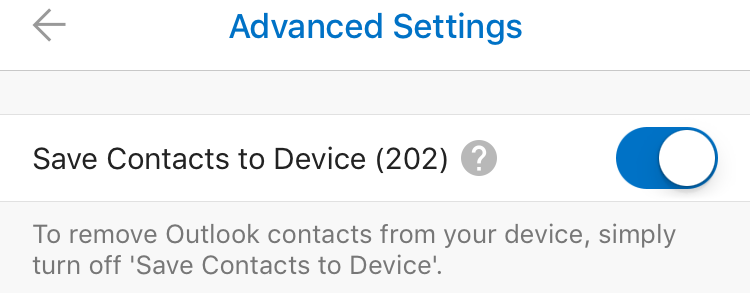
Next, open up the updated new Outlook app, and go to Settings. Click the account from which you want to sync contacts to your device, and select Advanced Settings. In there, you will find a new switch, Save Contacts to Device. Behind it is the number of contacts available on this account:
Toggle the switch to start syncing contacts directly from your Office 365 or Exchange On-Premises account to Contacts, giving the Outlook app permissions to access your Contacts when requested. After this, you’re ready to go.
Note that all synced contacts will contain a line in the Notes field, stating:
Exported from Microsoft Outlook (Do not delete) [outlook:..:..]
This is to indicate this is a synced contact, and you must not edit or remove it using the device, rather remove it from the originating source as it might get recreated or overwritten during synchronization.
Finally, the sync is one-way, so although you can edit properties on your phone through the Contacts app, they won’t be synced back to the originating source. Also, when editing properties through Contacts, those edits are not propagated to the People view in the Outlook app, as those are the contacts from your Office 365 / Exchange On-Premises accounts. This can be confusing, but having to set up an e-mail account just once with a one-way sync seems more efficient and less confusing to me than having to configure the Mail app only to get your contacts on your phone.
Out of nowhere, news came yesterday from the Chicago Tribune that Microsoft cancelled the Microsoft Ignite event at Chicago for 2016. Originally, the Ignite event, replacing former events like MEC, LyncCon, MMC and SPC, was said to be held for 4 consecutive years in Chicago, starting in 2015. Even at Ignite 2015, it was confirmed Ignite 2016 was going to take place in Chicago from May 9th to May 13th, 2016.
Without any reason given for this change of plans, although rumors are that either bad feedback on this year’s event or product release schedules could be the reason for changing plans, today Microsoft announced that Ignite 2016 will take place in the Georgia World Congress Center in Atlanta, from September 26th to 30rd, 2016.
This date is perhaps a bit too close for comfort to that other well-known event, the independent IT/DEV Connections which is scheduled for September 19th to 22nd, 2016 in Las Vegas. It remains to be seen if Penton – organizer of the IT/DEV Connections – moves their event or not.
Apart from potential schedule issues, though there are worse things than potentially staying half the month September in the US, it could pressure budgets for organization who want to have people attend both events, without the option to spread those investments.This is of course also true for those that are self-employed.



![clip_image001[14]](https://eightwone.com/wp-content/uploads/2020/07/clip_image00114_thumb.png "clip_image001[14]")

![clip_image001[14]](https://eightwone.com/wp-content/uploads/2020/07/clip_image00114.png "clip_image001[14]")

![clip_image001[18]](https://eightwone.com/wp-content/uploads/2020/07/clip_image00118.png "clip_image001[18]")
![iTunes-Podcast-logo[1]](https://eightwone.com/wp-content/uploads/2012/07/itunes-podcast-logo1-e1341277366970.png) Episode 61
Episode 61 Update 5/31/16: The glitch has been addressed in


 EighTwOne (821)