Get-MyMailboxStatistics


powershellLast update: Version 1.02, November 21st, 2014.

Those leveraging quota settings to manage their Exchange environments, you are probably periodically running some sort of script or set of cmdlets to retrieve information on mailbox sizes, quota settings and if any mailbox is above any of the quota thresholds. For a quick indication of the current size in relation to the quota settings, StorageLimitStatus may contain one of the following indicators depending on the quota settings on the mailbox or mailbox database hosting the mailbox:

  • BelowLimit – Speaks for itself
  • IssueWarning – Mailbox size above Issue Warning limit
  • ProhibitSend – Mailbox size above Prohibit Send limit
  • NoChecking – No quota checking
  • MailboxDisabled – Mailbox size above Prohibit Send and Receive quota limit

So, to get a list of all mailboxes with any over-quota status, you can use:

Get-MailboxDatabase | Get-MailboxStatistics | Where {$_.StorageLimitStatus -match 'IssueWarning|ProhibitSend|MailboxDisabled'} | Select DisplayName, ItemCount, TotalItemSize, StorageLimitStatus, LastLogonTime

Unfortunately, in Exchange 2013 the StorageLimitStatus gets no longer populated:

image

As KB2819389 explains, this is by design. In Exchange 2013, mailbox quotas are no longer cached. By not being cached, retrieving quota information may result in poor performance as it queries Active Directory for quota related attributes. The argument is a bit puzzling, considering there is a NoADLookup switch which directs the cmdlet to retrieve information from the mailbox database (cache) instead of Active Directory. Perhaps a better workaround would have been to make NoADLookup a parameter, make it $true by default and leave StorageLimitStatus unpopulated when NoADLookup is $true.

Of course, that does not help customers who want a quick quota report. For this purpose I have created two things in 1 script:

  1. A helper function Get-StorageLimitStatus() which will take a mailbox statistics object and return a StorageLimitStatus object.
  2. A script Get-MyMailboxStatistics.ps1, a proxy function for Get-MailboxStatistics which will use the Get-StorageLimitStatus helper function to populate the StorageLimitStatus.

Get-StorageLimitStatus
When you want to use the helper function, extract it and include it in your quota reporting script or PowerShell profile (making it available when firing up a shell). To use the helper function in the cmdlet shown earlier, use:

Get-MailboxDatabase | Get-MailboxStatistics | Select -ExcludeProperty StorageLimitStatus DisplayName, ItemCount, TotalItemSize, @{n="StorageLimitStatus"; e={ Get-StorageLimitStatus $_}}, LastLogonTime | Where {$_.StorageLimitStatus -match 'IssueWarning|ProhibitSend|MailboxDisabled'}

This will remove StorageLimitStatus from the output and add a calculated field bearing the same the name, calling the Get-StorageLimitStatus helper function with the current mailbox statistics object to set its value.

Get-MyMailboxStatistics.ps1
This is a proxy function for the Exchange Management Shell cmdlet Get-MailboxStatistics. This means that the current, original cmdlet was used to create a wrapper which will call the original cmdlet. Having a wrapper allows you to restrict or enhance the original cmdlet and tailor it to your needs.

A quick tip on how to create a proxy script in the clipboard (more information on creating proxy commands here):

$data= New-Object System.Management.Automation.CommandMetaData (Get-Command Get-MailboxStatistics) 
[System.Management.Automation.ProxyCommand]::create($data) | clip.exe

Downside is that future changes to the Get-MailboxStatistics cmdlet will not be automatically incorporated in the wrapper. Feeding it objects also doesn’t work, but you can work around that by temporary storing the objects in a variable and passing that to the script (see examples below).

To populate the StorageLimitStatus, we will post-process each object in the output of Get-MailboxStatistics, using Add-Member to overwrite (-Force) its current value and –PassThru to pass it along in the pipeline. Being a proxy command, the parameter options are identical to the original Get-MailboxStatistics. Some examples:

.\Get-MailboxStatistics.ps1 -Database MDB2
$m= Get-Mailbox –Database MDB2 
$m | .\Get-MailboxStatistics.ps1 | ft –AutoSize DisplayName,TotalItemSize,StorageLimitStatus

image

Do be aware that this will incur Active Directory queries and thus performance of the script may not seem fast. However, in previous versions of Exchange you got immediate results as all the quota information was readily available from the cache. On the plus side, the status you see will be non-cached, current information.

On a final note and maybe needless to say that in order to use this you need to run it from the Exchange Management Shell and since it’s an unsigned script you need to set ExecutionPolicy to Unrestricted.

Feedback
Feedback is welcomed through the comments. If you got scripting suggestions or questions, do not hesitate using the contact form.

Download
You can download the script from the TechNet Gallery here.

Revision History
See Technet Gallery page.

Exchange 2013 Server Role Requirements Calculator 6.3


Excel-2013[1]The Exchange 2013 Server Role Requirements Calculator received an update to reflect changed incorporated in Exchange 2013 SP1, such as adjusted guidance to accomodate for MAPI/http and its impact on the CAS role, as well as revised pagefile sizing guidance. The new version number is 6.3.

Changes since version 6.1:

  • Fixed Backup Requirements calculations to include greater than 50 databases.
  • Added additional processor core support.
  • Fixed the number of database volumes calculation when disk count is specified.
  • Fixed the database size calculation for A/P scenarios to match A/A scenario calculations.
  • Fixed the calculator to take into account halving database number per volume in non-site resilient scenarios.
  • Fixed conditional formatting errors on transport configuration settings.
  • Fixed transport sizing to take into account mailbox growth.
  • Updated CAS megacycle calculations to align with SP1 guidance.
  • Revised Dispart.ps1 script to create database mount points consistent with JetStress performance counters.
  • Added Calculator version number to record one field three of CSV export files.

You can download the calculator here. For more information, please consult the release notes and read me

Exchange 2013 SP1 Transport Agent Fix (updated)


Ex2013 LogoAfter installing Exchange 2013 Service Pack 1, people reported issues with Transport Agents. Symptoms are that the Transport service doesn’t start or stops shortly after starting the service or you can’t install the 3rd party product.

Products experiencing the issue are TrendMicro ScanMail, McAfee Email Security (GroupShield), Symantec Mail Security for Exchange, AVG for Servers, ESET Mail Security for Exchange and CodeTwo Exchange Rules. Products from other vendors may be affected as well.

Microsoft is aware of this issue and has published KB2938053 which has a small Exchange2013-KB2938053-FixIt.zip script to fix the issue.

The cause of the issue lies in XML files containing invalid XML markup in the form of “comments” which prevents .NET from loading the XML files, e.g.

<!-- 15.0.847.30 -------------------------------->

The two files containing the invalid XML markup are:

$Env:Windir\Microsoft.NET\assembly\GAC_MSIL\policy.8.0.Microsoft.Exchange.Data.Common\v4.0_15.0.847.30__31bf3856ad364e35\Microsoft.Exchange.Data.Common.VersionPolicy.cfg
$Env:Windir\Microsoft.NET\assembly\GAC_MSIL\policy.8.0.Microsoft.Exchange.Data.Transport\v4.0_15.0.847.30__31bf3856ad364e35\Microsoft.Exchange.Data.Transport.VersionPolicy.cfg

Be advised that the script supplied in the KB article tries to locate and fix various alternate versions of those files. Something you might want to consider as well when fixing it manually, should you be unable to locate the specific files mentioned above.

After running the script you should be able to start the Transport service or install 3rd party containing transport agents..

Update (3/5): Updated blog after official KB article got published. The issue was also blogged on by fellows Jason Sherry, Paul Cunningham while Tony Redmond has additionanal background details here.

Inbound e-mail not accepted after applying Exchange 2013 SP1


Ex2013 LogoAfter installing Exchange 2013 Service Pack 1 you may notice that inbound e-mail is not accepted and attempts to connect to port 25 will result in a timeout.

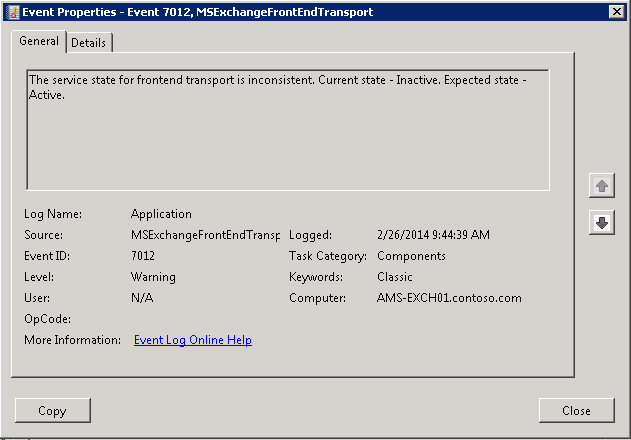
The application event log will contain event log entries ID 7012, generated by the MSExchangeFrontEndTransport, mentioning that “The service state for frontend transport is inconsistent. Current state – Inactive. Expected state – Active”:

image

When inspecting the component state from the Exchange Management Shell using:

Get-ServerComponentState <ServerID> -Component FrontendTransport

you will notice that it really is inconsistent, as Exchange will report that the component is active:

image

The quick workaround for this issue at the moment is to restart the Frontend Transport service:

Restart-Service MSExchangeFrontendTransport

After a restart of the service, or system restart if you must, the component state is working fine again and connections are accepted. In addition, the MSExchangeFrontendTransport will generate an event log entry ID 7009, “Retrieved the service state. Host service – FrontendTransport, Service state data – Active.”

Exchange and The UC Architects fellow Paul Cunningham discovered the same issue and blogged about it here.

Exchange 2013 Service Pack 1


Ex2013 LogoThe long awaited Service Pack 1 for Exchange Server 2013 was released today by the Exchange Team (KB2926248). This update raises Exchange 2013 version number to 15.0.847.32.

Service Pack 1 introduces the following changes or enhancements:

  • Support for running Exchange Server 2013 SP1 on Windows Server 2012 R2.
  • Support for Windows Server 2012 R2 Domain Controllers and Windows Server 2012 R2 Forest and Domain Functional Level.
  • MAPI over HTTP.  More information on MAPI over HTTP here. Note that MAPI over HTTP requires Outlook 2013 SP1; you can download Office 2013 SP1 32-bit version here and the 64-bit version here.
  • DLP policy tips for OWA.
  • Add custom document types to DLP using fingerprinting technologies.
  • Cmdlet logging in Exchange Administrative Console.
  • Support for IP-less DAGs (on Windows Server 2012 R2).
  • S/MIME support.
  • Rich-Text editor for OWA.
  • Edge Transport server role.
  • Support for SSL Offloading.

Service Pack 1 includes the following fixes:

  • 2860242 HTML format is lost after saving as an MSG file in Exchange 2013
  • 2900076 Mailbox quota warning message uses an incorrect language in Exchange Server 2013
  • 2910199 “Reply all by IM” chat window displays seven recipients in Outlook Web App
  • 2913999 Meeting request body and instructions are lost in delegate’s auto-forwarded meeting request
  • 2918655 Microsoft.Exchange.Servicehost.exe crashes after you enable FIPS
  • 2918951 Users cannot access public folders after you upgrade to Exchange Server 2013 Cumulative Update 3
  • 2925281 Outlook connectivity issue if SSLOffloading is “True” in Exchange 2013
  • 2925544 Empty ExternalURL value for ActiveSync virtual directory after build-to-build upgrade of Exchange Server 2013
  • 2927708 Resource mailboxes that are created by EAC will not be updated by policies in Exchange Server 2013
  • 2928748 Default from delegate’s address in shared mailboxes in Exchange Server 2013
  • 2928803 Long server connection for Outlook after a database failover in Exchange Server 2013
  • 2930346 POP3 access does not work if the name of the resource mailbox differs from the user’s name
  • 2930348 Manual redirection occurs in Outlook Web App if External URLs in each site are the same
  • 2930352 Outlook Web App cross-site silent redirection does not work in Exchange Server 2013

Cumulative Updates and Service Packs includes schema and AD changes, so make sure you run PrepareSchema /PrepareAD. After updating, the schema version will be 15292.

Note that Service Packs and Cumulative Updates can be installed directly, i.e. no need to install RTM prior to Cumulative Updates or Service Packs. Note that once applied, you can’t uninstall a Cumulative Update or Service Pack nor any of the installed Exchange server roles. The order of upgrading servers is irrelevant, unlike with previous Exchange generations.

Finally, and I can’t emphasize this enough: For any Hotfix, Rollup, Service Pack or Cumulative Update, I’d recommend to thoroughly test this in a test and acceptance environment first, prior to implementing it in production. When you lack such facilities, hold out a week or two and monitor the comments on the release article or TechNet forum for any issues.

Also check with any 3rd party products you may use – there are reports of compatibility issues with 3rd party transport agents by Exclaimer, Trendmicro (other AV solutions possibly as well) and CodeTwo. The cause of the Transport service failing to start or problems with installing 3rd party transport agents has been identified. A workaround can be found here.

You can download Exchange 2013 Service Pack 1 here. The Exchange 2013 SP1 UM Language Packs can be found here. More details about these changes, preparing Active Directory or installing this Cumulative Update can be found in the original announcement here.