 As of Exchange 2007, replication – or to be exact, continuous replication – is used to create database copies to offer high availability and resilience options. This form of replication uses log shipping, meaning each log file is filled with transaction information up until the log file size limit of 1 MB. Then, the log file is shipped by the Exchange Replication Service to the passive copies where it is inspected and replayed against the passive copy.
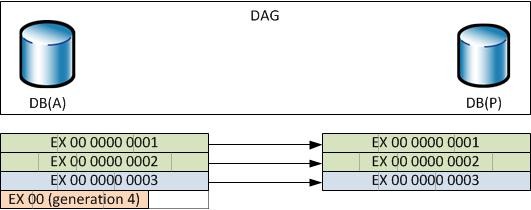
For example, in the diagram below we have a DAG with 2 members. There’s an active database copy, DB(A) and a passive database copy, DB(P). Log files are generated on the node hosting DB(A) which are copied to the 2nd member where they are replayed against the database DB(P). The first three log files (EX*1-3) were copied to the 2nd node, the first two log files (EX*1-2) were inspected and replayed and the 3rd (EX*3) is still being processed. Meanwhile, new transactions are being stored in a new log file (EX*4).
You’ll see that because the Exchange Replication Service will only replicate 100% filled log files before shipping them, there’s a potential risk of information loss.
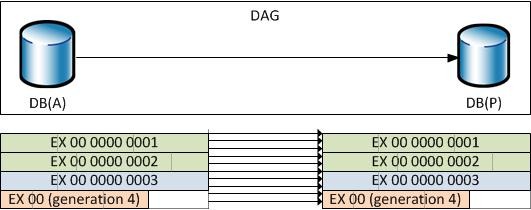
With the introduction of Exchange 2010 SP1 a new mode is added to the replication engine, namely continuous replication block mode. To prevent confusion, as of SP1, the existing mode is referred to as continuous replication file mode.
In block mode, each transaction is shipped directly to the passive copies where it will be buffered as well. When the log file size limit is reached, the host with the passive copy will generate it’s own log file (and inspect it), so the process of generating, inspecting and replaying log files remains unchanged.
The benefit of this mechanism is that there’s less chance of losing information and chance of losing less information, because buffered, unlogged transactions are also stored – in parallel – in buffers on passive copies. During a fail-over, when in block mode, the buffered information will be processed as part of the recovery process. A new log file will be generated using the (partial) information from the buffer, after which the regular recovery process takes place.

On the downside the Exchange Replication Service becomes more chatty on the network as each transaction is shipped individually instead of bundling them together, which is more efficient. That’s however a small price to pay for near-instant replication.
The process of switching to or from block mode is automatic. Initially, the replication is in file mode. When passive copies are current, it switches to block mode. It’ll automatically switch back to file mode when the replication process falls too far behind, i.e. the copy queue contains too many log files.
If you want check if replication is in file or block mode, there’s a BlockReplication section in the Eventlog. Unfortunately, it remains empty, even after setting the logging level of MSExchange*\* to Expert level (and restarting MsExchangeRepl and MSExchangeIS).
There’s a TechNet article here which mentions you can monitor the performance counter “MSExchange Replication\Continuous replication – block mode Active” using Performance Monitor or Get-Counter. For example, to check if block mode is active use the following:
Get-Counter -ComputerName <DAGID> -Counter “\MSExchange Replication(*)\Continuous replication – block mode Active”

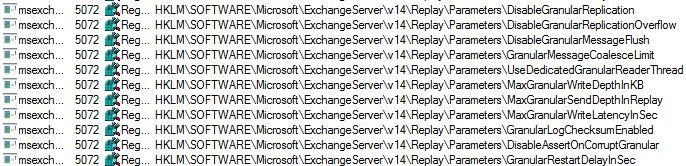
Curious is the behaviour to activate block mode is controllable, I used Sysinternal’s procmon to investigate which registry keys were accessed. It turns out that when starting MsExchangeRepl, there are some interesting registry accesses regarding block mode, when looking for the word “granular”:

That “DisableGranularReplication” setting might imply there’s a way to prevent block mode. Note that all the keys shown above are not present in registry and I can’t find any information on them. I guess Microsoft doesn’t want people to fiddle with these settings, which makes sense since you are likely to break or negatively influence the process. And the last thing you want is a unreliable, lagging replication process because someone tried “tuning” things.




 EighTwOne (821)