Personal Archives not in all Office 2010 versions


Exchange fellow Jetze Mellema reported something interesting, which he blogged about here. Since you’re not all fluent in Dutch, I’ll blog about it too since it’s important to know when planning your upgrade to Exchange 2010 / Outlook 2010 or during customer engagements.

Until now, blogs mention Exchange 2010’s Personal Archive feature as something for which you’d only need an Exchange 2010 mailbox server (with an archive enabled mailbox)  in combination with Outlook WebApp (OWA) or Outlook 2010 with an Enterprise CAL.

Now, by mentioning “Outlook 2010” it sounds like you can use any version of Outlook 2010 for accessing Personal Archives. Unfortunately this isn’t true. The footnote of this article of the Office 2010 Resource Kit states the following:

Personal Archive is available only when you use Outlook 2010 as part of Microsoft Office Professional 2010 or Microsoft Office Professional Plus 2010 with a volume license.

This poses the question if this will be of influence on current Office 2007 users. As you probably know, the update to enable Personal Archives for Outlook 2007 users is expected 1st half of 2011. Does the above statement imply that only Office 2007 Professional users will be able to use Personal Archives after the update and are Office 2007 Standard users – like Office 2010 Standard users – left in the cold?

I’m afraid I don’t have an answer to that question yet, since there’s no information on that subject. I’ll keep you posted.

Exchange 2010 SP1 Rollup 1


Today the Exchange Team released Rollup 1 for Exchange Server 2010 Service Pack 1 (KB2407082). This update raises Exchange 2010 version number to 14.1.255.2.

Here’s the list of changes included in this rollup:

  • 2028967 Event ID 3022 is logged and you still cannot replicate a public folder from one Exchange Server 2010 server to another
  • 2251610 The email address of a user is updated unexpectedly after you run the Update-Recipient cmdlet on an Exchange Server 2010 server
  • 978292 An IMAP4 client cannot send an email message that has a large attachment in a mixed Exchange Server 2010 and Exchange Server 2003 environment
  • 982004 Exchange Server 2010 users cannot access the public folder
  • 983549 Exchange Server 2010 removes the sender’s email address from the recipient list in a redirected email message
  • 983492 You cannot view updated content of an Exchange Server 2010 public folder

When running ForeFront Protection for Exchange, make sure you disable ForeFront before installing the rollup and re-enable it afterwards, otherwise the Information Store and Transport services may not start. You can disable ForeFront using fscutility /disable and enable it by using fscutility /enable

You can download Exchange 2010 SP1 Rollup 1 here.

Retrieving Exchange version information


Last Update: v1.33, October 22nd, 2018

At some time you may want to create an overview of the current Exchange servers in your organisation and the current product levels. The attribute you initially might look at is AdminDisplayVersion, but unfortunately AdminDisplayVersion doesn’t reflect installed roll-ups.

The location that does contain update information is in the registry, more specific the installer subkey related to the installed product. The exact key you should be looking for is depends on whether Exchange Server 2007 or Exchange 2010 is installed. The path is HKLM\SOFTWARE\Microsoft\Windows\CurrentVersion\Installer\UserData\S-1-5-18\Products\$PRODID\Patches\, where $PRODID is:

  • 461C2B4266EDEF444B864AD6D9E5B613 for Exchange 2007.
  • AE1D439464EB1B8488741FFA028E291C for Exchange 2010 or Exchange 2013.
  • 442189DC8B9EA5040962A6BED9EC1F1F for Exchange 2016 or Exchange 2019.

Here subkeys may exist for each applied roll-up.

Looking at the DisplayName we see it contains a full description of the roll-up, prepended with the related Exchange version. Distilling that information using a Powershell script should provide us with the required information.

Below you will find the script, Get-ExchangeVersion.ps1. When running the script, it will show all Exchange 2007 ( v8), Exchange 2010 (v14), Exchange 2013 (v15.0) and Exchange2016 (v15.1) servers with version information, but it will skip Edge server (due to potential firewall issues) or ProvisionedServer (‘server’ is a placeholder).

The output ($output) is sent to the console. You can easily make the script report to a CSV file by removing the comment in front of the line containing the export-CSV cmdlet. The output of Get-ExchangeVersion.ps1 looks something like this:

Feedback
Feedback is welcomed through the comments. If you got scripting suggestions or questions, do not hesitate using the contact form.

Download
You can download the script from the TechNet or from GitHub.

Revisions
Available at the TechNet Gallery.

Exchange Message Size Limits


While traveling trough your Exchange organization or beyond, e-mail messages may be imposed to all sorts of limitations. One of these limits is the message size limit, which can be set on the following levels:

  • Organizational Level
  • Send Connector
  • Receive Connector
  • AD Site Links
  • Routing Group Connectors
  • Individual

The path evaluated is as follows: User Send Limit > Receive Connector > Organization Checks > Send Connector > User Receive Limit

In general, the lowest size limit on an e-mail route determines if a message can be successfully transported from sender to the recipient. Exception is the individual setting which can override the other settings for internal messages. Strategy is to define limits where appropriate and as soon as possible. It’s a waste of resources to accept a message, send it throughout the organization via several hops, to finally reject the message because the recipient has a maximum receive size limit.

Organizational Level
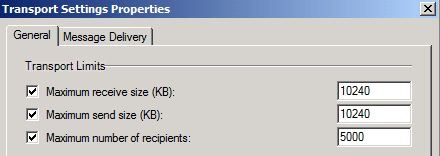
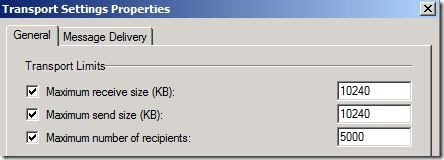
The message size limits on the organization level can be set through the Exchange Management Console via Organization Configuration > Hub Transport > Global Settings by opening the Properties of Transport Settings:
TransportSettings

Of course, you can also view the settings using the Exchange Management Shell using Get-TransportConfig, e.g.

TransportSettings-EMS

As you can see, the default value in Exchange 2010 is 10240 (10 MB) for both receive as well as send message sizes. If you require a higher value, for example to enable people to send and receive larger attachments, you can use the EMC or Set-TransportConfig:

Set-TransportConfig –MaxReceiveSize 25MB –MaxSendSize 25MB

As you might expect, MaxReceiveSize applies to receive connectors, MaxSendSize applies to send connectors. Valid range for this setting is anywhere in the range between 64KB and 2GB or Unlimited. When set to Unlimited (which once was the default values in Exchange 2007 RTM), no limit will be imposed. I don’t recommend using Unlimited since it can lead to service disruption caused by processing large messages.

Send Connector
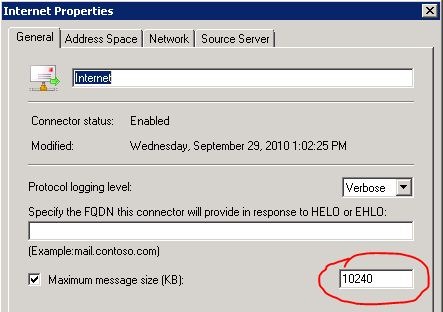
The message size limits on a send connector can be set through the Exchange Management Console via Organization Configuration > Hub Transport > Send Connectors by opening the Properties of the Send Connector:
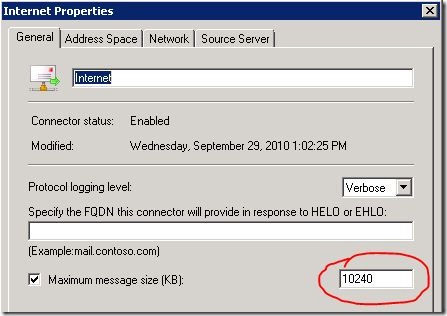
SendConnector-EMC

You can also use Get-SendConnector to view the setting:

SendConnector

The default maximum sending message size for Exchange 2007/2010 send connectors is 10 MB. If you want to be able to send larger messages over this send connector, you can use the EMC or Set-SendConnector:

Set-SendConnector –Identity Internet –MaxMessageSize 25MB

Valid range for this setting is anywhere in the range between 64KB and 2GB or Unlimited.

Receive Connector
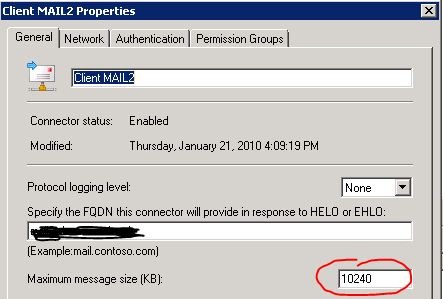
The message size limits on a send connector can be set through the Exchange Management Console via Server Configuration > Hub Transport by opening the Properties of the Receive Connector in the Receive Connectors pane:
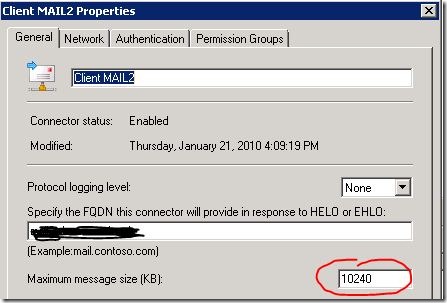
ReceiveConnector-EMC

You can also use Get-ReceiveConnector:

ReceiveConnector

The default maximum receiving message size for receiving messages for Exchange 2007/2010 receive connectors is 10 MB. If you want to be able to receive larger messages over this receive connector, you can use the EMC or Set-ReceiveConnector:

Set-ReceiveConnector –Identity “MAIL1\Default MAIL1” –MaxMessageSize 25MB

Valid range for this setting is anywhere in the range between 64KB and 2GB or Unlimited.

AD Site Link
Messages travelling between Hub Transport servers are subject to AD site link limits. By default site links have no message size limit. You can view AD site link settings using Get-AdSiteLink or use Set-AdSiteLink to configure MaximumMessageSize when required.

ADSiteLink

Note that Hub Transport servers use least cost routing to route messages. When a message exceeds a site link limit, the message will not be delivered. Hub Transport servers will not try to deliver the message using a different route.

Routing Group Connectors
In a co-existence scenario you might have routing group connectors connecting Exchange 2007/2010 to an Exchange 2003 environment. Routing group connectors have no maximum message size limit by default.

To inspect a routing group connector maximum message size settings, use Get-RoutingGroupConnector:

Get-RoutingGroupConnector <ConnectorID> | FL Name, *Max*

To configure a maximum message size limit on a RGC use Set-RoutingGroupConnector:

Set-RoutingGroupConnector <ConnectorID> -MaxMessageSize 25Mb

Individual
You can create exceptions for the MaxReceiveSize and MaxSendSize values for mailbox users, mail-enabled contacts and distribution groups. By default no limits are imposed (i.e. Unlimited). To inspect the settings for a mailbox user, navigate to Recipient Configuration > Mailbox and open the Properties of the User. Activate tab Mail Flow Settings and open the Properties of the Message Size Restrictions settings:
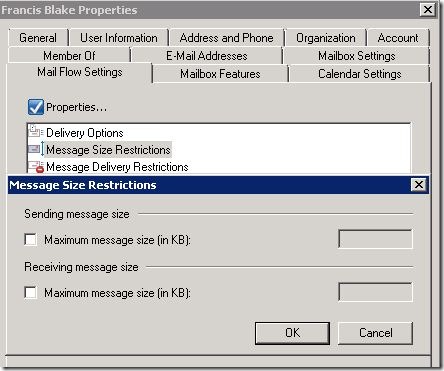
UserMessageSizeSettings

or use the related cmdlet, e.g. Set-Mailbox UserID –MaxSendSize 1GB –MaxReceiveSize 1GB:

UserMessageSizeSettings-EMS

If you set an individual maximum send or receive size setting higher than the organization or connector limits, the individual setting will override those limits when the message is send internally, e.g the recipient resides in the same organization. This way you can create exceptions for certain individuals which require a higher message size limit.

Connecting the Disconnected in Exchange 2010


My article for Simple-Talk on mailbox and personal archive deletion, recovery and purging in Exchange 2010 has been published on Simple Talk.

The article is about:

  • The relationships between Active Directory and Mailboxes and Archives in the store;
  • Mailbox Retention;
  • Deleting and Recovering a Mailbox
  • Deleting and Recovering a Personal Archive
  • Linked Mailboxes
  • Cleanup

You can check out the article, titled Connecting the Disconnected in Exchange 2010, at:
http://www.simple-talk.com/sysadmin/exchange/connecting-the-disconnected-in-exchange-2010/

Note: I submitted the following additional SP1 info to the publisher so this information might be included in the article at some point.

Since writing the article SP1 was released which contains a new cmdlet to purge mailboxes, Remove-StoreMailbox. This is also great for situations when you’ve moved a lot of mailboxes and you need to make that space available in the source database (when moved, mailboxes are soft-deleted). Usage is as follows:

Remove-StoreMailbox -Database <DatabaseID> -Identity <MailboxID> -MailboxState [Disabled|SoftDeleted]

For example, to remove pmortimer’s mailbox from database DB1 after moving it elsewhere, use:

Remove-StoreMailbox –database DB1 –identity pmortimer –MailboxState SoftDeleted

The command to remove all SoftDeleted mailboxes from database DB1 would be:

Get-MailboxStatistics -Database DB1 | where {$_.DisconnectReason -eq “SoftDeleted”} | foreach {Remove-StoreMailbox -Database $_.database -Identity $_.mailboxguid -MailboxState SoftDeleted}

The new Remove-StoreMailbox cmdlet also enables us to use single command for removing all disconnected mailboxes:

Get-MailboxStatistics –Database DB1 | Where-Object {$_.DisconnectReason –eq “Disabled”} | ForEach {Remove-StoreMailbox –Database $_.database –identity $_.mailboxguid –MailboxState Disabled