
Managed AutoResponder Notifications


A long overdue blog on a solution which was created per request of an Exchange fellow. The original scenario is an organization spinning off, thereby changing their primary e-mail domain. They wanted to inform relations and partners using the old e-mail addresses of this change. However, this solution might also be helpful to organizations after merger and acquisitions or rebranding.

For the sake of the example, let us suppose Fabrikam was acquired by Contoso. Targeted mailboxes are migrated from the Fabrikam tenant to the Contoso tenant. Fabrikam will contain Mail-Enabled Users forwarding messages to their Contoso mailbox counterparts. The migrated mailboxes now hosted in Contoso will be configured to send notifications to senders which sent mail to the old Fabrikam address.

While organizations can resort to 3rd party tools to set up an Exchange Transport Rule with a generic message, a little script might also do the job, offering a more granular and controlled solution.

Solution
The scripted solution is available on GitHub here. It will configure an Inbox rule on the targeted Exchange mailbox(es), which would be the new/migrated mailbox. The rule will trigger when messages land in the inbox which were sent to a specific e-mail address, i.e. the previous e-mail address. It will send out an automatic response, which can consist of a custom subject, message body with an optional embedded image. The configuration of the response is defined in an customizable external XML file:

<?xml version="1.0" encoding="ISO-8859-1"?>  
<config>
  <rule>Contoso Autoresponder</rule>
  <subject>Please update your email recipient to Contoso</subject>
  <body>Dear Sender,

Thank you for your message. Fabrikam is now a whole Contoso subsidiary, and the fabrikam.com e-mail address will change to contoso.com. Your e-mail was forwarded to my new e-mail address. 

Please update contact information, distribution lists, etc. to update [OldMail] e-mail references with my new [Identity] e-mail address. 
 
[logo] 
The Contoso Corporation is a multinational business with its headquarters in Paris.</body>
  <logo>Contoso.png</logo>
</config>

The elements that can be used in the config are:

  • <rule> defines the name of the Inbox rule to be created. When the script runs, it will update any existing previously created inbox rules of the same name.
  • <subject> defines the subject of the response.
  • <body> defines the message body. You can use the following macros here:
    • [OldMail] will get replaced with the original e-mail address.
    • [Identity] will get replaced with the new e-mail address.
    • [Logo] will get replaced with the embedded image.
  • Optionally, <logo> refers to the file name of the image to embed.

Requirements
To run the script, you need the following:

  • Exchange Server 2013 SP1 or later, or Exchange Online.
  • Exchange Web Services (EWS) Managed API 2.21 or later (how to, NuGet package exchange.webservices.managed.api).
  • When using modern authentication or OAuth2, the MSAL library is required (NuGet package Microsoft.Identity.Client). Also, you need to have registered an App in Azure Active Directory with sufficient permissions (e.g. full_access_as_app). After registering the app, Tenant ID, Application ID and certificate or secret is what you need to use with the script to run successfully.
  • In addition to installing the NuGet packages, you can also store their DLLs in the same folder as the script for portability.

Usage
The syntax to run the script is as follows:

.\Set-AutoResponderNotification.ps1 -Identity <Identity> -TemplateFile <File> [-TenantId <TenantId> -ClientId <ClientId> [-CertificateThumbprint <ThumbPrint>] [-CertificateFile <File> -CertificatePassword <SecureString>] [-Secret <SecureString>]] [-Credentials <PSCredential>] [-Clear] [-Overwrite] [-Impersonation] [-TrustAll]

The available parameters and switches are as follows:

  • Identity specifies one or more e-mail addresses of mailboxes to process. Identity supports the pipeline (see examples).
  • OldMail specifies one or more old e-mail addresses to use when configuring the autoresponder message. When specifying multiple identities,
    the number of OldMail entries need to match the number of identities.
  • Server specifies the Exchange Web Services endpoint, for example outlook.office365.com for Exchange Online. When omitted, Autodiscover will be used.
  • Impersonation to use impersonation when accessing the mailbox. When using modern authentication, impersonation is mandatory.
  • TrustAll to accept all certificates including self-signed certificates.
  • TenantId specifies the ID of the Tenant when using a mailbox hosted in Exchange Online.
  • ClientId to specify the Application ID of the registered application in Azure Active Directory.
  • Credentials to specify the Basic Authentication credentials for on-premises usage or against Exchange Online when modern authentication is not an option.
  • CertificateThumbprint is the thumbprint of the certificate to use for modern authentication. The certificate with the public key needs to stored with the registered application for authentication. The certificate with the private key should be present in the local certificate store.
  • CertificateFile and CertificatePassword can be used to specify a certificate file to use. The file should contain the private key; the password protecting the certificate file can be specified using CertificatePassword as a secure string.
  • Secret can be used to specify the secret to authenticate using the registered application. The secret needs to be provided as a secure string.
  • Template
    specifies the XML template file to use when configuring or clearing the autoresponder inbox rule. The format has explained above.
  • Clear specifies if any you want to remove the inbox rules with name specified in the template. Use this when you want to remove autoresponder rules from mailboxes. When using Clear, you don’t need to specify OldMail.
  • Overwrite specifies if any existing inbox rules with name specified in the template should be overwritten. When omitted, the script will skip processing
    mailboxes with inbox rules with conflicting names. Use this when you want to configure the autoresponder only on mailboxes which do not have the rule.

Note that usage of the Verbose, Confirm and WhatIf parameters are supported.

Examples
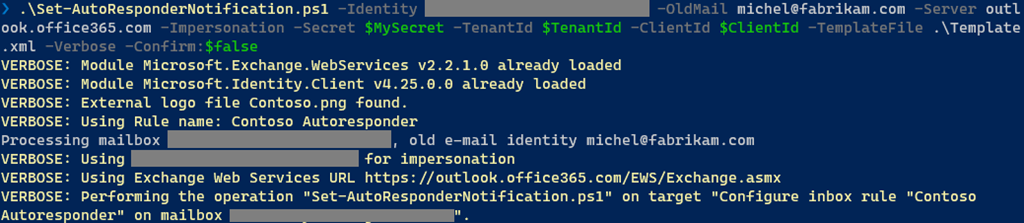
Nothing more explanatory than an example. When we want to configure the autoresponder on a single mailbox, we can use something like:
image

Here, the autoresponder will get configured on the specified mailbox, triggering when mail has been sent to michel@fabrikam.com using the configuration defined in template.xml. Modern authentication will be used for authentication, using variables for Tenant, Client and in this case secret.

When you want to configure autoresponder for multiple mailboxes, you can for example use a CSV file. It needs to contain two elements which will be passed through pipeline, Identity and OldMail:

Identity,OldMail
philip@contoso.com,p.mortimer@fabrikam.com
francis@contoso.com,f.blake@fabrikam.com

After defining the response in a file template.xml, we can use this CSV to configure inbox rules on the Contoso mailboxes identified by Identity, triggering when mail is sent to their OldMail addresses:

Import-CSV -Path Users.csv | .\Set-AutoResponderNotification.ps1 -Server outlook.office365.com -Impersonation -TemplateFile .\Template.xml -TenantId <TenantId> -ClientId <ClientId> -Overwrite -CertificateThumbprint <Thumbprint>

What will happen is that for every set of Identity and OldMail, the mailbox specified by Identity will be configured with an inbox rule. When an existing rule is found, which is determined using the <rule> element in the XML template, it will get overwritten. The specified certificate will be picked from the local certificate store to authenticate against Tenant with TenantId, as application specified by ClientId.

Note that when the user opens Manage Rules & Alerts in Outlook, the configured inbox rule will be visible. This allows the user to remove it when it is no longer required. After a certain period, administrators can centrally remove these rules as well running the script using the Clear switch.

image

And finally, an example of how this may looks to senders when they receive an autoresponse message, using the sample configuration from the beginning of this article.

image

Application Access Policy
When using the script with modern authentication, you can leverage features such as conditional access to set boundaries for script usage. Also, you can configure application access policies to scope the registered app (script) to a subset of mailboxes. To accomplish this, assign an ApplicationAccessPolicy to the app.

To be more convenient in managing permissions, you can define a distribution group and assign the Application Access Policy with group scope (PolicyScopeGroupId). You then only need to add/remove members as you need to configure mailboxes.

More information about Application Access Policies here. Note that the permissions mentioned to not include full_access_as_app as permission, but it works.

EWS, why not Graph?
Microsoft already announced back in 2018 that development on Exchange Web Services will halt in and focus will shift to Graph. As part of this move, a more recent statement announced deprecation of some least-used API per March 2022, stimulating organizations to switch to using Graph. However, the organization looking for a solution wished for an automatic response with HTML as well as an embedded logo. Because of this, I had to use a template as a reply action.

But where Exchange Web Services supports reply with a template, Graph does not offer this functionality. So, until there is more feature parity between Exchange Web Services and Graph, or EWS goes completely out of service, solutions may still be forced to have a look at EWS for certain tasks.

Exchange 2010-2013 Migration and OAB


Ex2013 LogoLast year, Exchange fellows Andrew Higginbotham, Paul Cunningham as well as the Exchange Team reported on checking, and when necessary configuring, your Offline Address Book (OAB) in your current Exchange Server 2010 environment, prior to installing Exchange Server 2013. Not doing so could result in a complete download of the Offline Address Book created by Exchange Server 2013, titled ‘Default Offline Address List (Ex2013)’.

Today I received a report that there is a different symptom of configuration absence. In this case, the customer reported on the inability to download the offline address book, and upon further inspection the Autodiscover server did not report back on the offline address book URL to use. In other words, OAB information was absent from the Autodiscover response, and Outlook gets confused. Note that this issue was reported in Outlook 2010 after installing Exchange Server 2013 Cumulative Update 10. I’m not sure if this change in behavior was introduced in these later builds of Exchange 2013 or Outlook, but it’s still a good thing to know.

The remedy here of course is to configure any (Exchange 2010) mailbox database with unconfigured Offline Address Book setting, and point them to the default offline address book using:

Get-MailboxDatabase | Where-Object {$_.OfflineAddressBook -eq $Null} | Set-MailboxDatabase -OfflineAddressBook (Get-OfflineAddressBook | Where-Object {$_.IsDefault -eq $True})

Client Message Size Limits


powershell

Last Update: Version 1.4, July 19th, 2019

Exchange Server 2013 and Exchange Server 2016 enforces certain message size limits when it comes to client messages. These limits are in-place so clients can’t generate excessive load on your Exchange environment. These limits are determined for various access methods in multiple web.config files on Exchange Client Access Servers as well as Mailbox Servers.

Sometimes you may have good reasons to increase those limits. For example, when migrating to Office 365 using a product like MigrationWiz, you may want to increase the limit for Exchange Web Service (EWS) requests to allow for migration of larger items. Another example is when you want to allow for bigger attachments in Outlook WebApp (OWA). On TechNet, there’s an article on how to reconfigure these limits. However, the process consists of editing multiple web.config files, replacing multiple values in the same file, and following this process on each Exchange 2013/2016 server in your environment. This is not only labor intensive and prone to error, but becomes tedious when you consider that each Cumulative Update will overwrite your web.config files.

But do not despair. To execute these changes for OWA and EWS, I have created a PowerShell script which will perform these tasks for you.

Requirements
Using the script requires Exchange 2013. You need to provide the server name (default is local server) or AllServers to apply to all Exchange 2013/2016 servers in your environment. The script will modify the web.config remotely using the system share (e.g. C$), using the location of the Exchange installation, and uses IISRESET tool to restart IIS. It will create a backup of the web.config before modifying it.

Notes:

  1. The script checks for running in elevated administrator mode when running against the local machine.
  2. Current version of the script requires Exchange Management Shell, to run Exchange cmdlets for checking installed roles a.o., as the web.config files which require editing depend on the installed roles.
  3. For OWA, add ~33% to the value you want to specify to compensate for encoding overhead.
  4. When connected to an Exchange server, the script processes the server hosting the EMS session last to prevent abortion caused by IIS reset.
  5. Script currently runs against Exchange 2013 or Exchange 2016.

Usage
The script Configure-ClientSizeLimits.ps1 uses the following syntax:

.\Configure-ClientSizeLimits.ps1 [-Server |-AllServers] [-OWA <size>] [-EWS <size>] [-EAS <size>] [-Reset] [-NoBackup] 

A quick walk-through on the parameters and switches:

  • Server specifies the server to configure. When omitted, it will configure the local server. This parameter is mutually exclusive with AllServers.
  • AllServers switch specifies to configure all Exchange 2013 servers. This switch is mutually exclusive with Server.
  • OWA configures the message size limit for Outlook Web Access. Value is in bytes.
  • EWS configures the message size limit for Exchange Web Services. Value is in bytes.
  • EAS configures the message size limit for Exchange ActiveSync. Value is in bytes.
  • NoBackup tells the script not to make backup copies of modified web.config files.
  • Reset switch specifies to perform an IISRESET against servers after reconfiguration of client-specific message size limits.

So, suppose you want to configure OWA, EWS and EAS client message size limits on the local Exchange server, you can use:

.\Configure-ClientSizeLimits.ps1 -OWA 15MB -EWS 15MB EAS 15MB
cs

If you want to configure EWS limits for all servers, resetting IIS, you could use:

.\Configure-ClientSizeLimits.ps1 -AllServers -EWS 10240 -Reset

Download
You can download the script from the TechNet Gallery here or GitHub.

Feedback
Feedback is welcomed through the comments. If you got scripting suggestions or questions, do not hesitate using the contact form.

Revision
See TechNet Gallery page.

Clearing AutoComplete and other Recipient Caches


Exchange 2010 Logo

Last version: 1.21, April 28th, 2021: Updated formatting and link to GitHub

Anyone who has participated in migrations or transitions to Exchange has most likely encountered or has had to work around potential issues caused by the nickname cache. A “cache,” also known by its file extension, NK2 in older Outlook clients, is a convenience feature in Outlook and Outlook WebApp (OWA) which lets users pick recipients from a list of frequently-used recipients. This list is displayed when the end user types in the first few letters.

The potential issue revolves around end users using those lists to send messages, as the list contains cached recipient information. Because this information is static, it may become invalid at some point. Thus, when users pick recipients when sending messages, they may be sending messages to non-existent recipients or invalid e-mail addresses, which create issues like non-delivery of e-mail.

Read the full article over on ENow Solutions Engine blog.

Clean-AutoComplete

Using the script mentioned in the article, which can be used to clear cached recipient information, is straightforward. It requires Exchange 2010 or later and Exchange Web Services Managed API 1.2 (or later) which you can download here. Alternatively, you can copy the Microsoft.Exchange.WebServices.DLL with the script as it will also look for it in the current folder.

The script Clean-AutoComplete.ps1 has the following syntax:

Clear-AutoComplete.ps1 [-Mailbox] <String> [-Server <String>] [-Impersonation] [-Credentials <PSCredential>] [-Type <Array>] [-Pattern <String[]>]

Where:

  • Mailbox is the name or e-mail address of the mailbox.
  • Server is the name of the Client Access Server to access for Exchange Web Services. When omitted, the script will use AutoDiscover.
  • Switch Impersonation specifies if impersonation will be used for mailbox access, otherwise the current user context will be used.
  • Credentials specifies the user credentials to use.
  • Type specifies what cached recipient information to clear. Options are Outlook  (Outlook AutoComplete stream), OWA (OWA Autocomplete stream), SuggestedContacts, RecipientCache or All. Default is Outlook,OWA.
  • Pattern is the pattern of e-mail entries to remove from cache. Only works with OWA, SuggestedContacts and RecipientCache type clearances.

So for example, suppose you want to clear the Autocomplete stream used by Outlook on a mailbox, you can use:

Clear-AutoComplete.ps1 -Identity Olrik -Type Outlook -Verbose
ScreenCap

To remove the Autocomplete stream used by OWA on your Office 365 account, you can use:

Clear-AutoComplete.ps1 -Identity olrik@office365tenant.com –Credentials (Get-Credential) –Type OWA

Be advised that clearing the Outlook AutoComplete stream will only have effect for Outlook running in Online mode. Outlook caches this information as well in the OST file, leaving the options of running Outlook with the /CleanAutocompleteCache switch, or remove and let Outlook recreate the OST file. The temporary Stream_AutoComplete *.dat files created under %USERPROFILE%\AppData\Local\Microsoft\Outlook\RoamCache are used by Outlook to speed things up.

Disabling Auto-Complete and Suggested Contacts
Alternatively, you can disable Auto-Complete, the equivalent of unchecking the Outlook option ‘Use Auto-Complete List to suggest names when typing in the To, Cc and Bcc line‘, by setting the following registry key:

Note: In the examples below, you need to modify the version number in the examples corresponding to the Outlook version you wish to apply these settings against. Use 16.0 as indicated for Outlook 2016, but change it to 15.0 for Outlook 2013, or 14.0 for Outlook 2010.

HKEY_CURRENT_USER\Software\Microsoft\Office\16.0\Outlook\Preferences\
ShowAutoSug=0 (REG_DWORD)

To configure this setting using a Group Policy, use the following registry setting:

HKEY_CURRENT_USER\Software\Policies\Microsoft\office\16.0\Outlook\Preferences\ShowAutoSug=0 (REG_DWORD)

You can also disable Suggested Contacts folder, the equivalent of unchecking the Outlook option ‘Automatically create Outlook contacts for recipients that do not belong to an Outlook Address Book’, with the following registry key:

HKEY_CURRENT_USER\Software\Microsoft\office\16.0\Outlook\Contact\CreateContactsForOneOffs= 0 (REG_DWORD)

The related Group Policy setting is:

HKEY_CURRENT_USER\Software\Policies\Microsoft\office\16.0\Outlook\Contact\CreateContactsForOneOffs= 0 (REG_DWORD)

Feedback
Feedback is welcomed through the comments. If you got scripting suggestions or questions, do not hesitate using the contact form.

Download
You can download the script from GitHub here.

Slow Mailbox (Migration) Throughput and HP NIC Drivers


Hewlett-Packard_logo-web[1]A small post on an issue I recently encountered when doing preparations for a mailbox migration. The system was an HP Proliant DL370 G6 system, prepared and configured with the OS and Exchange by the customer’s IT department.

Things looked OK and we were going to perform some test migrations to get an throughput estimation for this configuration  to help us organize migration batches. To our dismay, speeds were way lower than we were used to see with similar configurations; mailboxes were migrated with an average speed of 7-8 MB/min, where we used to see something in the 50-120 range.

A quick look on the performance monitor didn’t show anything out of the ordinary, except for very low downstream network throughput. With the servers (the original Exchange server as well as the new one) being on the same subnet and physically next to each other, networking components were also not deemed suspect (other servers on same switch were not experiencing this issue).

I then tried something simple: copying near 100 MB of files from the source Exchange server to the new one. It went at an ridiculous slow speed of 60-80 KB/s. Copying those same files from the new server to the source server was instantly. I verified this against a vacant server on the same switch; copying from and to the source Exchange server on that server was instant, both up- and downstream.

So, if SMB was having trouble getting packets across, that could explain the slow mailbox migration speeds. Attention shifted to the networking configuration on the new Exchange server, which was equipped with a HP NC375i Integrated Quad Port Multifunction Gigabit Server Adapter. I checked the driver version of one of the NC375i’s instances through Network Connections > Properties (of instance) > Configure > Driver (tab). It reported QLogic Corp. driver 4.7.17.926 (qlxgnd64.sys) was used.

After some searching on HP’s support site I discovered an advisory which could apply to my situation as it applies to the same qlxgnd64.sys driver version 4.7.17.926: c03734205, “Advisory: HP NC Network Adapters – Certain HP NC-Series Network Adapters May Experience Very Slow Bandwidth During Large File Transfers on Windows Server 2008 and Windows Server 2008 R2”.

The advisory gives the option to either keep the driver and disabling Large Receive Offload (LRO) or to upgrade to driver version 4.7.18.131. We choose the latter:

image

After upgrading the driver, we moved a mailbox and and throughput speeds were within the expected range again as we found out when producing a quick stats report using the cmdlet (Exchange 2010):

Get-MoveRequest | Where { $_.Status -eq "Completed" } | Get-MoveRequestStatistics | Select DisplayName,TotalMailboxSize,TotalMailboxItemCount,@{n="Speed MB/min"; e={ [int]($_.BytesTransferred.ToMB() / $_.TotalInProgressDuration.TotalMinutes) }}

image

In my opinion, it’s another fine example of the value of testing and validating your configuration and any amendments you make before putting them in production and be cautious with what I call “blindly updating” of system components such as drivers or driver packs (e.g. HP’s SPP or Service Pack for ProLiant).

If you don’t have the luxury of a test- and acceptance environment, just as with Service Packs, Rollups and Cumulative Updates, have a waiting period and check the vendor’s support site for any reported issues before implementing updates yourself; according to this discussion on the HP support forum, the issue with the 4.7.17.926 QLogic driver existed for quite some time.

