The Attribute, the Myth, the legacyExchangeDN


Exchange 2010 LogoAfter some recent Exchange troubleshooting I decided to do a small write-up on an attribute most people working with Exchange know about, the infamous exchangeLegacyDN.

History
In the early days of Exchange, the NT world was flat. Exchange utilized its own hierarchical X.500 addressing scheme, and to uniquely identify objects it used an attribute called obj-Dist-Name (similar to distinguishedName nowadays). It contained a constructed value using elements like organization, containers and the canonical name to construct the entry, e.g. /o=Contoso/ou=EMEA/cn=Recipients/cn=User.

Then came the introduction of Active Directory with the release of Windows Server 2000. In AD, while you could refer to object using obj-Dist-Name’s counterpart distinguishedName, objects are primarily identified using their static Global Unique Identifier (GUID). The distinguishedName is constructed using relative names like the OU and CN, e.g. CN=User,OU=EMEA,DC=contoso,DC=com. Because it’s dynamic, the distinguishedName will change when you move or rename the object.

For backward compatibility with older versions of Exchange, clients or 3rd party tooling the legacyExchangeDN attribute was introduced which was to provide a unique key for the Exchange object. A process called Recipient Update Service (RUS) was responsible for populating the legacyExchangeDN value using the current location in conjunction with the given name (CN). Since Exchange 2007, legacyExchangeDN is set at creation time or can be updated manually using the Update-Recipient cmdlet. When a conflicts are detected, a unique value was constructed by adding a GUID-like series of hex characters.

When public folders are used for publishing Free/Busy information, the legacyExchangeDN was used to determine in which public folder the information was published. More information on this in an earlier blog here.

Typical values for the legacyExchangeDN attribute are:

  • Pre-Exchange 2007:
    • /o=Contoso/ou=First Administrative Group/cn=Recipients/cn=UserA
  • Exchange 2007 and later:
    • /o=Contoso/ou=Exchange Administrative Group (FYDIBOHF23SPDLT)/cn=Recipients/cn=UserA

Until Exchange 2010 SP1 Rollup 6 the legacyExchangeDN value was predictable, but as of this Rollup (and Exchange 2013), 3 random hex characters are added for uniqueness.

Exchange Internal Addressing
While SMTP addressing is the de facto e-mail addressing standard, Exchange internally still uses an X.500 addressing scheme. Using X.500 implies that an X.500 is required, which is why mail objects in an Exchange organization such as mailboxes, require a properly populated legacyExchangeDN.

The most encountered symptom of not having properly populated or unpopulated legacyExchangeDN attributes is failure of e-mail delivery or transport, which I’ll elaborate on a bit below. I’ll mention it again: legacyExchangeDN is required, unlike some Exchange admins I overheard a while ago when they were looking for the cause of several NDRs discussing SMTP was used so it should be ‘no problem’.

IMCEA and IMCEAEX
When sending a message, the sender and recipient are checked against the Global Address List (GAL). When it can’t find a match in the GAL, IMCEA encapsulation is used which stands for Internet Mail Connector Encapsulated Addressing. An IMCEA encapsulated address looks like:

IMCEAEX-_O=CONTOSO_OU=First+20Administrative+20Group_cn=Recipients_cn=philip@contoso.com

A trailing “EX” at the end of IMCEAEX indicates that a non-SMTP address was encapsulated. The used SMTP domain “contoso.local”  is taken from the GAL object unless the lookup failed; in that case the forest DN is used.

Migrations and Co-existence Issues
Clients like Outlook cache information like the legacyExchangeDN for name lookups (the infamous name cache or .nk2 files). It will also store the legacyExchangeDN (PR_EMAIL_ADDRESS) with e-mail item. This is used when replying to old e-mail and which is why you’ll see X.500 addresses when you open the e-mail outside of the organization.

While using the legacyExchangeDN makes your client insensitive to e-mail address changes, name changes etc. it will provide a (small) challenge when for example a mailbox is moved to a different forest (or to or from Office 365 for that matter) as it will get a new legacyExchangeDN value.

To attach those old legacyExchangeDN addresses to an object in the new environment, add an X.500 entry to the proxy addresses (X.500 refers to the protocols built on the X.400 standard), e.g. X500:/o=Contoso/ou=First Administrative Group/cn=Recipients/cn=UserA.

When the target environment already contains a mail-enabled contact, ideally you want to preserve the current legacyExchangeDN as x500 address on the mailbox object (depending on if the solution transforms the contact of creates a new object). This way, users in the target environment won’t be getting NDRs because their legacyExchangeDN became invalid by the move, e.g.

Delivery has failed to these recipients or groups:
Philip Mortimer
The e-mail address you entered couldn’t be found. Please check the recipient’s e-mail address and try to resend the message. If the problem continues, please contact your helpdesk
Diagnostic Information for administrators:
Generating Server: L13L14EX1.fabrikam.local
IMCEAEX-_O=CONTOSO_OU=First+20Administrative+20Group_cn=Recipients_cn=philip@contoso.com

In this case, the user tried to reply using the X.500 address /O=Contoso/OU=First Administrative Group/cn=Recipients/cn=philip. contoso.local (later more on address conversion).

If preserving the contact’s legacyExchangeDN isn’t possible, you could collect existing legacyExchangeDN values and stamp them as X500 address on the mailbox before or after moving it.

Unpopulated legacyExchangeDN
As explained earlier, the legacyExchangeDN is required for mail-enabled Exchange objects, including mail-enabled contacts. I’ve seen contacts with unpopulated legacyExchangeDN attributes in situations where the GAL Sync tool was misconfigured.

Sending an e-mail to such a contact will also result in an NDR:

Delivery has failed to these recipients or groups:
Francis Blake
The e-mail address you entered couldn’t be found. Please check the recipient’s e-mail address and try to resend the message. If the problem continues, please contact your helpdesk
Diagnostic Information for administrators:
Generating Server: L13L14EX1.fabrikam.local
IMCEAEX-_O=NT5_ou=00000000000000000000000000000000_cn=4D182F9E133B564F88CA6A86830D4314@contoso.local
#550 5.1.1 RESOLVER.ADR.ExRecipNotFound; not found ##

Solving this situation depends on the solution used. Basically, GAL Sync or Identity Management products directly manipulate AD objects, bypassing the regular process like provisioning Exchange attributes. Therefor, they should call “Update-Recipient” to provision Exchange attributes like the legacyExchangeDN or any e-mail addresses to be set via E-Mail Address Policies.

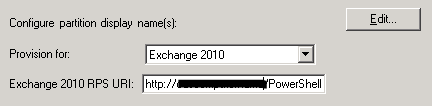
Microsoft’s Identity Management product, ForeFront Identity Manager’s, contains a GAL agent which has a setting which will trigger the provisioning of Exchange attributes. Make sure this setting is enabled and you provided a valid URI:
image

Reporting
Instead of waiting for users to report on (internal) NDR messages, you can consult the transport logs for failed delivery messages. For example, to report on all NDR messages of the last 7 days on all transport servers, you can run the following cmdlet from the Exchange Management Shell:

Get-TransportServer | Get-MessageTrackinglog -EventID FAIL -Start (Get-Date).AddDays(-7) -ResultSize Unlimited | Where {$_.Recipients -match "^IMCEAEX*"}

NDRReportReconstructing legacyExchangeDN
If for some reason you need to reconstruct the X.500 address using the information from the NDR message, support article KB2807779 contains a short instruction or utilize the small interactive script below to convert the reported IMCEAEX address to an X500 entry:

$Addr= Read-Host "Enter full IMCEAEX address:"
$Repl= @(@("_","/"), @("\+20"," "), @("\+28","("), @("\+29",")"), @("\+2C",","), @("\+3F","?"), @("\+5F", "_" ), @("\+40", "@" ), @("\+2E", "." )) 
$Repl | ForEach { $Addr= $Addr -replace $_[0], $_[1] } 
$Addr= "X500:$Addr" -replace "IMCEAEX-","" -replace "@.*$", "" 
Write-Host $Addr

Feedback
Feedback is welcomed through the comments. If you got scripting suggestions or questions, do not hesitate using the contact form.

Removing Duplicate Items from a Mailbox


powershellLatest version: 2.41, April 18th, 2023

For those involved with Exchange migration projects or managing Exchange environments, at some point you probably have experienced the situation where people ended up with duplicate items in their mailbox. Duplicate items can be caused by many things, but most common are:

  • Synchronization tools or plug-in. Entries from the mailbox are treated as new entries and as a consequence are added to the mailbox when synchronizing information back to the mailbox, creating duplicates. In the past, I’ve seen this happening with Nokia PC Suite and Google Apps Sync for example;
  • Importing existing data. Accidental import from – for example – a PST file to a mailbox  can lead to duplicate entries.

image

When looking for a solution, you’ll probably encounter MSKB299349, “How to remove duplicate imported items in Outlook”. This article describes a manual procedure to remove duplicates entries from your calendar, contacts, inbox or other folders. Not a very helpful and labor intensive.

When continuing your search, you’ll find lots (I mean lots!) of tools and Outlook add-ins, like Vaita’s DIR or MAPILab’s Duplicate Remover. Not all this software is free (some even require payment per duplicate removal of appointments, contacts or e-mail) and some might not even work (MAPI-based tools may not work against Exchange 2013).

When you finally have selected a tool, in most cases they require installation of a piece of software and someone to perform the removal process using the tool or Outlook with add-in. When you’re an Apple shop you’ll require different tools, unless you’re running a Windows desktop somewhere (I’ll just pretend I didn’t hear you saying ‘Why don’t you install the tool on the Exchange server’).

Wouldn’t it be nice if you’d have a PowerShell script you can conveniently run from any workstation (or server) with PowerShell installed, removing those duplicate items from a user’s mailbox remotely? If the answer is yes, the Remove-DuplicateItems.ps1 script may be something for you.

Requirements
Using the Remove-DuplicateItems.p1 script requires Exchange Web Services (EWS) Managed API and for OAuth authentication the Microsoft Authentication Library (MSAL) libraries. You can install these packages from NuGet, or place their DLL’s in the same folder as the script. For an example of how to install EWS.Managed.Api from NuGet, see this article; for MSAL follow the same process but with the package titled ‘Microsoft.Identity.Client’.

Also take notice that since you’ll be processing user mailboxes, you’ll need to have full mailbox access or impersonation permissions when using Basic Authentication; the latter is preferred. For details on how to configure impersonation for Exchange On-Premises or Office 365, see this blog post. Using a registered app with OAuth is always through Impersonation.

Usage
The script Remove-DuplicateItems.ps1 uses the following syntax:

Remove-DuplicateItems.ps1 [[-Identity] ] [[-Type] ] [-Retain ] [-Server ] [-Impersonation] [-DeleteMode ] [-Credentials ] [-Mode ] [-MailboxOnly] [-ArchiveOnly] [-IncludeFolders <String[]>] [-ExcludeFolders <String[]>] [-PriorityFolders <String[]>] [-NoSize] [-CleanupMode] [-NoProgressBar] [-Force] [-WhatIf] [-Confirm] [-Secret] [-CertificateThumbprint] [-CertificateFile] [-CertificatePassword] [-TenantId] [-ClientId] [-TrustAll] [-ExchangeSchema <String>] [-NoSCP]

A quick walk-through on the parameters and switches:

  • Identity is the e-mail address or name of the mailbox to process. If name is used, it is matched against cn/SAMAccountname/email address of local AD.
  • Type determines what folders are checked for duplicates. Valid options are Mail, Calendar, Contacts, Tasks, Notes or All (Default).
  • Retain determines which item to retain by comparing last modification times. Valid options are Newest (default) or Oldest.
  • Server is the name of the Client Access Server to access for Exchange Web Services. When omitted, the script will attempt to use Autodiscover.
  • When the Impersonation switch is specified, impersonation will be used for mailbox access, otherwise the current user context will be used.
  • DeleteMode specifies how to remove messages. Possible values are HardDelete (permanently deleted), SoftDelete (use dumpster, default) or MoveToDeletedItems (move to Deleted Items folder).
  • Mode determines how items are matched. Options are Quick, which uses PidTagSearchKey and is the default mode, or Full which uses a predefined set of attributes to match items, depending on the item class:
ItemClass Criteria
Contacts File As, First Name, Last Name, Company Name, Business Phone, Mobile Phone, Home Phone, Size
Distribution List FileAs, Number of Members, Size
Calendar Subject, Location, Start & End Date, Size
Task Subject, Start Date, Due Date, Status, Size
Note Contents, Color, Size
Mail Subject, Internet Message ID, DateTimeSent, DateTimeReceived, Sender, Size
Other Subject, DateTimeReceived
  • MailboxOnly specifies you only want to process the primary mailbox of specified users. You als need to use this parameter  when running against mailboxes on Exchange Server 2007.
  • ArchiveOnly specifies you only want to process personal archives of specified users.
  • IncludeFolders specifies one or more names of folder(s) to include, e.g. ‘Projects’. You can use wildcards around or at the end to include folders containing or starting with this string, e.g. ‘Projects*’ or ‘*Project*’. To match folders and subfolders, add a trailing \*, e.g. Projects\*. This will include folders named Projects and all subfolders. To match from the top of the structure, prepend using ‘\’. Matching is case-insensitive.
  • ExcludeFolders specifies one or more folder(s) to exclude. Usage of wildcards and well-known folders identical to IncludeFolders.
    Note that ExcludeFolders criteria overrule IncludeFolders when matching folders.
  • CleanupMode specifies to cleanup duplicates per folder (Folder, default), the whole mailbox (Mailbox), or multiple mailboxes (MultiMailbox, identities specified using Identity). The first unique item encountered will be retained. For Mailbox-level cleanup, PriorityFolders can be used to give priority to retaining items in specified folders before those found in other folders.
  • PriorityFolders specifies which folders have priority over other folders, identifying items in these folders first when using MailboxWide mode. Usage of wildcards and well-known folders is identical to IncludeFolders.
  • NoSize tells script to not use size to match items in Full mode.
  • NoProgressBar prevents displaying a progress bar as folders and items are being processed.
  • Report reports individual items detected as duplicate. Can be used together with WhatIf to perform pre-analysis.
  • TrustAll can be used to accept all certificates, e.g. self-signed certificates or when accessing Exchange using endpoint with a different certificate.
  • ExchangeSchema can be used to specify the Exchange schema to use when connecting to Exchange server or Exchange Online. Defaults to Exchange2013_SP1 or Exchange2016 when -Server is specified and is ‘outlook.office365.com’ (Exchange Online endpoint).
  • NoSCP to skip SCP lookups in Active Directory for Autodiscover.

For authentication, the following parameters are available:

  • Credentials specifies credentials to use for Basic Authentication.
  • TenantId specifies the identity of the Tenant (OAuth)
  • ClientId specifies the Id of the registered application (OAuth).
  • CertificateThumbprint specifies the thumbprint of the certificate from personal store to use for authentication (OAuth).
  • CertificateFile specifies the external certificate file (pfx) to use for authentication (OAuth). This certificate needs to contain a private key; the registered application needs to contain the certificate’s public key.
  • CertificatePassword optionally specifies the password to use with the certificate file (OAuth).
  • Secret specifies the secret to use with the application (OAuth).

Few notes:

  • When MoveToDeletedItems is specified, the Deleted Items folder will be skipped;
  • When Type is omitted or set to All, all folders are scanned, including folders like Conversation History, RSS Feeds, etc.;
  • When Quick mode is used and PidTagSearchKey is missing or inaccessible, search will fall back to Full mode;
  • For more info on PidTagSearchKey, see http://msdn.microsoft.com/en-us/library/cc815908.aspx. Note that PidTagSearchKey will have duplicate values for copied objects.
  • You need to specify MailboxOnly when running against mailboxes on Exchange Server 2007 as the Exchange 2010 personal archive options in EWSare not support in Exchange 2007 mode.

Well-Known Folders
For IncludeFolders, ExcludeFolders and PriorityFolders, you can also use well-known folders using this format: #WellKnownFolderName#, e.g. #Inbox#. Supported are #Calendar#, #Contacts#, #Inbox#, #Notes#, #SentItems#, #Tasks#, #JunkEmail# and #DeletedItems#. The script uses the currently configured Well-Known Folder of the mailbox to be processed.

Patterns
Here are some examples of using pattern matching in IncludeFolders, ExcludeFolders or PriorityFolders, based on the following tree structure:

+ TopFolderA
  + FolderA
    + SubFolderA
    + SubFolderB
  + FolderB
+ TopFolderB

The following filters will match folders from the above structure:

Filter Matches
FolderA \TopFolderA\FolderA, \TopFolderB\FolderA
Folder* \TopFolderA\FolderA, \TopFolderA\FolderB, \TopFolderA\FolderA\SubFolderA, \TopFolderA\FolderA\SubFolderB
FolderA\*Folder* \TopFolderA\FolderA\SubFolderA, \TopFolderA\FolderA\SubFolderB
\*FolderA\* \TopFolderA, \TopFolderA\FolderA, \TopFolderA\FolderB, \TopFolderA\FolderA\SubFolderA, \TopFolderA\FolderA\SubFolderB, \TopFolderB\FolderA
\*\FolderA \TopFolderA\FolderA, \TopFolderB\FolderA

Usage
So, suppose you want to remove  duplicate Appointments from the calendar of mailbox migtester1 using attribute matching, moving duplicate items to the DeletedItems, using Impersonation and you want to generate extra output using Verbose. In such case, you could use the following cmdlet:

Remove-DuplicateItems.ps1 -Identity migtester1 -Type Calendar -Impersonation -DeleteMode MoveToDeletedItems -Mode Full -Verbose

image

Alternative, you can use an e-mail address and specify credentials.  This allows the script to run against mailboxes in Office 365, for example:

Remove-DuplicateItems.ps1 -Identity olrik@office365tenant.com -Type Mail -DeleteMode MoveToDeletedItems -Mode Full -Credentials (Get-Credential) -Retain Oldest

A more complex example using IncludeFolders, ExcludeFolders and PriorityFolders:

$Credentials= Get-Credential
 .\Remove-DuplicateItems.ps1 -Mailbox olrik@office365tenant.com -Server outlook.office365.com -Credentials $Credentials -IncludeFolders '#Inbox#\*','\Projects\*' -ExcludeFolders 'Keep Out' -PriorityFolders '*Important*' -CleanupMode Mailbox

This will remove duplicate items from the specified mailbox in Office365, using the following options:

  • Fixed Server FQDN – bypassing AutoDiscover.
  • Limits operation against the Well-Known Inbox folder, top Projects folder, and all of their subfolders.
  • Excluding any folder named Keep Out.
  • Duplicates are checked over the whole mailbox.
  • Priority is given to folders containing the word Important, causing items in
    those folders to be kept over items in other folders when duplicates are found.

In case you want to process multiple mailboxes, you can use a CSV file which needs to contain the Identity field. An example of how the CSV could look:

Identity
francis
philip

The cmdlet could then be something like:

Import-CSV users.csv1 | Remove-DuplicateItems.ps1 ..

Download
The script is available on GitHub here.

Feedback
Feedback is welcomed through the comments. If you got scripting suggestions or questions, do not hesitate using the contact form.

Removing Messages by Message Class


powershellLast version: 2.00, February 27th, 2021

Recently, I was asked if it is possible to remove stub items. The reason was they were going to transition to a newer version of Exchange and they wouldn’t be using the archiving solution in the new environment. When required, vendor tooling would be used to search through the existing archives.

In such cases it makes sense to remove the stubs from the mailbox, which are shortcut messages that points to a copy of the original message in the archive solution. The new environment won’t contain the required Outlook plugins or extensions to retrieve the original message from the archive using the stub, making the stub lead to a partial or empty message.

To identify stubs, one can filter on an attribute of each item, MessageClass. This attribute defines which kind of item it is (in fact, determines what form Outlook should use in order to present or process the information). Examples of MessageClass definitions are IPM.Note (regular e-mail messages), IPM.Note.EnterpriseVault.Shortcut (message archived by Enterprise Vault) or IPM.ixos-archive (message archived by Opentext/IXOS LiveLink E-Mail Archive).

To identify stubs from Outlook, add the Message Class field to your Outlook view, e.g.:

StubsOutlook

When you want to remove the stubs using Outlook, you can utilize the Advanced Find function of Outlook, but that is a very labor intensive, tedious and non-centralized per-mailbox procedure:

SearchFromOutlook

Requirements
Using the script requires Exchange Web Services (EWS) Managed API and for OAuth authentication the Microsoft Authentication Library (MSAL) libraries. You can install these packages from NuGet, or place their DLL’s in the same folder as the script. For an example of how to install EWS.Managed.Api from NuGet, see this article; for MSAL follow the same process but with the package titled ‘Microsoft.Identity.Client’.

Also take notice that since you’ll be processing user mailboxes, you’ll need to have full mailbox access or impersonation permissions when using Basic Authentication; the latter is preferred. For details on how to configure impersonation for Exchange On-Premises or Office 365, see this blog post. Using a registered app with OAuth is always through Impersonation.

Usage
The script Remove-MessagesClassItems.ps1 uses the following syntax:

Remove-MessageClassItems.ps1 [-Identity]  [-MessageClass] [-Type] [-Server ] [-Impersonation] [-DeleteMode ] [-Type] [-Before ] [-MailboxOnly] [-ArchiveOnly] [-IncludeFolders] -ExcludeFolders [-NoProgressBar] [-Force] [-WhatIf] [-Confirm] [-Secret] [-CertificateThumbprint] [-CertificateFile] [-CertificatePassword] [-TenantId] [-ClientId] [-TrustAll]

A quick walk-through on the parameters and switches:

  • Identity is the name or e-mail address of the mailbox.
  • MessageClass specifies the Message Class to remove, for example IPM.Note.EnterpriseVault.Shortcut (EnterpriseVault). You can use wildcards around or at the end to include folders containing or starting with this string, e.g. ‘IPM.ixos*’ or ‘*EnterpriseVault*’. Matching is always case-insensitive.
  • Server is the name of the Client Access Server to access for Exchange Web Services. When omitted, the script will attempt to use Autodiscover.
  • Type determines what folder class to process. Options are Mail, Calendar, Contacts, Tasks, Notes or All (Default).
  • Switch Impersonation specifies if impersonation will be used for mailbox access, otherwise the current user context will be used.
  • DeleteMode specifies how to remove messages. Possible values are HardDelete (permanently deleted), SoftDelete (use dumpster, default) or MoveToDeletedItems (move to Deleted Items folder). Note that the Deleted Items folder will be processed, unless MoveToDeletedItems is used.
  • Before can be used to only remove items received before specified date.
  • MailboxOnly specifies you only want to process the primary mailbox of specified users. You als need to use this parameter  when running against mailboxes on Exchange Server 2007.
  • ArchiveOnly specifies you only want to process personal archives of specified users.
  • IncludeFolders specifies one or more names of folder(s) to include, e.g. ‘Projects’. You can use wildcards around or at the end to include folders containing or starting with this string, e.g. ‘Projects*’ or ‘*Project*’. To match folders and subfolders, add a trailing \*, e.g. Projects\*. This will include folders named Projects and all subfolders. To match from the top of the structure, prepend using ‘\’. Matching is case-insensitive.
  • ExcludeFolders specifies one or more folder(s) to exclude. Usage of wildcards and well-known folders identical to IncludeFolders.
    Note that ExcludeFolders criteria overrule IncludeFolders when matching folders.
  • NoProgressBar prevents displaying a progress bar as folders and items are being processed.
  • ReplaceClass specifies that instead of removing the item, its PR_MESSAGE_CLASS class property will be modified to this value. For example, can be used in conjunction with MessageClass to modify any IPM.Note items pending Evault archival back to regular items, using: -MessageClass IPM.Note.EnterpriseVault.PendingArchive -ReplaceClass IPM.Note
  • Report reports individual items detected as duplicate. Can be used together with WhatIf to perform pre-analysis.
  • TrustAll can be used to accept all certificates, e.g. self-signed certificates or when accessing Exchange using endpoint with a different certificate.

For authentication, the following parameters are available:

  • Credentials specifies credentials to use for Basic Authentication.
  • TenantId specifies the identity of the Tenant (OAuth)
  • ClientId specifies the Id of the registered application (OAuth).
  • CertificateThumbprint specifies the thumbprint of the certificate from personal store to use for authentication (OAuth).
  • CertificateFile specifies the external certificate file (pfx) to use for authentication (OAuth). This certificate needs to contain a private key; the registered application needs to contain the certificate’s public key.
  • CertificatePassword optionally specifies the password to use with the certificate file (OAuth).
  • Secret specifies the secret to use with the application (OAuth).

Well-Known Folders
For IncludeFolders, ExcludeFolders, you can also use well-known folders using this format: #WellKnownFolderName#, e.g. #Inbox#. Supported are #Calendar#, #Contacts#, #Inbox#, #Notes#, #SentItems#, #Tasks#, #JunkEmail# and #DeletedItems#. The script uses the currently configured Well-Known Folder of the mailbox to be processed.

Patterns
Here are some examples of using pattern matching in IncludeFolders or ExcludeFolders, based on the following tree structure:

+ TopFolderA
  + FolderA
    + SubFolderA
    + SubFolderB
  + FolderB
+ TopFolderB

The following filters will match folders from the above structure:

Filter Matches
FolderA \TopFolderA\FolderA, \TopFolderB\FolderA
Folder* \TopFolderA\FolderA, \TopFolderA\FolderB, \TopFolderA\FolderA\SubFolderA, \TopFolderA\FolderA\SubFolderB
FolderA\*Folder* \TopFolderA\FolderA\SubFolderA, \TopFolderA\FolderA\SubFolderB
\*FolderA\* \TopFolderA, \TopFolderA\FolderA, \TopFolderA\FolderB, \TopFolderA\FolderA\SubFolderA, \TopFolderA\FolderA\SubFolderB, \TopFolderB\FolderA
\*\FolderA \TopFolderA\FolderA, \TopFolderB\FolderA

Example
Suppose you want to remove  IPM.Note.EnterpriseVault.Shortcut items from the mailbox of user1 and personal archive when enabled, moving the items to the DeletedItems by Impersonation. In such case, you could use the following cmdlet:

Remove-MessageClassItems.ps1 -Identity user1 -MessageClass IPM.Note.EnterpriseVault.Shortcut -DeleteMode MoveToDeletedItems -Impersonation –Verbose 

Note: Screenshot shows Mailbox parameter, which is per 1.52 renamed to Identity

SampleOutput

Note: By default, Remove-MessageClassItems will only search IPF.Note class folders (i.e. containing mail items), so you’ll only see those being processed. If you want all folders scanned (also classless), use the ScanAllFolders switch.

The script also supports Office 365. For example, to remove all items with ‘Enterprise’ in their message class text, received before 1/1/2014, only from the primary mailbox, excluding the folder Personal, using Basic Authentication, you can use:

$Credentials= Get-Credential
Remove-MessageClassItems.ps1 -Identity olrik@office365tenant.com -DeleteMode MoveToDeletedItems -MessageClass *EnterpriseVault* -Before 1/1/2014 -MailboxOnly -ExcludeFolder Personal -Credentials $Credentials

In case you want to process multiple mailboxes, you can use a CSV file which needs to contain the Identity field. An example of how the CSV could look:

Identity
francis
philip

The cmdlet could then be something like:

Import-CSV users.csv1 | Remove-MessageClassItems.ps1 -MessageClass IPM.Note.EnterpriseVault.Shortcut -DeleteMode HardDelete 

Feedback
You’re feedback is welcomed through the comments; if you got scripting suggestions, please use the contact form.

Download
You can download the script from the GitHub here.

New-MoveRequest fails with “Database .. doesn’t exist”


Exchange 2010 LogoA quick write up on something which you might encounter when trying to move mailboxes across forests. Often, operators don’t always have full access permissions in both environments and rely on provided accounts or delegated permissions to execute the move.

Suppose you’re in the target environment and are asked to migrate mailboxes cross-forest from a previous version of Exchange to Exchange 2010. One of the first steps would be to run the Prepare-MoveRequest.ps1 script to prepare the target object and populate it with Exchange-related attributes from the source environment.

You then come at a point in such a migration, after running Active Directory Migration Tool – ADMT and perhaps some additional tweaks, when you need to actually move the user’s mailbox. So, you enter for example:

$cred= Get-Credentials
New-MoveRequest –Identity UserX –RemoteLegacy –TargetDatabase DB1 -RemoteGlobalCatalog SourceDC –RemoteCredential $cred –TargetDeliveryDomain maildomain.com

Mailbox move request are being queued but for some mailboxes you may encounter the following error message: “Database xxxxx-xxxx-xxxx-xxxx-xxxxx doesn’t exist”. That error message may get you worrying, but let’s investigate.

image

We’re in the target environment and the source environment is running a legacy version of Exchange so setting up a remote PowerShell session and using Get-MailboxDatabase <GUID> is not an option. All roads lead to Rome when querying Active Directory, but in this case let’s load up our trusty LDP to look up that GUID; it should map to a database in the source environment.

In LDP, use Connection > Connect and enter the name of a remote domain controller, like the one specified as RemoteGlobalCatalog, in our example RemoteDC. Then, use Bind providing the credentials you used with RemoteCredential.

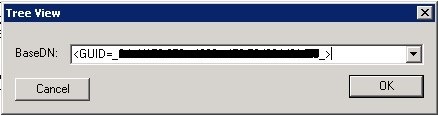
Next, select View > Tree and use <GUID=xxxxx-xxxx-xxxx-xxxx-xxxxx> as BaseDN (replace those x’s with the GUID reported by the failing New-MoveRequest and make sure you include those less and greater than symbols).

CantMoveLookup

Now, normally the database object with that GUID and its properties will be returned. If not, something is probably wrong with the permissions on the mailbox, directly or indirectly. Depending on whether you’re able to migrate other users from the same database, server up to the organization, you can rule out if it’s a per-mailbox issue, database permission issue etc.

This proves that as always, preparation is everything. Therefor, prior to migration be sure to check or correct effective permissions on mailboxes to prevent any surprises in that area when you’re actually migrating.

Note that the permission ACLs on a mailbox needs to be in a so-called non-canonical order. To fix this, you may find the FixMailboxSD utility helpful. More information on the importance of canonical ordering of mailbox permissions in Exchange here.

Fixing Well-Known Folders Troubles (Update)


powershellLast update: Version 1.47, April 17th, 2017

Depending on your migration scenario, you could be exporting and importing PST files when migrating mailbox contents from one Exchange environment to another. Now folders in PST files are just folders, i.e. Inbox is a folder just like any other folder and well-known folders lose their identification. Because of this, you may end up with unexpected additional folders in your mailbox after importing PST files.

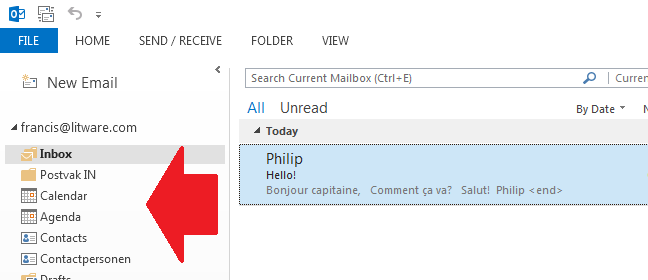
For example, when importing a non-US mailbox PST in a mailbox set to en-US you may end up with well-known folders and their regional counterparts, e.g. “Inbox” and “Postvak In” or “Calendar” and “Agenda”.

image

It can also happen that you import the PST file before setting the regional settings of the mailbox. In that case the folders with the local names are already present and Exchange will generate sequence number folders, e.g. Inbox1 or Calendar1.

image

Note that the above behavior goes for all well-known folders, such as Inbox, Calendar, Contacts and Sent Items. Users logging in early, i.e. logging on to their mailbox while they shouldn’t, can also create these situations.

One way to fix this situation is to manually move contents to the proper location using an e-mail client, which is tedious and something you don’t want to trouble end users or admins with. Another way is to set the mailbox’ regional configuration before importing the PST file.

A better way is of course to have an Exchange Management Shell script which talks to Exchange Web Services, essentially doing the same but in an automated kind of fashion. Here’s where the Fix-MailboxFolder.ps1 script comes into play. Using Fix-MailboxFolders.ps1 requires Exchange 2010 SP1 and Exchange Web Services 1.2 (or later), which you can download here. The script hasn’t been tested yet against Exchange 2013.

Since the script will process user mailboxes, it needs to be run by a user with full mailbox permissions or impersonation permissions. Granting full mailbox access can be done on several levels, e.g. mailbox or database. For example, to grant ExAdmin Full Access on a mailbox:

Add-MailboxPermission –Identity User –User ExAdmin –AccessRight FullAccess

However, a more elegant and preferred method is to utilize impersonation through Role-Based Access Control (RBAC). Information on configuring impersonation in your Exchange environment using RBAC is found here. As an example, to grant ExAdmin permissions to impersonate all(!) users in an organization, use the following cmdlets:

New-ManagementRoleAssignment –Name:impersonationAssignmentName –Role:ApplicationImpersonation –User:ExAdmin

After executing this cmdlet, the account ExAdmin can succesfully impersonate mail-enabled users. To limit impersonation to a certain subset of the user population, you could use a write scope; for more information on RBAC and write scopes, check out my past blog on this topic here.

Fix-MailboxFolders.ps1 uses the following syntax:

Fix-MailboxFolders.ps1 [-Identity]  [[-Language] ] [[-FromLanguage] ] [[-Server] ] [-ScanNumericals] [-Impersonation] []

A quick walk-through on the parameters and switches:

  • Mailbox is the name or e-mail address of the mailbox of which to fix the folder structure. If you specify a mailbox, the current Active Directory domain is consulted. When specifying an e-mail address, Autodiscover is used.
  • Language is the language to configure. If this isn’t specified, the script will use a default value of en-US;
  • FromLanguage is the language in which to scan for folders. When omitted, the script will use the currently configured mailbox language;
  • Server is the name of the Client Access Server to access for Exchange Web Services. When omitted, the script will attempt to use Autodiscover;
  • The switch ScanNumericals will tell the script to look for folders in the language specified by FromLanguage with sequence numbers, e.g. Inbox1 or Calendar1;
  • When the Impersonation switch is specified, impersonation will be used for mailbox access. When this switch isn’t used, the script will run in the context of the current user.
  • Credentials can be used to specify the credentials to access the mailbox or impersonator when Impersonation is specified as well.
  • Of the common parameters, only the Verbose switch is currently supported and will tell you exactly what the script is doing

So, for example assume you have a mailbox with en-US folders but also Dutch folders and the proper regional setting is en-US, use the following cmdlet:

.\Fix-MailboxFolders.ps1 –Identity Francis -Language nl-NL -FromLanguage us-EN –Impersonation

image

To fix the folders of an Office 365 mailbox, connect remotely to an Exchange Online session, and run the script using the e-mail address of the mailbox, specifying credentials optionally in combination with impersonation with sufficient permissions.

If you want to fix the folders of multiple mailboxes you can use a CSV file. The CSV needs to contain at least the Mailbox, but can optionally settings for Language and FromLanguage since the script will accept both through the pipe.

A sample of how the csv could look:

Mailbox,Language,FromLanguage
francis,en-US,nl-NL
philip,en-US,nl-NL

The cmdlet should then be something like:

Import-Csv .\Users.csv | .\Fix-MailboxFolders.ps1 -Language en-US -ScanNumericals -Impersonation –Verbose

Should you be running this in a resource-forest deployment, the script will by default try to retrieve the e-mail address of the specified mailbox – assuming you didn’t enter an alias instead of an e-mail address – in the current domain. You can override that by modifying the line which reads:

$ADSearch= New-Object DirectoryServices.DirectorySearcher( [ADSI]””)

to

$ADSearch= New-Object DirectoryServices.DirectorySearcher( [ADSI]”dc=user,dc=contoso,dc=com”)

where user.contoso.com is the distinguished name of your account forest.

Be advised that the script currently only contains en-US and nl-NL settings; you need to add additional language settings to the $LanguageInfo structure. The $LanguageInfo structure contains localized names for each of the well-known folders and has the following format.

"en-US"= @{ 
     "Inbox"="Inbox"; 
     "SentItems"="Sent Items"; 
     "Notes"="Notes"; 
     "Drafts"="Drafts"; 
     "DeletedItems"="Deleted Items"; 
     "Outbox"="Outbox"; 
     "Contacts"="Contacts"; 
     "Calendar"="Calendar"; 
     "Tasks"="Tasks"; 
     "JunkEmail"="Junk E-mail"; 
     "Journal"="Journal"; 
     "DateFormat"="M/d/yyyy"; 
     "TimeFormat"="h:mm tt" 
};

To increase readability I’ve created one setting per line in the script; everything could be stored on a single line of course. The values DateFormat and TimeFormat should be provided in a valid format for the related regional setting. Depending on feedback and demand, I can add additional languages to future versions of the script.

You can download the script from TechNet or GitHub.