Blocking Self-Service Purchases


o365logo

On October 23rd, Microsoft announced – a little out of the blue – they were going to introduce self-service purchase options for users on November 19th. The details of this change were put forward in a post in the message center, article MC193609 to be exact. In short, this option would introduce the following changes for commercial tenants:

  • Allow end users to purchase Power Platform related subscriptions using their own payment method, e.g. Power Apps, Automate (formerly Flow) or PowerBI Pro.
  • These subscriptions could be made in their employee’s tenant, with the exception of government, non-profit and education.
  • It would not end with Power Platform subscriptions.
  • To make purchases, end users would be able to open a restricted view of the Microsoft 365 Admin Center.

While a handful individuals cheered ‘Power to the end user’, the vast majority of organizations were very unhappy with this development to say the least. This adoption booster would not only be opposing Microsoft’s own ‘Cloud on your terms’ and ‘Your tenant, your data’ principles they have been telling customers for years, it could also severely impact enterprise security and governance policies (or absence thereof), let alone lead to discussions when people expense their PowerBI Pro purchase. And I’m not even talking about the absence of admin controls.

So, swiftly after the massive backlash on social media, UserVoice as well as other channels, the announcement was altered, and a FAQ was published, which you can read here. The change itself was postponed until January 14th, 2020, and organizations would be handed controls to turn self-service purchases off before roll out.

Rather quietly, details on how to disable self-service purchase have been added to the FAQ. To read on how to accomplish this, continue reading my original blog post over at ENow by clicking here.

Multi-Tenant Administration


imageNote: When writing this blog, the Azure portal received an update which allows for switching directories. Unfortunately, this feature hasn’t been ported to the other Office 365 admin UI’s at this moment.

Being a consultant, you often find yourself having to switch tenants, or having to keep multiple admin portals open to different Office 365 tenants. This may become a nuisance, as you can use only a single set of credentials per browser instance. In other words, if you connect to the Office 365 admin portal using credentials A, opening up the Azure portal will be in the same context.

A typical workaround for this situation would be to open up a new private browser session. From that private browser session, you need to provide credentials B. Any new tabs in that private window will also be in the same context. The whole private session is hosted in a new window.

A more neat solution for this scenario is leveraging browser containers, such as:

Notes:

  • This blog is written based on Firefox Multi-Account Containers, so your mileage may vary if you’re using Chrome or a 3rd party add-on.
  • Firefox also supports a basic version of context switching natively via about:config, setting privacy.userContext.enabled.
  • I’m not aware of similar features or 3rd party add-ons for other browsers.

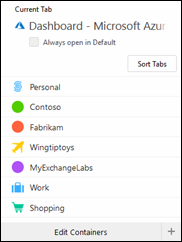
imageUnlike the Chrome extension, FireFox’ Multi-Account Containers allows you to have multiple sessions from within the same browser. For this purpose, tabs are used to arrange sessions in what’s called containers. Each container shares the same set of site preferences, sessions, cookies etc. To identify containers, they can be assigned a (new) name, color and symbol.
After installing the add-in, you will get a button that will open the container selection window. In this example, I have set up 4 containers besides the default ones: one for every customer and one for my lab. Selecting Contoso will open a new blank tab. The right side of the address bar contains a visual reference to the active container, showing label and symbol in the configured color.

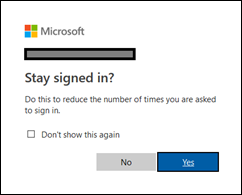
Keep Me Signed InNow, when you go to portal.office365.com, the Office 365 account picker may show up when connected before using this container. Pick one, or enter a new set of credentials. This account will be stored in this container. The question of wanting to stay signed in makes more sense now, as the token will be stored within the container, happily coexisting with other Keep-Me-Signed-In settings and sessions from other containers.

Now, when you open a different admin app in that tab, it will be in the same container and thus user context. You can also select to open a blank tab in that container, and navigate to portal.azure.com. You will notice it picks up the Contoso credentials provided earlier. This is because the session information is stored within the Contoso container.

image

Now click the container icon again, and select a different container, e.g. Fabrikam. Navigate to portal.office365.com, and you will notice you can provide new (or re-use) credentials which have a different context than Contoso. Also, opening the Azure portal after that in this container will be in the Fabrikam context.

Having set this up properly, you can easily switch between all admin portals from different tenants by selecting the different container tabs: no need to switch accounts or firing up separate private browser windows. This is a more elegant solution compared to private browsing sessions.

A final note that the above not only can be used to access the Office 365 admin portals of multiple tenants, but web-based applications such as Teams, Outlook Web Access or SharePoint as well.


Comparing Sets of Cmdlets


powershellWith the speed of development in Office 365, it is sometimes hard to track which changes have been made to your tenant. Of course, there is the roadmap and message board which you can use to keep up to date, but those are in general high level descriptions. Sometimes you may want to see what are the changes at the cmdlet level in your tenant, between tenants, or Azure Active Directory module. And there is also the occasional gem in the form of a yet undocumented cmdlet or parameter which could hint at upcoming features.

For this purpose I have created a simple script which has two purposes:

  1. Export information on the current cmdlets available through Exchange Online or Azure Active Directory.
  2. Compare two sets of exported information, and display changes in a readable way.

The script is in PowerShell (of course), and is called Compare-Cmdlets.ps1. To export information, you need to be already connected to either Exchange Online or Azure Active Directory (or both).

To export cmdlet information, use:

.\Compare-Cmdlets.ps1 –Export

For Exchange Online and Azure Active Directory, separate export files are created. The files are prefixed with a timestamp and postfixed with the Exchange Online build or Azure Active Directory module version, e.g. 201803121814-ExchangeOnline-15.20.548.21.xml or 201803121815-AzureAD-2.0.0.137.xml.

After a few days/week, or when connected to another tenant or using a new Azure Active Directory PowerShell module, run the export again. You will now have 2 sets of Exchange Online or Azure Active Directory cmdlets, which you can compare using the following sample syntax:

Compare-Cmdlets.ps1 -ReferenceCmds .\201801222108-ExchangeOnline-15.20.428.21.xml -DifferenceCmds .\201803120926-ExchangeOnline-15.20.548.21.xml

image

A progress bar is shown as comparison might take a minute. When the script has finished checking the two sets, you will see output indicating changes in cmdlets, parameters or switches, e.g.

image

Download
You can find the script on the TechNet Gallery or GitHub.

Office 365 Engage 2017 Wrap-up


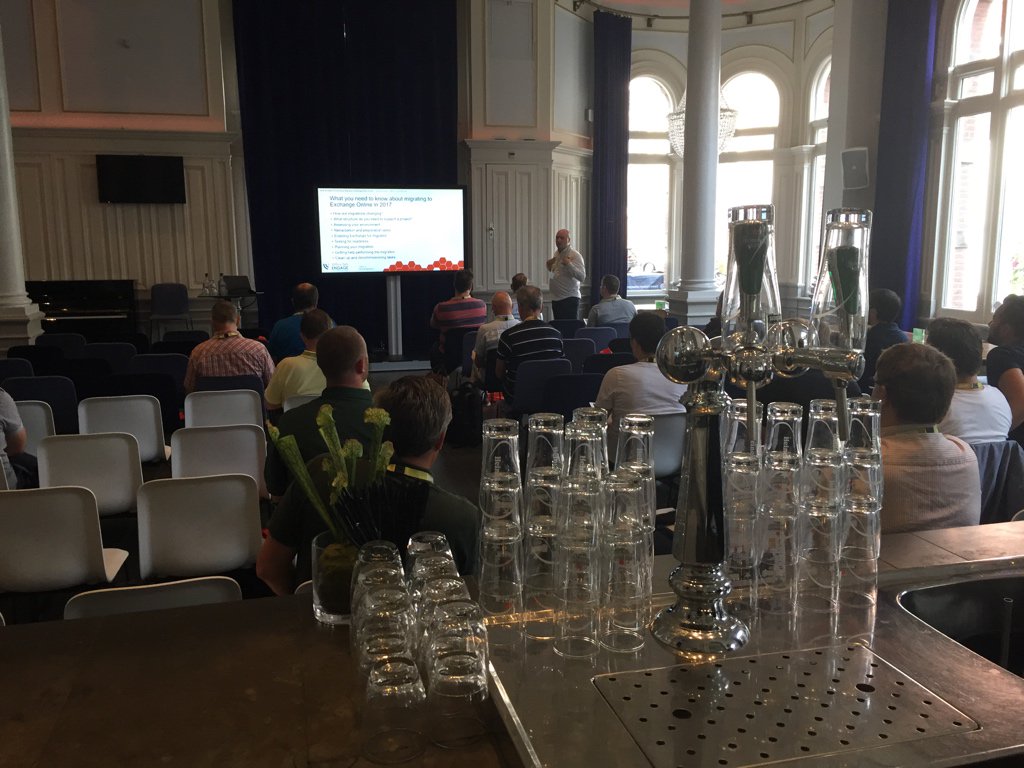
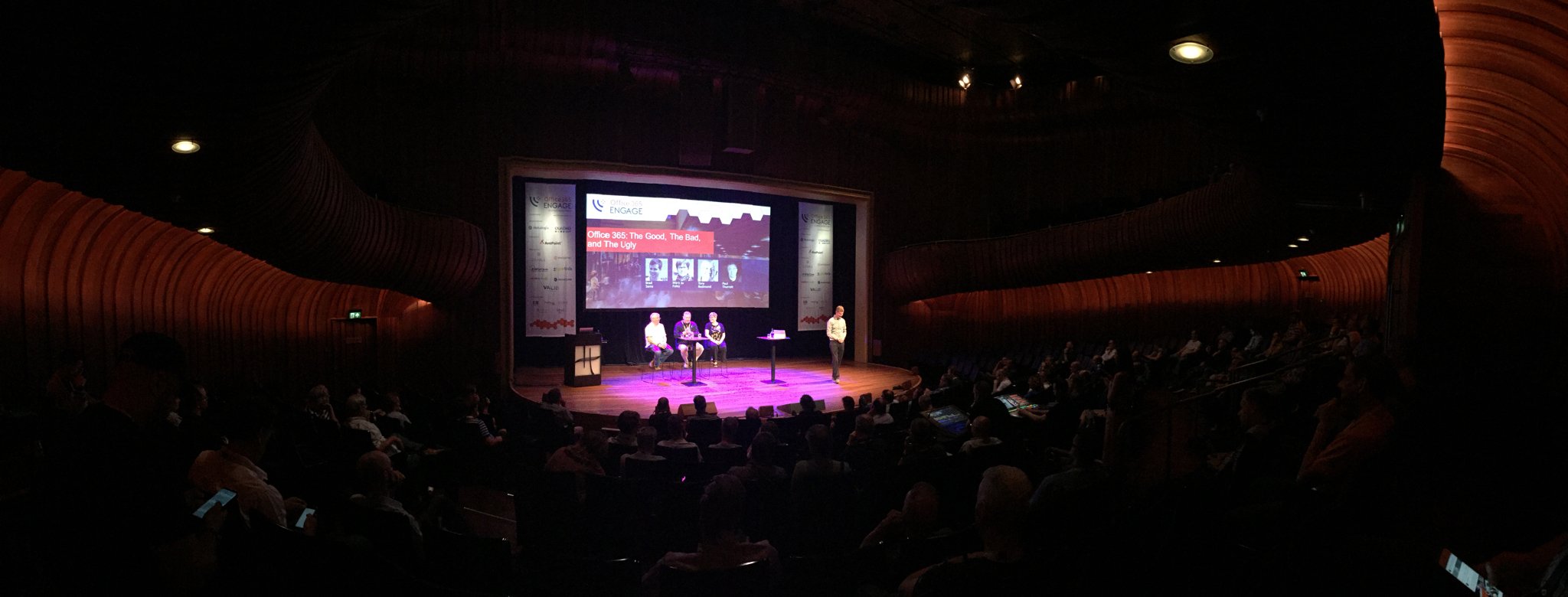
Last week the inaugural Office 365 Engage conference took place in the small but charming city of Haarlem, The Netherlands. With hotels for speakers and attendees close by, the event took place in the Philharmonie, a venue normally used for concerts and theater performances. This lead to some amazing shots on social media of sessions being held in “Room A” (the theater), “Room B” (with bar) and “Room E” (the concert hall).


“Room A”

With Tony Redmond being the chair for this non-Microsoft event, one of the few big Microsoft-technology related events remaining in Europe, organizer BWW Media Group managed to attract an amazing line-up of speakers. Amongst them were quite a number of Microsoft MVP’s, some like Paul Robichaux or Chris Goosen even flying in from overseas. Being sort of a home game to me, it was other speaker’s turn to having to cope with jetlag.

Sessions presented were on all things Office 365 related, such as Azure AD, Exchange Online, SharePoint Online, Groups and Teams, and also more dev-oriented sessions on things like the Graph API. Also, more generic topics were also put to the table, like the roadmap and coping with continuous development, GDPR or hybrid strategies.


“Room B”

On Monday, Jaap Wesselius and I held a full-day workshop on PowerShell for Office 365. The attendees were coming from all over Europe, which shows that there is a demand for an European event of this size on this topic. On Tuesday, I presented a session on Managing Exchange Online using PowerShell, Tips & Tricks. Pending feedback from evaluations, the workshop and session went very well. For those that attended our workshop on Monday, PowerShell for Office 365, or my session on Tuesday on Exchange Online and PowerShell Tips & Tricks, the slide decks will be made available later through the organizer. Sample code from the session is available from the TechNet Gallery here.

Image may contain: one or more people and indoor
“Room E”

Finally, a big thank you to BWW’s Megan Keller, their CEO George Coll, and all the other staff as well, who made speakers and attendees feel welcome at this event, which was small and intimate, a different experience from more massive events like Microsoft Ignite. Also a big thank you to the folks of Quadro-Tech for sponsoring the post-conference drinks.

With everything being walking distance, and with pleasant summer weather, the after-conference hours for catching up with peers and attendees were very enjoyable. BWW was also so kind to offer us speakers a boat trip, where we could experience Haarlem from the waterside, including the obligatory snapshots of windmills, fields and cows.

Note that the organizer is still looking for feedback on the event. Share with them what you like or didn’t like, so they can improve next year’s conference. I am really looking forward to next year’s event, to be held in June 2018, and would highly recommend it to anyone. Hope to see you there next year!

HCW fails on intra-organization configuration


o365logoFor my lab, I often have to recreate the Exchange Hybrid configuration for a fresh setup of Exchange On-Premises using formerly used namespaces. Normally you would just run the Exchange Hybrid Configuration Wizard (HCW) after configuring certificates and endpoint URLs. If you don’t clean up the previous configuration information from your tenant upfront, you may then run in the following error message when running the HCW:

Updating hybrid configuration failed with error ‎’Subtask Configure execution failed: Configure IntraOrganization Connector Execution of the Get-IntraOrganizationConfiguration cmdlet has thrown an exception. This may indicate invalid parameters in your hybrid configuration settings. Multiple OnPremises configuration objects were found. Please use the OrganizationGuid parameter to select a specific OnPremises configuration object.

Multiple OnPremises configuration objects indicates there are multiple intra-organization objects defined in your tenant. You can clean up previous intra-organization configuration objects from your tenant as follows:

  1. First, in your Exchange On-Premises environment, run the Get-OrganizationConfig cmdlet from the Exchange Management Shell:
    image
  2. Copy the Guid value, in the example 1a95d446-ff56-4399-a95e-8ab46c30912b.
  3. Connect to Exchange Online (instruction here).
  4. Check the existing On-Premises definitions in your tenant by running Get-OnPremisesOrganization. There should be more than 1 entry.
  5. To remove the orphaned objects, remove all the objects that don’t match the Organization Guid you retrieved from your On-Premises environment earlier, e.g.:Get-OnPremisesOrganization | Where { $_.OrganizationGuid –ne ‘1a95d446-ff56-4399-a95e-8ab46c30912b’ } | Remove-OnPremisesOrganization
    image
  6. Now you could try re-running the HCW immediately, but chances are you will run in another error caused by orphaned intra-organization connectors (IOC). In those cases, when the HCW tries to run New-IntraOrganizationConnector, it will fail as the namespace defined by TargetAddressDomains is already in use by an existing connector, and ‘The domain <domain> already exists in another intra-organization connector’ is reported. Those connectors, named ‘HybridIOC – ’, where GUID is the Guid of previously used organizations, exist in your tenant. In your Exchange Online session, run the following cmdlet to remove orphaned connector definitions:Get-IntraOrganizationConnector | Where { $_.Identity –ne ‘HybridIOC – 1a95d446-ff56-4399-a95e-8ab46c30912b’ } | Remove-IntraOrganizationConnector
    image
  7. While you’re at it, you also might want to remove previously created connectors. Again, in your Exchange Online session, run the following cmdlets to remove orphaned inbound and outbound connectors (again, using the previously noted Organization GUID):
    Get-OutboundConnector | Where { $_.Identity –ne ‘Outbound to 1a95d446-ff56-4399-a95e-8ab46c30912b’ } | Remove-OutboundConnector
    Get-InboundConnector | Where { $_.Identity –ne ‘Inbound from 1a95d446-ff56-4399-a95e-8ab46c30912b’ } | Remove-InboundConnector

After removing these orphaned objects, you should be able to run the HCW succesfully.