 Latest version: 2.41, April 18th, 2023
For those involved with Exchange migration projects or managing Exchange environments, at some point you probably have experienced the situation where people ended up with duplicate items in their mailbox. Duplicate items can be caused by many things, but most common are:
- Synchronization tools or plug-in. Entries from the mailbox are treated as new entries and as a consequence are added to the mailbox when synchronizing information back to the mailbox, creating duplicates. In the past, I’ve seen this happening with Nokia PC Suite and Google Apps Sync for example;
- Importing existing data. Accidental import from – for example – a PST file to a mailbox can lead to duplicate entries.
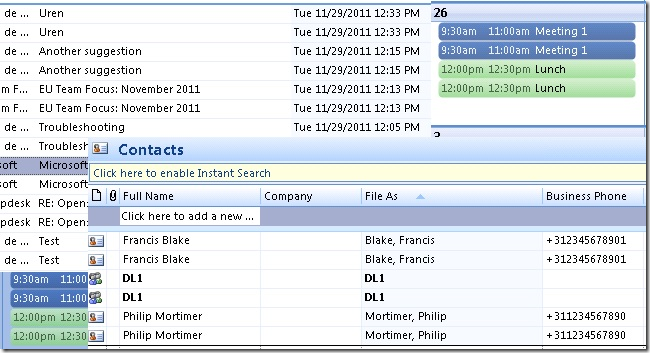
When looking for a solution, you’ll probably encounter MSKB299349, “How to remove duplicate imported items in Outlook”. This article describes a manual procedure to remove duplicates entries from your calendar, contacts, inbox or other folders. Not a very helpful and labor intensive.
When continuing your search, you’ll find lots (I mean lots!) of tools and Outlook add-ins, like Vaita’s DIR or MAPILab’s Duplicate Remover. Not all this software is free (some even require payment per duplicate removal of appointments, contacts or e-mail) and some might not even work (MAPI-based tools may not work against Exchange 2013).
When you finally have selected a tool, in most cases they require installation of a piece of software and someone to perform the removal process using the tool or Outlook with add-in. When you’re an Apple shop you’ll require different tools, unless you’re running a Windows desktop somewhere (I’ll just pretend I didn’t hear you saying ‘Why don’t you install the tool on the Exchange server’).
Wouldn’t it be nice if you’d have a PowerShell script you can conveniently run from any workstation (or server) with PowerShell installed, removing those duplicate items from a user’s mailbox remotely? If the answer is yes, the Remove-DuplicateItems.ps1 script may be something for you.
Requirements
Using the Remove-DuplicateItems.p1 script requires Exchange Web Services (EWS) Managed API and for OAuth authentication the Microsoft Authentication Library (MSAL) libraries. You can install these packages from NuGet, or place their DLL’s in the same folder as the script. For an example of how to install EWS.Managed.Api from NuGet, see this article; for MSAL follow the same process but with the package titled ‘Microsoft.Identity.Client’.
Also take notice that since you’ll be processing user mailboxes, you’ll need to have full mailbox access or impersonation permissions when using Basic Authentication; the latter is preferred. For details on how to configure impersonation for Exchange On-Premises or Office 365, see this blog post. Using a registered app with OAuth is always through Impersonation.
Usage
The script Remove-DuplicateItems.ps1 uses the following syntax:
Remove-DuplicateItems.ps1 [[-Identity] ] [[-Type] ] [-Retain ] [-Server ] [-Impersonation] [-DeleteMode ] [-Credentials ] [-Mode ] [-MailboxOnly] [-ArchiveOnly] [-IncludeFolders <String[]>] [-ExcludeFolders <String[]>] [-PriorityFolders <String[]>] [-NoSize] [-CleanupMode] [-NoProgressBar] [-Force] [-WhatIf] [-Confirm] [-Secret] [-CertificateThumbprint] [-CertificateFile] [-CertificatePassword] [-TenantId] [-ClientId] [-TrustAll] [-ExchangeSchema <String>] [-NoSCP]
A quick walk-through on the parameters and switches:
- Identity is the e-mail address or name of the mailbox to process. If name is used, it is matched against cn/SAMAccountname/email address of local AD.
- Type determines what folders are checked for duplicates. Valid options are Mail, Calendar, Contacts, Tasks, Notes or All (Default).
- Retain determines which item to retain by comparing last modification times. Valid options are Newest (default) or Oldest.
- Server is the name of the Client Access Server to access for Exchange Web Services. When omitted, the script will attempt to use Autodiscover.
- When the Impersonation switch is specified, impersonation will be used for mailbox access, otherwise the current user context will be used.
- DeleteMode specifies how to remove messages. Possible values are HardDelete (permanently deleted), SoftDelete (use dumpster, default) or MoveToDeletedItems (move to Deleted Items folder).
- Mode determines how items are matched. Options are Quick, which uses PidTagSearchKey and is the default mode, or Full which uses a predefined set of attributes to match items, depending on the item class:
| ItemClass |
Criteria |
| Contacts |
File As, First Name, Last Name, Company Name, Business Phone, Mobile Phone, Home Phone, Size |
| Distribution List |
FileAs, Number of Members, Size |
| Calendar |
Subject, Location, Start & End Date, Size |
| Task |
Subject, Start Date, Due Date, Status, Size |
| Note |
Contents, Color, Size |
| Mail |
Subject, Internet Message ID, DateTimeSent, DateTimeReceived, Sender, Size |
| Other |
Subject, DateTimeReceived |
- MailboxOnly specifies you only want to process the primary mailbox of specified users. You als need to use this parameter when running against mailboxes on Exchange Server 2007.
- ArchiveOnly specifies you only want to process personal archives of specified users.
- IncludeFolders specifies one or more names of folder(s) to include, e.g. ‘Projects’. You can use wildcards around or at the end to include folders containing or starting with this string, e.g. ‘Projects*’ or ‘*Project*’. To match folders and subfolders, add a trailing \*, e.g. Projects\*. This will include folders named Projects and all subfolders. To match from the top of the structure, prepend using ‘\’. Matching is case-insensitive.
- ExcludeFolders specifies one or more folder(s) to exclude. Usage of wildcards and well-known folders identical to IncludeFolders.
Note that ExcludeFolders criteria overrule IncludeFolders when matching folders.
- CleanupMode specifies to cleanup duplicates per folder (Folder, default), the whole mailbox (Mailbox), or multiple mailboxes (MultiMailbox, identities specified using Identity). The first unique item encountered will be retained. For Mailbox-level cleanup, PriorityFolders can be used to give priority to retaining items in specified folders before those found in other folders.
- PriorityFolders specifies which folders have priority over other folders, identifying items in these folders first when using MailboxWide mode. Usage of wildcards and well-known folders is identical to IncludeFolders.
- NoSize tells script to not use size to match items in Full mode.
- NoProgressBar prevents displaying a progress bar as folders and items are being processed.
- Report reports individual items detected as duplicate. Can be used together with WhatIf to perform pre-analysis.
- TrustAll can be used to accept all certificates, e.g. self-signed certificates or when accessing Exchange using endpoint with a different certificate.
- ExchangeSchema can be used to specify the Exchange schema to use when connecting to Exchange server or Exchange Online. Defaults to Exchange2013_SP1 or Exchange2016 when -Server is specified and is ‘outlook.office365.com’ (Exchange Online endpoint).
- NoSCP to skip SCP lookups in Active Directory for Autodiscover.
For authentication, the following parameters are available:
- Credentials specifies credentials to use for Basic Authentication.
- TenantId specifies the identity of the Tenant (OAuth)
- ClientId specifies the Id of the registered application (OAuth).
- CertificateThumbprint specifies the thumbprint of the certificate from personal store to use for authentication (OAuth).
- CertificateFile specifies the external certificate file (pfx) to use for authentication (OAuth). This certificate needs to contain a private key; the registered application needs to contain the certificate’s public key.
- CertificatePassword optionally specifies the password to use with the certificate file (OAuth).
- Secret specifies the secret to use with the application (OAuth).
Few notes:
- When MoveToDeletedItems is specified, the Deleted Items folder will be skipped;
- When Type is omitted or set to All, all folders are scanned, including folders like Conversation History, RSS Feeds, etc.;
- When Quick mode is used and PidTagSearchKey is missing or inaccessible, search will fall back to Full mode;
- For more info on PidTagSearchKey, see http://msdn.microsoft.com/en-us/library/cc815908.aspx. Note that PidTagSearchKey will have duplicate values for copied objects.
- You need to specify MailboxOnly when running against mailboxes on Exchange Server 2007 as the Exchange 2010 personal archive options in EWSare not support in Exchange 2007 mode.
Well-Known Folders
For IncludeFolders, ExcludeFolders and PriorityFolders, you can also use well-known folders using this format: #WellKnownFolderName#, e.g. #Inbox#. Supported are #Calendar#, #Contacts#, #Inbox#, #Notes#, #SentItems#, #Tasks#, #JunkEmail# and #DeletedItems#. The script uses the currently configured Well-Known Folder of the mailbox to be processed.
Patterns
Here are some examples of using pattern matching in IncludeFolders, ExcludeFolders or PriorityFolders, based on the following tree structure:
+ TopFolderA
  + FolderA
    + SubFolderA
    + SubFolderB
  + FolderB
+ TopFolderB
The following filters will match folders from the above structure:
| Filter |
Matches |
| FolderA |
\TopFolderA\FolderA, \TopFolderB\FolderA |
| Folder* |
\TopFolderA\FolderA, \TopFolderA\FolderB, \TopFolderA\FolderA\SubFolderA, \TopFolderA\FolderA\SubFolderB |
| FolderA\*Folder* |
\TopFolderA\FolderA\SubFolderA, \TopFolderA\FolderA\SubFolderB |
| \*FolderA\* |
\TopFolderA, \TopFolderA\FolderA, \TopFolderA\FolderB, \TopFolderA\FolderA\SubFolderA, \TopFolderA\FolderA\SubFolderB, \TopFolderB\FolderA |
| \*\FolderA |
\TopFolderA\FolderA, \TopFolderB\FolderA |
Usage
So, suppose you want to remove duplicate Appointments from the calendar of mailbox migtester1 using attribute matching, moving duplicate items to the DeletedItems, using Impersonation and you want to generate extra output using Verbose. In such case, you could use the following cmdlet:
Remove-DuplicateItems.ps1 -Identity migtester1 -Type Calendar -Impersonation -DeleteMode MoveToDeletedItems -Mode Full -Verbose
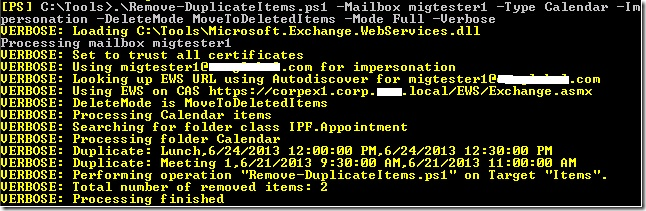
Alternative, you can use an e-mail address and specify credentials. This allows the script to run against mailboxes in Office 365, for example:
Remove-DuplicateItems.ps1 -Identity olrik@office365tenant.com -Type Mail -DeleteMode MoveToDeletedItems -Mode Full -Credentials (Get-Credential) -Retain Oldest
A more complex example using IncludeFolders, ExcludeFolders and PriorityFolders:
$Credentials= Get-Credential
 .\Remove-DuplicateItems.ps1 -Mailbox olrik@office365tenant.com -Server outlook.office365.com -Credentials $Credentials -IncludeFolders '#Inbox#\*','\Projects\*' -ExcludeFolders 'Keep Out' -PriorityFolders '*Important*' -CleanupMode Mailbox
This will remove duplicate items from the specified mailbox in Office365, using the following options:
- Fixed Server FQDN – bypassing AutoDiscover.
- Limits operation against the Well-Known Inbox folder, top Projects folder, and all of their subfolders.
- Excluding any folder named Keep Out.
- Duplicates are checked over the whole mailbox.
- Priority is given to folders containing the word Important, causing items in
those folders to be kept over items in other folders when duplicates are found.
In case you want to process multiple mailboxes, you can use a CSV file which needs to contain the Identity field. An example of how the CSV could look:
Identity
francis
philip
The cmdlet could then be something like:
Import-CSV users.csv1 | Remove-DuplicateItems.ps1 ..
Download
The script is available on GitHub here.
Feedback
Feedback is welcomed through the comments. If you got scripting suggestions or questions, do not hesitate using the contact form.

 Last update: Version 1.02, November 21st, 2014.



 EighTwOne (821)