Removing Messages by Message Class


powershellLast version: 2.00, February 27th, 2021

Recently, I was asked if it is possible to remove stub items. The reason was they were going to transition to a newer version of Exchange and they wouldn’t be using the archiving solution in the new environment. When required, vendor tooling would be used to search through the existing archives.

In such cases it makes sense to remove the stubs from the mailbox, which are shortcut messages that points to a copy of the original message in the archive solution. The new environment won’t contain the required Outlook plugins or extensions to retrieve the original message from the archive using the stub, making the stub lead to a partial or empty message.

To identify stubs, one can filter on an attribute of each item, MessageClass. This attribute defines which kind of item it is (in fact, determines what form Outlook should use in order to present or process the information). Examples of MessageClass definitions are IPM.Note (regular e-mail messages), IPM.Note.EnterpriseVault.Shortcut (message archived by Enterprise Vault) or IPM.ixos-archive (message archived by Opentext/IXOS LiveLink E-Mail Archive).

To identify stubs from Outlook, add the Message Class field to your Outlook view, e.g.:

StubsOutlook

When you want to remove the stubs using Outlook, you can utilize the Advanced Find function of Outlook, but that is a very labor intensive, tedious and non-centralized per-mailbox procedure:

SearchFromOutlook

Requirements
Using the script requires Exchange Web Services (EWS) Managed API and for OAuth authentication the Microsoft Authentication Library (MSAL) libraries. You can install these packages from NuGet, or place their DLL’s in the same folder as the script. For an example of how to install EWS.Managed.Api from NuGet, see this article; for MSAL follow the same process but with the package titled ‘Microsoft.Identity.Client’.

Also take notice that since you’ll be processing user mailboxes, you’ll need to have full mailbox access or impersonation permissions when using Basic Authentication; the latter is preferred. For details on how to configure impersonation for Exchange On-Premises or Office 365, see this blog post. Using a registered app with OAuth is always through Impersonation.

Usage
The script Remove-MessagesClassItems.ps1 uses the following syntax:

Remove-MessageClassItems.ps1 [-Identity]  [-MessageClass] [-Type] [-Server ] [-Impersonation] [-DeleteMode ] [-Type] [-Before ] [-MailboxOnly] [-ArchiveOnly] [-IncludeFolders] -ExcludeFolders [-NoProgressBar] [-Force] [-WhatIf] [-Confirm] [-Secret] [-CertificateThumbprint] [-CertificateFile] [-CertificatePassword] [-TenantId] [-ClientId] [-TrustAll]

A quick walk-through on the parameters and switches:

  • Identity is the name or e-mail address of the mailbox.
  • MessageClass specifies the Message Class to remove, for example IPM.Note.EnterpriseVault.Shortcut (EnterpriseVault). You can use wildcards around or at the end to include folders containing or starting with this string, e.g. ‘IPM.ixos*’ or ‘*EnterpriseVault*’. Matching is always case-insensitive.
  • Server is the name of the Client Access Server to access for Exchange Web Services. When omitted, the script will attempt to use Autodiscover.
  • Type determines what folder class to process. Options are Mail, Calendar, Contacts, Tasks, Notes or All (Default).
  • Switch Impersonation specifies if impersonation will be used for mailbox access, otherwise the current user context will be used.
  • DeleteMode specifies how to remove messages. Possible values are HardDelete (permanently deleted), SoftDelete (use dumpster, default) or MoveToDeletedItems (move to Deleted Items folder). Note that the Deleted Items folder will be processed, unless MoveToDeletedItems is used.
  • Before can be used to only remove items received before specified date.
  • MailboxOnly specifies you only want to process the primary mailbox of specified users. You als need to use this parameter  when running against mailboxes on Exchange Server 2007.
  • ArchiveOnly specifies you only want to process personal archives of specified users.
  • IncludeFolders specifies one or more names of folder(s) to include, e.g. ‘Projects’. You can use wildcards around or at the end to include folders containing or starting with this string, e.g. ‘Projects*’ or ‘*Project*’. To match folders and subfolders, add a trailing \*, e.g. Projects\*. This will include folders named Projects and all subfolders. To match from the top of the structure, prepend using ‘\’. Matching is case-insensitive.
  • ExcludeFolders specifies one or more folder(s) to exclude. Usage of wildcards and well-known folders identical to IncludeFolders.
    Note that ExcludeFolders criteria overrule IncludeFolders when matching folders.
  • NoProgressBar prevents displaying a progress bar as folders and items are being processed.
  • ReplaceClass specifies that instead of removing the item, its PR_MESSAGE_CLASS class property will be modified to this value. For example, can be used in conjunction with MessageClass to modify any IPM.Note items pending Evault archival back to regular items, using: -MessageClass IPM.Note.EnterpriseVault.PendingArchive -ReplaceClass IPM.Note
  • Report reports individual items detected as duplicate. Can be used together with WhatIf to perform pre-analysis.
  • TrustAll can be used to accept all certificates, e.g. self-signed certificates or when accessing Exchange using endpoint with a different certificate.

For authentication, the following parameters are available:

  • Credentials specifies credentials to use for Basic Authentication.
  • TenantId specifies the identity of the Tenant (OAuth)
  • ClientId specifies the Id of the registered application (OAuth).
  • CertificateThumbprint specifies the thumbprint of the certificate from personal store to use for authentication (OAuth).
  • CertificateFile specifies the external certificate file (pfx) to use for authentication (OAuth). This certificate needs to contain a private key; the registered application needs to contain the certificate’s public key.
  • CertificatePassword optionally specifies the password to use with the certificate file (OAuth).
  • Secret specifies the secret to use with the application (OAuth).

Well-Known Folders
For IncludeFolders, ExcludeFolders, you can also use well-known folders using this format: #WellKnownFolderName#, e.g. #Inbox#. Supported are #Calendar#, #Contacts#, #Inbox#, #Notes#, #SentItems#, #Tasks#, #JunkEmail# and #DeletedItems#. The script uses the currently configured Well-Known Folder of the mailbox to be processed.

Patterns
Here are some examples of using pattern matching in IncludeFolders or ExcludeFolders, based on the following tree structure:

+ TopFolderA
  + FolderA
    + SubFolderA
    + SubFolderB
  + FolderB
+ TopFolderB

The following filters will match folders from the above structure:

Filter Matches
FolderA \TopFolderA\FolderA, \TopFolderB\FolderA
Folder* \TopFolderA\FolderA, \TopFolderA\FolderB, \TopFolderA\FolderA\SubFolderA, \TopFolderA\FolderA\SubFolderB
FolderA\*Folder* \TopFolderA\FolderA\SubFolderA, \TopFolderA\FolderA\SubFolderB
\*FolderA\* \TopFolderA, \TopFolderA\FolderA, \TopFolderA\FolderB, \TopFolderA\FolderA\SubFolderA, \TopFolderA\FolderA\SubFolderB, \TopFolderB\FolderA
\*\FolderA \TopFolderA\FolderA, \TopFolderB\FolderA

Example
Suppose you want to remove  IPM.Note.EnterpriseVault.Shortcut items from the mailbox of user1 and personal archive when enabled, moving the items to the DeletedItems by Impersonation. In such case, you could use the following cmdlet:

Remove-MessageClassItems.ps1 -Identity user1 -MessageClass IPM.Note.EnterpriseVault.Shortcut -DeleteMode MoveToDeletedItems -Impersonation –Verbose 

Note: Screenshot shows Mailbox parameter, which is per 1.52 renamed to Identity

SampleOutput

Note: By default, Remove-MessageClassItems will only search IPF.Note class folders (i.e. containing mail items), so you’ll only see those being processed. If you want all folders scanned (also classless), use the ScanAllFolders switch.

The script also supports Office 365. For example, to remove all items with ‘Enterprise’ in their message class text, received before 1/1/2014, only from the primary mailbox, excluding the folder Personal, using Basic Authentication, you can use:

$Credentials= Get-Credential
Remove-MessageClassItems.ps1 -Identity olrik@office365tenant.com -DeleteMode MoveToDeletedItems -MessageClass *EnterpriseVault* -Before 1/1/2014 -MailboxOnly -ExcludeFolder Personal -Credentials $Credentials

In case you want to process multiple mailboxes, you can use a CSV file which needs to contain the Identity field. An example of how the CSV could look:

Identity
francis
philip

The cmdlet could then be something like:

Import-CSV users.csv1 | Remove-MessageClassItems.ps1 -MessageClass IPM.Note.EnterpriseVault.Shortcut -DeleteMode HardDelete 

Feedback
You’re feedback is welcomed through the comments; if you got scripting suggestions, please use the contact form.

Download
You can download the script from the GitHub here.

Exchange 2013 Unattended Installation Script v1.1


Ex2013 LogoComing back from a nice vacation to the beautiful Brittany in France, I thought it was time to collect and process feedback and suggestions on several scripts, starting with the Exchange 2013 unattended installation script for Windows Server 2012.

Changes in version 1.1 of the script:

  • When the script was used to also prepare Active Directory, RSAT-ADDS-Tools was uninstalled as part of the cleanup. Per request, I’ve removed the uninstallation of that feature;
  • The script now detects pending reboots after installing the required features. When ran in AutoPilot mode, the script will reboot and restart the phase (preparing Active Directory, which can’t be run with pending reboots because Exchange’s Setup won’t like it). When not running in AutoPilot mode, you need to start the script manually. You can omit providing installation parameters as they are saved, even a pending is detected;
  • The Windows feature Server-Media-Foundation will be installed explicitly as it is an UCMA 4.0 requirement;
  • The credentials provided for AutoPilot mode will be validated;
  • The OS version check is changed to a string which should enable installation on non-US Operating Systems.

You can download the updated version of the script via the original Exchange 2013 Unattended Installation Script page or directly from the Technet Gallery. Enjoy!

Regular Expressions and Named Groups


powershellWhen processing strings, you may sometimes need to split those strings into several parts based on criteria. For example, you may need to split the ActiveSync DeviceUserAgent string, which can be used to identify the model and version of a device, for example:

  • Apple-iPhone4C1/1002.142
  • Apple-iPad2C1/1002.141
  • Apple-iPhone4C1/1001.523

Now let’s assume you want to take this string apart in the device model and the version, using the slash as a marker. When asking 10 people, a majority will come up with something along the following kind of structure:

$pos= ($Device.DeviceUserAgent).IndexOf("/")+1
$Device= ($Device.DeviceUserAgent).Substring(0, $pos)
$Version= ($Device.DeviceUserAgent).Substring($pos+1)

Of course, this works but you need to understand what’s going on and additional code is required the handle situations when there’s no “/” present. Perhaps a more elegant and readable way, especially if you want to split the string in more than 2 parts, is using regular expressions to perform pattern matching. When used in combination with named groups, you will get easily referable parts using a name.

For the purpose of demonstrating it’s power, we’ll start by assigning some user agent strings to a variable. Note that you could use the DeviceUserAgent property of a collection of ActiveSync devices as well.

$UserAgents=@("Apple-iPhone4C1/1001.523", "Apple-iPhone3C1/801.293")

image

The pattern to look for in each user agent string is it starts with some characters, followed by a slash, followed by a number, followed by a dot and ending in a number. Translated to regular expression, the pattern would be:

^(.*)/(\d+)\.(\d+)$

where:

  • ^ marks the start of the subject;
  • (.*) marks a sub pattern of any character, the * indicates it’s present zero, one or more times;
  • The slash is marked by (surprise!) a /;
  • (\d+) marks a sub pattern of decimal digit, the + indicates it’s used one or more times;
  • \. will match the dot (escaping it with “\” makes sure next character is used literally as ‘dot’ normally means any character);
  • $ marks the end of the subject.

When matching a pattern against a string you can use –match, e.g. “string” –match “pattern”. When this results in True, a match is found; when the result is False, the format of the string is invalid (of course requires properly defined pattern). After performing a match, the predefined variable $matches will contain an array containing the results, where element [0] contains the complete matching string and [1] .. [n] each matching (sub) pattern.

image

You see that each match returns True (match found) and $matches[1] for example contains the first sub pattern for each match, i.e. the device. This is nice and perhaps neater than splitting strings as mentioned in the start of this article, but wouldn’t it be even cooler if you can refer to those parts using names, e.g. device?

Here’s where named groups come into play and you can compare it to PowerShell’s calculated properties (select @{Name=”KB”; Expression={$_.Size/1kb}}) or column aliases in SQL (SELECT ColA as Name). To use named groups, put “?<name>” at the start of the (sub) pattern. For example, to use the name “device” for the first sub pattern “(.*)”, the expression would become “(?<device>.*)”. The complete pattern using named groups would then become something like:

^(?<device>.*)/(?<major>\d+)\.(?<minor>\d+)$

The cmdlet for this example would then become:

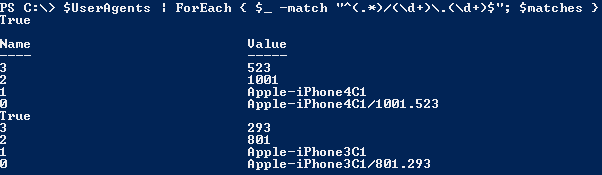
$UserAgents | ForEach { [void]($_ -match "^(?<device>.*)/(?<major>\d+)\.(?<minor>\d+)$"); $matches }

Which will give the following results:

image

Note that I’ve added casting (i.e. converting a variable to a different type) the output of “-match” to [void] so the match results (True or False) won’t be part of the output.

Having named groups now allows us to use easily match individual parts, filter or group information, e.g.:

$UserAgents | ForEach {
    [void]($_ -match "^(?<device>.*)/(?<major>\d+)\.(?<minor>\d+)$")
    If( $matches.major –gt 800) { 
        echo $matches[0]
    }
}

Of course it’s a matter of taste, but having this information available as $matches.device instead of $matches[1] makes introducing changes more easy (no need to renumber when inserting/removing a sub pattern) and results in more readable code.

Exchange v15 Unattended Setup


Ex2013 Logo

Latest version: 3.9, February 15th, 2024

I’m pleased to announce the availability of Install-Exchange15.ps1, a PowerShell script to perform a fully automated unattended setup of Exchange Server 2013, Exchange Server 2016, or Exchange Server 2019 (Desktop and Core) is supported).

The script takes care of:

  • Installing requires Windows Server features
  • Install Exchange Server prerequisites, e.g., .NET Framework 4.5.2/4.6.1/4.6.2/4.7.1/4.7.2/4.8/4.8.1 and Visual C++ Runtime 2012 or 2013, depending on roles, OS, and Exchange version to install.
  • Install additional prerequisites and prepare Active Directory.
  • Optionally install Exchange Server 2013 / 2016 / 2019.
  • Optionally, install required fixes and perform post configuration, like setting your Power Plan to High Performance, reconfiguring the pagefile to best practices (memory + 10MB with a maximum of 32GB+10MB) if it is system managed, and performing .NET framework optimizations. Custom post-configuration is possible by modifying the script.
  • On Windows Server 2016 and later, it will configure Windows Defender exclusions when present.
  • For Exchange 2016 CU22 and Exchange 2019 CU11 and later, will install the required URL Rewrite 2 module.
  • Finally, the script will clean things up, like removing the state file and setting the startup of Transport Service back to Automatic.

Usage
This script version requires a domain-joined Windows Server, an account to perform the installation (and optionally prepare Active Directory), and the location where the Exchange Server 2013/2016/2019 installation files are stored (e.g., a UNC path).

The syntax is as follows:

Install-Exchange15.ps1 -[InstallMultiRole|InstallMailbox|InstallEdge|InstallCAS|NoSetup|Recover] [-Organization <string>] [-MDBName <string>] [-MDBDBPath <string>] [-MDBLogPath <string>] [-InstallPath <string>] [-SourcePath <string>] [-TargetPath <string>] [-Credentials <pscredential>] [-IncludeFixes] [-NoNet461] [-NoNet471] [-NoNet472] [-NoNet48] [-NoNet481] [-DoNotEnableEP] [-DoNotEnableEP_FEEWS] [-UseWMF3] [-DisableSSL3] [-DisableRC4] [-DiagnosticData] [-SCP <string>] [-EdgeDNSSuffix <string>] [-Lock] [-SkipRolesCheck] [-AutoPilot] [<CommonParameters>]
Install-Exchange15.ps1 -InstallMultiRole -SourcePath <string> [-Organization <string>] [-InstallPath <string>] [-TargetPath <string>] [-AutoPilot] [-Credentials <pscredential>] [-IncludeFixes] [-NoNet461] [-NoNet471] [-NoNet472] [-NoNet48] [-NoNet481] [-DoNotEnableEP] [-DoNotEnableEP_FEEWS] [-UseWMF3] [-DisableSSL3] [-DisableRC4] [-DiagnosticData] [-Lock] [-SkipRolesCheck] [-Phase <int>] [<CommonParameters>]

A short description of the parameters:

  • Organization (optional): Specifies the name of the Exchange organization to create. When omitted, the step to prepare Active Directory (PrepareAD) will be skipped.
  • InstallMailbox: Specifies you want to install the Mailbox server role. This applies to Exchange 2013 as well as Exchange 2016.
  • InstallCAS: Specifies you want to install the CAS role. This applies to Exchange 2013 only, ignored when installing Exchange 2016.
  • InstallMultiRole: Specifies you want to install both Mailbox server and CAS roles. Applies to Exchange 2013 only.
  • InstallEdge: Specifies to install the Edge Transport rule (Exchange 2013/2016).
  • MDBName (optional): Specifies the name of the initially created database.
  • MDBDBPath (optional): Specifies the database path of the initially created database (requires MDBName).
  • MDBLogPath (optional): Specifies the log path of the initially created database (requires MDBName).
  • InstallPath (optional): Specifies (temporary) location of where to locate – and when downloaded store – prerequisite files, the state file, and log files. The default location is C:\Install. You can also use a UNC path to use a central location, given the credentials have sufficient permissions to write at this location. This is ideal when you want the script to use previously downloaded hotfix files, for example, as some required hotfixes are quite large (e.g. KB3206632 for WS2016 ~ 1GB, KB2919355 for WS2012R2 ~ 700MB).
  • NoSetup (optional): Specifies you only want to install prerequisites (and optionally prepare the Exchange organization), Exchange setup and post-configuration steps are not performed. You still need to specify SourcePath because the Exchange version will determine the prerequisites to install.
  • Recover: Specifies you want to install this server in Recovery mode. The script will check if an Exchange server object is already defined.
  • SourcePath: Specifies the location of the Exchange 2013 installation files. This can point to the location of setup.exe, or you can specify the Exchange ISO file.
  • TargetPath: Specifies the location where to install the Exchange 2013.
  • AutoPilot (switch): Specifies you want to automatically restart, log on using the credentials specified, and continue the installation. When not specified, you will need to restart, log on, and start the script manually each time (without parameters).
  • Credentials (optional): Specifies credentials to use for automatic logon. Use DOMAIN\User or user@domain. When not specified, you will be prompted to enter credentials.
  • IncludeFixes (optional): Depending on the operating system and detected Exchange version to install, will download and install recommended hotfixes.
  • DiagnosticData (optional): This switch determines the initial Data Collection mode for deploying Exchange 2019 CU11, Exchange 2016 CU22, or later builds.
  • DoNotEnableEP Do not enable Extended Protection on Exchange 2019 CU14+
  • DoNotEnableEP_FEEWS Do not enable Extended Protection on the Front-End EWS virtual directory on Exchange 2019 CU14+
  • SCP (optional) allows you to reconfigure the Service Connection Point record for Autodiscover after the Exchange setup has finished. Specify the full URI, e.g. https://autodiscover.contoso.com/autodiscover/autodiscover.xml. Use ‘-‘ to clear the SCP entries of the server.
  • Lock (optional) locks the system when running script.
  • NoNet481 (optional) prevents installing .NET Framework 4.8.1 and uses 4.8 when deploying Exchange 2019 CU14+
  • NoNet48 (optional) to use .NET Framework 4.7.2, even when installing an Exchange version that is supported with .NET Framework 4.8.
  • NoNET471 (optional) to use .NET Framework 4.6.2, even when installing an Exchange version which is supported with .NET Framework 4.7.1.
  • NoNET472 (optional) to use .NET Framework 4.7.1, even when installing an Exchange version which is supported with .NET Framework 4.7.2.
  • NoNET461 (optional) to use .NET Framework 4.5.2, even when installing an Exchange version which is supported with .NET Framework 4.6.1 or higher.
  • DisableSSL3 (optional) to disable SSL3 protocol as per KB187498.
  • DisableRC4 (optional) to disable RC4 cipher as per KB2868725.
  • SkipRolesCheck (optional) to bypass membership checks for Schema Admin and Enterprise Admin roles.
  • EdgeDNSSuffix specifies the DNS suffix to configure on the primary NIC.

Note that the script uses an XML file to store the (original) parameters used to start the script but also to keep track of the the process. Of course, if required, you can use predefined XML files to run the script without parameters.

Note that when not present, the script will try to download the prerequisites from the internet. When that isn’t possible or to save bandwidth, you can put them in the location defined by InstallPath and the script will detect and use them.

The post-configuration is currently adding IFilters for OneNote and Publisher (Mailbox) only. There are comments in the script where to add your own additional post-configuration steps.

For example, assume we want to start a fully unattended install of an Exchange Server 2013 Client Access server, using a network location for the Exchange Server 2013 source files. After setting the Execution Policy to Unrestricted and storing the script locally, we start the script using:

 .\Install-Exchange15.ps1 –InstallCAS –SourcePath
'\\server\share\isos\Microsoft\Exchange2013\mu_exchange_server_2013_x64_dvd_1112105'
–AutoPilot –Verbose

The script will perform some checks and since AutoPilot was specified without using the Credentials parameter, the script will ask for credentials.

Capture1

After entering the credentials, the required features will be installed. Since OrganizationName wasn’t specified, Active Directory preparation will be skipped.

Capture2

After rebooting, the system will automatically log on using the credentials specified earlier and start the script (RunOnce registry key is utilized for this purpose). It will read the last known state from the XML file and will continue with the next phase, which is downloading (when not present) and installing the Exchange prerequisites.

Capture3

Next, after rebooting and the automatic logon, Exchange will be installed from the source location.

Capture4

When done, the system will perform post-configuration and finalization steps.

When running in AutoPilot mode, the system will automatically perform reboots and logons between the steps. Note that it may seem like a lot of reboots, but rebooting after installing Windows features and Exchange prerequisites is required anyway, so I also put reboots after the other milestones.

Customization
If you want to perform post-setup configuration of Exchange running Exchange cmdlets from the script, you need to tailor it to your needs. Locate the line which reads:

#Load-ExchangeModule

Uncomment this line so a proper Exchange Management Shell session will be set up to the local Exchange server. You can insert Exchange-related cmdlets after the Load-ExchangeModule line to configure your server. Be advised that you need to port modifications to new versions of the installation script.

Recovery
The script also supports recovery mode (/mode:RecoverServer). After checking the Exchange server object is present in Active Directory, installation will proceed as normal, with the exception of running setup in recovery mode. For example:

.\Install-Exchange15.ps1 -Recover -Autopilot -SourcePath \server1\sources\ex2019cu13.iso

Update
The script also supports update mode (/mode:Update). After checking the Exchange server object is present in Active Directory, and checking for presence of Exchange installation, installation will proceed as normal, with the exception of running setup in Update mode.

Feedback
Feedback is welcomed through the comments. If you have scripting suggestions or questions, do not hesitate to use the contact form.

Download
You can download Install-Exchange15.ps1 from TechNet or GitHub.

Revision History
See Technet Gallery page.

Exchange Environment Report


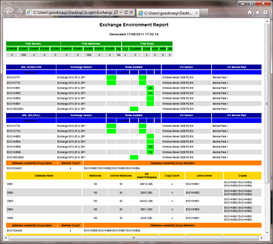
A quick post on Exchange fellow Steve Goodman who created a nice PowerShell script which generates a basic HTML report on your Exchange environment. When required, you can also e-mail the report, which is nice if you want to schedule the script to run on a daily basis for example.

The script is provided as-is so you can tailor it to your needs. It’s still work in progress, so if you got any requests just send Steve a message.

You can find the post and script here.