 Many customers nowadays are running a virtualized Exchange environment, utilizing Database Availability Groups, load balanced Client Access Servers and the works. However, I also see environments where it is up to the Hypervisor of choice on the hosting of virtual machines after a (planned) fail-over. This goes for Exchange servers, but also for redundant infrastructure components like Domain Controllers or Lync Front-End servers for example.
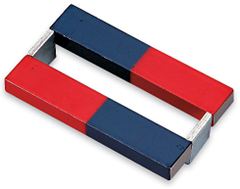
So, leaving it to “default” is not a good idea when you want to achieve the maximum availability potential. Think about what will happen if redundant roles are located on the same host and that host goes down. What you want to do is prevent hosts from becoming the single point of failure, something which can be accomplished by using a feature called anti-affinity. This will distribute virtual machines over as much hosts as possible. Where affinity means to have an preference for, like in Processor Affinity for processes, Anti-Affinity can be regarded as repulsion in magnetism.
For VMWare, you can utilize DRS Anti-Affinity rules; I’ll describe how you can configure Anti Affinity in Hyper-V clusters using the AntiAffinityClassNames property (which by the way already exists since Windows Server 2003). And yes, property means it’s not accessible from the Failover Cluster Manager, but I’ve create a small PowerShell script which lets you configure the AntiAffinityClassNames property (in pre-Server 2012 you could also use cluster.exe to configure this property).
Note: For readability, when you see virtual machine(s), read cluster group(s); In Microsoft failover clustering, a clustered virtual machine role is a cluster group.
Now, before we’ll get to the script, first something on how AntiAffinityClassNames works. The AntiAffinityClassNames property may contain multiple unique strings which you can make up yourself. I’d recommend creating logical names based on the underlying services, like ExchangeDAG or ExchangeCAS. When a virtual machine is moved the process is as follows:
- When defined, the cluster tries to locate the next preferred node using the preferred owner list;
- Does the designated node host a virtual machine with a matching element in their AntiAffinityClassNames property; if not, the designated host is selected; if it is, move to the next available preferred owner and repeat step 2;
- If the list is exhausted (i.e. only anti-affined hosts), the anti-affinity attribute is ignored and the preferred owner list is checked again, ignoring anti-affinity (“last resort”).
Traces of Anti-Affinity influencing failover behavior can be found in the cluster event log:
00000648.00000d54::2013/07/22-10:40:33.162 INFO [RCM] group ex2 should fail back from node 2 to node 3 now due anti-affinity
Usage
Now on to the script, Configure-AntiAffinity.ps1. The syntax is as follows:
Configure-AntiAffinity.ps1 [-Cluster] <String> [-Groups] <Array> [-Class] <String> [[-Overwrite]] [[-Clear]] [<CommonParameters>]
A small explanation of the available parameters:
- Cluster is used to specify which cluster you cant to configure (mandatory);
- Groups specifies which Cluster Groups (Virtual Machines) you want to configure Anti-Affinity for (mandatory);
- Class specifies which name you want to use for configuring Anti-Affinity (optional, AntiAffinityClassName);
- When Overwrite is specified, all existing Anti-Affinity class names will be overwritten by Class for the specified Groups, otherwise Class will be added (default);
- When Clear is specified, all existing Anti-Affinity class names will be removed for the specified Groups;
- The Verbose parameter is supported.
So, for example assume you have 3+ Hyper-V cluster named Cluster1 consisting of 3+ nodes running 3 virtualized Exchange servers hosting a 3-node DAG, ex1, ex2 and ex3 and you want to configure anti-affinity for these virtual machines using the label PRODEX, you could use the script as follows :
Configure-AntiAffinity.ps1 -Cluster Cluster1 -Groups ex1,ex2, ex3 –Class PRODEX –Verbose
To clear anti-affinity you could use:
Configure-AntiAffinity.ps1 -Cluster Cluster1 -Groups ex1,ex2,ex3 -Clear
Here’s a screenshot of the script for creating anti-affinity, add additional anti-affinity class names and clearing anti-affinity settings:

Feedback
Feedback is welcomed through the comments. If you got scripting suggestions or questions, do not hesitate using the contact form.
Download
You can download the script from the TechNet Gallery here.
Revision History
–



 EighTwOne (821)