Decommissioning Exchange 2010 DAG


Exchange 2010 LogoI received a question on if it was possible to decommission a DAG, so that the Exchange 2010 servers would become stand-alone Exchange servers and the databases remain available on one server, freeing up other mailbox servers. I assume the customer has valid reasons for wanting to do so, like downsizing without requirements justifying the DAG. To answer that question: of course that is possible. Now, while many blogs are happy to tell you how to create a DAG there aren’t many on how to dismantle one, so here goes.

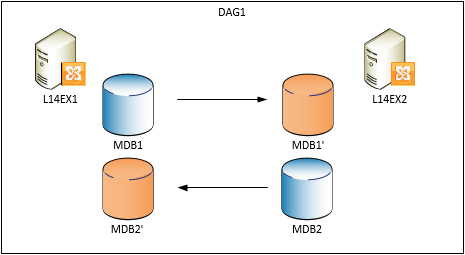
For this blog I use a small setup which consists of a single DAG (DAG1) with member servers L14EX1 and L14EX2 hosting two databases, MDB1 and MDB2; both servers host an active copy.
image

In this example we’re going to decommission DAG1, where in the end the L14EX1 will host both databases and L14EX2 is freed up.

Before we decommission the DAG, we’ll reorganize the active databases so when removing database copies we’re removing passive copies. We’ll start by checking if the health status of the DAG:

Get-MailboxDatabaseCopyStatus *

image

We see databases are mounted and copies are in a healthy state. Next, we’ll active the copies on the L14EX1, because we’ll be freeing up the L14EX2:

Move-ActiveMailboxDatabase –Server L14EX2 –ActivateOnServer L14EX1 –Confirm:$false

image

Verify the databases are now properly mounted on the L14EX1:

image

Next, we’ll be removing the passive copies hosted on the L14EX2. Use Get-MailboxDatabaseCopyStatus instead of Get-MailboxDatabase because Remove-MailboxDatabaseCopy needs the database name specified together with the server name hosting the copy, e.g. “SERVER\DATABASE”. Note that after removing the copy, the files are still present on the file system which you need to clean up manually:

Get-MailboxDatabaseCopyStatus –Server L14EX2 | Remove-MailboxDatabaseCopy –Confirm:$false

image

With all passive database copies removed, we can now remove the L14EX2 from the DAG. Note that when removing a non-last member server, the node will also be evicted from the cluster and the quorum will be adjusted when necessary.

Remove-DatabaseAvailabilityGroupServer –Identity DAG1 –MailboxServer L14EX2

image

Next, do the same thing for the remaining node, the L14EX1. Note that this server still hosts (active) database copies which is ok; the cmdlet will detect this is the last member server of the DAG and will also remove the cluster object.

image

After the last member server has been removed from the DAG, we now have an empty DAG object which we can remove:

Remove-DatabaseAvailabilityGroup –Identity DAG1 –Confirm:$false

Et voila, L14EX1 now hosts both databases and the L14EX2 is freed up and you can uninstall Exchange from that server if required.

image

Kindly leave your comments if you have any questions.

TechEd North America 2011 sessions


With the end of TechEd NA 2011, so ends a week of interesting sessions. Here’s a quick overview of recorded Exchange-related sessions for your enjoyment:

Virtualized Exchange 2010 SP1 UM, DAGs & Live Migration support


Today, just before TechNet North America 2011, Microsoft published a whitepaper on virtualizing Exchange 2010, “Best Practices for Virtualizing Exchange Server 2010 with Windows Server® 2008 R2 Hyper V“.

There are some interesting statements in this document which I’d like to share with you, also after the Exchange team published an article on supported scenarios regarding virtualized shortly shortly after this paper was published.

First, as Exchange fellow Steve Goodman blogged about, a virtualized Exchange 2010 SP1 UM server role is now supported, albeit under certain conditions. More information on this at Steve’s blog here.

The second thing is that live migration, or any form of live migration offered by products validated through the Windows Server Virtualization Program (SVVP) program, is now supported for Exchange 2010 SP1 Database Availability Groups. Until recently, the support statement for DAGs and virtualization was:

“Microsoft does not support combining Exchange high availability (DAGs) with hypervisor-based clustering, high availability, or migration solutions that will move or automatically failover mailbox servers that are members of a DAG between clustered root servers. DAGs are supported in hardware virtualization environments provided that the virtualization environment doesn’t employ clustered root servers, or the clustered root servers have been configured to never failover or automatically move mailbox servers that are members of a DAG to another root server.”

The Microsoft document on virtualizing Exchange Server 2010 states the following on page 29:

“Exchange server virtual machines, including Exchange Mailbox virtual machines that are part of a Database Availability Group (DAG), can be combined with host-based failover clustering and migration technology as long as the virtual machines are configured such that they will not save and restore state on disk when moved or taken offline. All failover activity must result in a cold start when the virtual machine is activated on the target node. All planned migration must either result in shut down and a cold start or an online migration that utilizes a technology such as Hyper-V live migration.”

The first option, shutdown and cold start,  is what Microsoft used to recommend for DAGs in VMWare HA/DRS configurations, i.e. perform an “online migration” (e.g. vMotion) of a shut down virtual machine. I blogged about this some weeks ago here since VMWare wasn’t always clear about this. Depending on your configuration, this might not be a satisfying solution when availability is a concern.

The online migration statement is new as well as the host-based fail-over clustering. In addition, though the paper is aimed at virtualization solutions based on Hyper-V R2, the Exchange Team article is more clear on supported scenarios for Exchange 2010 SP1 with regards to 3rd party products (VMware HA); if the product is supported through the SVVP program, usage of Exchange DAGs are supported. Great news for environments running or considering virtualizing their Exchange components.

Be advised that in addition to the Exchange team article, the paper states the following additional requirements and recommendations as best practice:

  • Exchange Server 2010 SP1;
  • Use Cluster Shared Volumes (CSV) to minimize offline time;
  • The DAG node will be evicted when offline time exceeds 5 seconds. If required, increase the heartbeat timeout to maximum 10 seconds;
  • Implementation of latest patches for the hypervisor;
  • For live migration network:
    – Enable jumbo frames and make sure network components support it;
    – Change receive buffers to 8192;
    – Maximize bandwidth.

Note that on May 17th the DAG support statement for Exchange 2010 SP1 on TechNet was updated to reflect this. However, the last two sentences might restart those “are we supported” discussions again:

“Hypervisor migration of virtual machines is supported by the hypervisor vendor; therefore, you must ensure that your hypervisor vendor has tested and supports migration of Exchange virtual machines. Microsoft supports Hyper-V Live Migration of these virtual machines.”

So, if vendor A, e.g. VMWare, has tested and supports vMotioning DAGs with their hypervisor X, Microsoft will support Live Migration for virtual machines on hypervizor X using Hyper-V? Now what kind of statement is that?

(Updates: May 16th – statements from EHLO blog, May 17th – mention updated TechNet article)

VMWare HA/DRS and Exchange DAG support


Last year an (online) discussion took place between VMWare and Microsoft on the supportability of Exchange 2010 Database Availability Groups in combination with VMWare’s High Availability options. Start of this discussion were the Exchange 2010 on VMWare Best Practices Guide and Availability and Recovery Options documents published by VMWare. In the Options document, VMWare used VMware HA with DAG as an example and contains a small note on the support issue. In the Best Practices Guide, you have to turn to page 64 to read in a side note, “VMware does not currently support VMware VMotion or VMware DRS for Microsoft Cluster nodes; however, a cold migration is possible after the guest OS is shut down properly.” Much confusion rose; was Exchange 2010 DAG supported in combination with those VMWare options or not?

In a reaction, Microsoft clarified their support stance on the situation by this post on the Exchange Team blog. This post reads, “Microsoft does not support combining Exchange high availability (DAGs) with hypervisor-based clustering, high availability, or migration solutions that will move or automatically failover mailbox servers that are members of a DAG between clustered root servers.” This meant you were on your own when you performed fail/switch-overs in an Exchange 2010 DAG in combination with VMWare VMotion or DRS.

You might think VMWare would be more careful when publing these kinds of support statements. Well, to my surprise VMWare published a support article 1037959  this week on “Microsoft Clustering on VMware vSphere: Guidelines for Supported Configurations”. The support table states a “Yes” (i.e. is supported) for Exchange 2010 DAG in combination with VMWare HA and DRS. No word on the restrictions which apply to those combination, despite the reference to the Best Practices Guide. Only a footnote for HA, which refers to the ability to group guests together on a VMWare host.

I wonder how many people just look at that table, skip those guides (or overlook the small notes on the support issue) and think they will run a supported configuration.

Exchange 2010 Replication & SP1 Block Mode


As of Exchange 2007, replication – or to be exact, continuous replication – is used to create database copies to offer high availability and resilience options. This form of replication uses log shipping, meaning each log file is filled with transaction information up until the log file size limit of 1 MB. Then, the log file is shipped by the Exchange Replication Service to the passive copies where it is inspected and replayed against the passive copy.

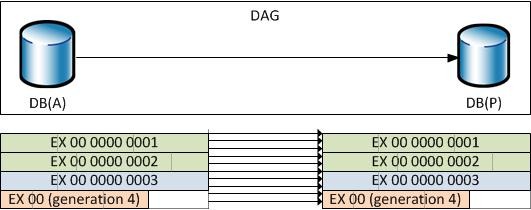
For example, in the diagram below we have a DAG with 2 members. There’s an active database copy, DB(A) and a passive database copy, DB(P). Log files are generated on the node hosting DB(A) which are copied to the 2nd member where they are replayed against the database DB(P). The first three log files (EX*1-3) were copied to the 2nd node, the first two log files (EX*1-2) were inspected and replayed and the 3rd (EX*3) is still being processed. Meanwhile, new transactions are being stored in a new log file (EX*4).

You’ll see that because the Exchange Replication Service will only replicate 100% filled log files before shipping them, there’s a potential risk of information loss.

FileMode

With the introduction of Exchange 2010 SP1 a new mode is added to the replication engine, namely continuous replication block mode. To prevent confusion, as of SP1, the existing mode is referred to as continuous replication file mode.

In block mode, each transaction is shipped directly to the passive copies where it will be buffered as well. When the log file size limit is reached, the host with the passive copy will generate it’s own log file (and inspect it), so the process of generating, inspecting and replaying log files remains unchanged.

The benefit of this mechanism is that there’s less chance of losing information and chance of losing less information, because buffered, unlogged transactions are also stored – in parallel – in buffers on passive copies. During a fail-over, when in block mode, the buffered information will be processed as part of the recovery process. A new log file will be generated using the (partial) information from the buffer, after which the regular recovery process takes place.

BlockMode

On the downside the Exchange Replication Service becomes more chatty on the network as each transaction is shipped individually instead of bundling them together, which is more efficient. That’s however a small price to pay for near-instant replication.

The process of switching to or from block mode is automatic. Initially, the replication is in file mode. When passive copies are current, it switches to block mode. It’ll automatically switch back to file mode when the replication process falls too far behind, i.e. the copy queue contains too many log files.

If you want check if replication is in file or block mode, there’s a BlockReplication section in the Eventlog. Unfortunately, it remains empty, even after setting the logging level of MSExchange*\* to Expert level (and restarting MsExchangeRepl and MSExchangeIS).

There’s a TechNet article here which mentions you can monitor the performance counter “MSExchange Replication\Continuous replication – block mode Active” using Performance Monitor or Get-Counter. For example, to check if block mode is active use the following:

Get-Counter -ComputerName <DAGID> -Counter “\MSExchange Replication(*)\Continuous replication – block mode Active”

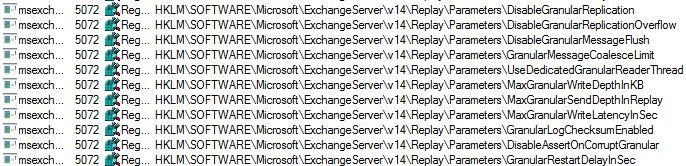
Curious is the behaviour to activate block mode is controllable, I used Sysinternal’s procmon to investigate which registry keys were accessed. It turns out that when starting MsExchangeRepl, there are some interesting registry accesses regarding block mode, when looking for the word “granular”:

RegKeys

That “DisableGranularReplication” setting might imply there’s a way to prevent block mode. Note that all the keys shown above are not present in registry and I can’t find any information on them. I guess Microsoft doesn’t want people to fiddle with these settings, which makes sense since you are likely to break or negatively influence the process. And the last thing you want is a unreliable, lagging replication process because someone tried “tuning” things.