Sent Items Management


Exchange 2010 LogoWith the release of Exchange 2010 SP3, you can now control where sent items are stored when Send-As or Send-on-Behalf permissions are configured and you’re using Outlook Web Access. In Outlook we already had the possibility to control where sent items are stored this using registry keys, but now we can do so from Outlook Web Access or using the Exchange Management Shell. Unlike Outlook, you unfortunately can’t control where deleted items are stored.

As a quick reminder, to configure permissions for user Francis to send e-mail messages as Philip or on behalf of Philip, you would use:

Add-ADPermission Philip -User Francis -Extendedrights "Send As"
Set-Mailbox Philip -GrantSendOnBehalfTo Francis

Sent Items Management from Outlook Web Access
To access the Sent Items Management option, use OWA to open the (shared) mailbox and navigate to Settings > Sent Items

image

You can configure the following options for Send-As or Send-on-Behalf e-mail:

  • From mailbox: The sent item will be stored in the Sent Items folder of the (shared) mailbox;
  • Sender and From mailboxes: The sent item will be stored in the Sent Items folder of the (shared) mailbox and actual sender;
  • Sender mailbox: The sent item will be stored in the Sent Items folder of the actual sender (default).

Sent Items Management using EMS
To inspect where sent items are stored, use Get-MailboxSentItemsConfiguration, e.g.

Get-MailboxSentItemsConfiguration Philip

image

To configure the settings, use Set-MailboxSentItemsConfiguration in conjunction with SendAsItemsCopiedTo or SendOnBehalfOfItemsCopiedTo specifying Sender, From or SenderAndFrom. For example, to configure the items sent as Philip to be stored in the mailbox of both Philip and the actual sender, use the following cmdlet:

Set-MailboxSentItemsConfiguration Philip –SenderAndFrom

image

It would be nice if Outlook would honor these settings, just like the signatures, so you configure this centrally and have consistent behavior regardless of the client setting. It shouldn’t be difficult, using Exchange Web Services as a vehicle to store and retrieve this information.

Exchange 2010 SP2 Rollup 6


Today the Exchange Team released Rollup 6 for Exchange Server 2010 Service Pack 2 (KB2746164). This update raises Exchange 2010 version number to 14.2.342.3.

Here’s the list of changes included in this Rollup:

  • 2489941 The “legacyExchangeDN” value is shown in the “From” field instead of the “Simple Display Name” in an email message in an Exchange Server 2010 environment
  • 2717453 You cannot move or delete a folder by using Outlook in online mode in an Exchange Server 2010 environment
  • 2733608 Corrupted Japanese DBCS characters when you send a meeting request or post a reply to a posted item in a public folder in an Exchange Server 2010 environment
  • 2734635 Folder-associated information (FAI) items are deleted when you run the New-InboxRule cmdlet or change Inbox rules in an Exchange Server 2010 environment
  • 2737046 AutoPreview feature does not work when you use Outlook in online mode in an Exchange Server 2010 environment
  • 2741117 High CPU utilization by Microsoft Exchange Replication service on Client Access servers in an Exchange Server 2010 environment
  • 2746030 Incorrect ExternalURL value for EWS is returned by an Exchange Server 2010 Client Access server
  • 2750188 Exchange Service Host service crashes when you start the service on an Exchange 2010 server
  • 2751417 Synchronization fails if you sync an external device to a mailbox through EAS in an Exchange Server 2010 environment
  • 2751581 OAB generation fails with event IDs 9126, 9330, and either 9338 or 9339 in an Exchange Server 2010 environment
  • 2760999 “The signup domain ‘org’ derived from ‘<TenantDomainName>.org’ is not a valid domain” error message when you use the Hybrid Configuration wizard in an Exchange Server
  • 2776259 Msftefd.exe process crashes if an email attachment has an unexpected file name extension or no file name extension in an Exchange Server 2010 environment
  • 2779387 Duplicated email messages are displayed in the Sent Items folder in a EWS-based application that accesses an Exchange Server 2010 Mailbox server
  • 2783586 Name order of a contact is displayed incorrectly after you edit the contact in an Exchange Server 2010 environment
  • 2783631 User-Agent field is empty when you run the Get-ActiveSyncDeviceStatistics cmdlet in an Exchange Server 2010 SP2 environment
  • 2783633 You cannot move or delete an email message that is larger than the maximum receive or send size in an Exchange Server 2010 environment
  • 2783649 Private appointment is visible to a delegate in an Exchange Server 2010 environment
  • 2783771 Mailbox on a mobile device is not updated when EAS is configured in an Exchange Server 2010 environment
  • 2783772 Edgetransport.exe process crashes after a journal recipient receives an NDR message in an Exchange Server 2010 environment
  • 2783776 You cannot perform a cross-premises search in a mailbox in an Exchange Server 2010 hybrid environment
  • 2783782 Error message when you use Scanpst.exe on a .pst file in an Exchange Server 2010 environment
  • 2784081 Store.exe process crashes if you add certain registry keys to an Exchange Server 2010 Mailbox server
  • 2784083 Week numbers in the Outlook Web App and Outlook calendars are mismatched in an Exchange Server 2010 environment
  • 2784093 SCOM alerts and event ID 4 in an Exchange Server 2010 SP2 organization that has Update Rollup 1 or later
  • 2784566 Exchange RPC Client Access service crashes on an Exchange Server 2010 Mailbox server
  • 2787023 Exchange Mailbox Assistants service crashes when you try to change a recurring calendar item or publish free/busy data in an Exchange Server 2010 environment
  • 2793274 A new option is available that disables the PermanentlyDelete retention action in an Exchange Server 2010 organization
  • 2793278 You cannot use the search function to search for mailbox items in an Exchange Server 2010 environment
  • 2793279 Exchange Server 2010 does not restart when the Microsoft Exchange Replication service freezes
  • 2793488 Internet Explorer freezes when you connect to the OWA several times in an Exchange Server 2010 environment
  • 2810616 Email message delivery is delayed on a Blackberry mobile device after you install Update Rollup 4 for Exchange Server 2010 SP2

In addition to these fixes, this Rollup also includes a fix for the security issue described in Microsoft Security Bulletin MS13-012.

As of Rollup 4, its no longer required to disable/re-enable ForeFront Protection for Exchange using the fscutility to be able to install the Rollup properly. However, if you want to remain in control, you can disable ForeFront before installing the Rollup using fscutility /disable and re-enable it afterwards using fscutility /enable.

If you want to speed up the update process for systems without internet access, you can follow the procedure described here to disable publisher’s certificate revocation checking.

If you got a DAG and want to properly update the DAG members, check the instructions here.

Note that Rollups are cumulative, i.e. they contain fixes released in earlier Rollups for the same product level (RTM, SPx). This means you don’t need to install previous Rollups during a fresh installation but can start with the latest Rollup.

As with any Hotfix, Rollup or Service Pack, I’d recommend to thoroughly test this rollup in a test and acceptance environment first, prior to implementing it in production.

You can download Exchange 2010 SP2 Rollup 6 here.

Exchange 2013 Cumulative Updates and You


Ex2013 LogoFew days ago, the Exchange Team published their intentions for Exchange 2013 regarding update schemes (or as Microsoft calls it, servicing). While the article describes the policy with a Q&A section at the bottom, there are still some grey areas. In this blog, I’d like emphasize on some elements and point out those grey areas.

As you probably read before, with Exchange 2013 the Rollup packages will be replaced by Cumulative Updates (CU), a name change probably inspired by Lync’s Cumulative Update packages. But it’s more than just a name change and admins or people involved managing releases should become familiar with the new policy as it will have some features that you don’t want to get surprised by.

One of the major changes in my opinion is that there will be one team working on the product; code bases for on-premises Exchange and Exchange Online (Office 365) will brought up to par. A small change is that Microsoft will first implement – or dogfood – the Cumulative Update in their Office 365 environment after while it will be made available for on-premises or hybrid deployments. While this may improve the quality of the Cumulative Update, not all kinds of deployments will be tested so it’s no warranty. However, looking at the current situation with Office 365, it may put stress on Microsoft procedures as there are already big variations between the various regions regarding Exchange Online implementations as well as Exchange Online and the on-premises version.

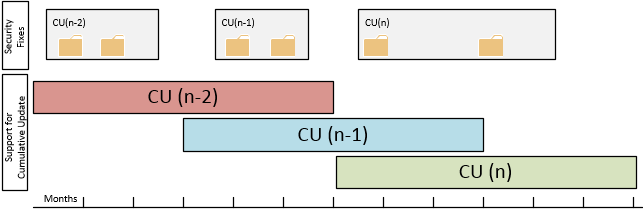
Ex2013CULifeCycleIt’s the intention Cumulative Updates will be released on a quarterly basis. Each Cumulative Update will consist of a full installation set, so for example you can install Exchange 2013 Cumulative Update 2 straightaway whereas with Rollups you had to implement the Service Pack level prior to applying the related Rollup. So, this is a big convenience when for example installing greenfield scenarios or adding systems.

However,  unlike Rollups you can’t uninstall a Cumulative Update once it has been installed. This could worry people, looking back at the qualify of some past Rollups which were pulled, rereleased and in some rare cases pulled and rereleased again. But since Microsoft will now implement Cumulative Updates first, bad Cumulative Updates will become Microsoft’s problem first, not yours as it seemed to few people with some of those Rollups.

Security updates will become Cumulative Update bound, meaning they are to be installed on a specific Cumulative Update. However, there can be two supported Cumulative Update “active” at a time, so I assume security updates can be installed on both (unless Microsoft will be making two versions of each security update). The next Cumulative Update will include security updates released since the previous Cumulative Update was released. However, it might be that security updates won’t make it in the a cumulative update because of the freeze period, the period before releasing the Cumulative Update when no more updates will be added, and one needs to wait for the Cumulative Update to be released or install the security update, wait for the Cumulative Update, install the Cumulative update and reinstall the security update, in which case you might prefer waiting for the Cumulative Update. Some might rushing (security) updates won’t harm you, but remember KB2624899 fixing the IE9/MMC issue, the initial EX2010SP2RU5 which caused DAG issues or KB2750149 which broke the WS2012 Fail-over Cluster snap-in and required KB2803748 to fix the issue. Yes, Microsoft will implement Cumulative Updates first but this will also raise the expectations set on Microsoft’s internal Quality Control enormously. They don’t want to end up in a situation releasing a faulty Cumulative Update to public, since it will be impossible to uninstall. Then again, nobody said Cumulative Updates would make the best practice of testing and accepting updates before implementing them in production environments obsolete.

A major change is that Cumulative Updates will be supported for 3 months after the next Cumulative Update is released. Because Cumulative Updates are to be released quarterly, this sets the support-window of a Cumulative Update (or plain, non-Cumulative Update) to 6 months. This may seem long, but I know a lot of companies will have an issue with this window because their test and acceptance periods easily transcends half a year, especially if schema updates are involved (yes, Cumulative Updates can require schema updates). And don’t forget about cases where customers adopted  a building block model where they will need to test that Cumulative Update against their Operating System building block with all the additional components, like Anti-Virus, Backup agents or Management software involved.

Finally, an odd element in this scheme are the Service Packs of which Microsoft said they will be getting released. But where in the past only Service Packs could embed Active Directory schema updates, that’s also something a Cumulative Update might require, making Service Packs effectively an Über Cumulative Update.

Feel free to share your thoughts in the comments below.

YAII (or Yet Another IOS Issue) (Update)


iPhone iOSL’Histoire se rĂ©pète. After the meeting issues with iOS 6.0, which were fixed in 6.0.1, you could have assumed Apple learned a lesson. Unfortunately, there are again reports of misbehaving iOS devices; this they’re on iOS 6.1.

As reported by Exchange fellows Tony Redmond and Paul Robichaux today, there are reports iOS 6.1, released end of January, may generate excessive transaction log growth. A report on the F5 forum states the issue may lie in the improper handling of Meeting Responses by iOS 6.1 devices, causing some sort of loop.

Since Exchange is a business critical platform and excessive log growth can have severe consequences when not properly monitored (storage space running out, impact on replication or backup), it is recommended to take the following steps until the situation becomes more clear (and Apple releases a fix):

  • Inform iOS users and discourage them to upgrade at the moment (you can’t uninstall it). To create an inventory of iOS 6.1 users, use Steve Goodman’s Export-iOSDeviceStatistics script (available here) or use Get-ActiveSyncDevice, e.g.
    Get-ActiveSyncDevice | where {$_.DeviceOs -match “iOS 6.1”}
  • Consider implementing an access rule to block IOS 6.1 users (see below);
  • When experiencing the issue, report it to Apple.

When you want to block iOS 6.1 users, specifically the MeetingResponses, you need to filter on User Agent “^Apple.*1002.*” and check the URI for “Cmd=MeetingResponse” (so iOS 6.1 users can keep having e-mail but not send meeting responses). Your options and implementation depend on the components user in your organization:

  • You can block iOS 6.1 devices using Exchange 2010’s Allow/Block/Quarantine mechanism, e.g.
    New-ActiveSyncDeviceAccessRule -QueryString “iOS 6.1 10B142” -Characteristic DeviceOS -AccessLevel Block
  • Alternatively, you can install and utilize the IIS Rewrite Module;
  • When running TMG/ISA, you can utilize the http filter to block iOS 6.1, i.e. select the ActiveSync publishing rule, Configure HTTP, tab Headers. Unfortunately, wildcards are not supported, so you need to enter each iOS6.1 User-Agent variation by using Add / Request headers and entering the exact string like (list not complete):
    • Apple-iPhone4C1/1002.142
    • Apple-iPad2C1/1002.141
    • Apple-iPad3C3/1002.141
  • F5 has guidance on creating a blocking iRule to block MeetingResponse requests for iOS devices on their forum here.

Generally speaking, like implementing Service Packs or Rollups straight after their release in a production environment is a bad idea, the same rule should apply to clients of all types. I know this might sound challenging with the whole Bring Your Own movement and the adoption of iPhones/iPads, I think blocking or quarantining newly released iOS versions and only allowing them after a few weeks (“incubation period”) can be a wise strategy. Also, this strategy can be part of your communications or house rules for end users when they connect their own or company devices to your corporate environment.

Update (11Feb): It is reported the issue won’t occur after deleting the partnership and setting it up again doing a full sync. To delete a partnership from Exchange’s perspective, use Remove-ActiveSyncDevice, e.g.

Get-ActiveSyncDeviceStatistics –Mailbox Olrik | Where {$_.DeviceOS –match “iOS 6.1”} | Remove-ActiveSyncDevice.

Note that the iOS 6.1.1 update released by Apple today is for iPhone 4S only and fixes 3G issues.

Update (12Feb): Microsoft published KB2814847. They added the option of mitigating the issue by introducing a throttling policy, which Exchange admins need to assign to iOS 6.1 users. Note that this only applies to Exchange 2010 and up and will only slow down the process of transaction log generation, but users can keep using their device. It’s then recommended to instruct iOS 6.1 users to restart their devices if their device complains it can’t connect. Looking at the article, Office 365 already has throttling in-place for all users.

Update (13Feb): Apple has published a support article as well (TS4532). Their suggestion; Turn calendars off, wait 10 seconds then turn calendars back on again. Yes, really. They mention it’s related to responding to recurring meeting exceptions and state a fix is in the works.

Update (15Feb): As it turns out, he meeting response issue isn’t the worst issue in iOS 6.1; apparently you can easily bypass the lock screen on iPhones due to a glitch in the emergency calling feature, allowing anyone to use your phone for calling or accessing your contacts.

Update (16Feb): Rumors are Apple will release iOS 6.1.2 early next week but before February, 20th.This update should fix this meeting bug as well as the lock screen issue.

Update (19Feb): Today, after more than 10 days after initial reports of the issue, Apple released iOS 6.1.2, which supposedly fixes the meeting bug which caused excessive transaction log generation and battery drain. Given Apple’s track record, I’d test this properly first in your environment before waving the green flag to all your iPhone and iPad users. Note that according to reports, the lock screen glitch hasn’t been fixed in 6.1.2.

Decommissioning Exchange 2010 DAG


Exchange 2010 LogoI received a question on if it was possible to decommission a DAG, so that the Exchange 2010 servers would become stand-alone Exchange servers and the databases remain available on one server, freeing up other mailbox servers. I assume the customer has valid reasons for wanting to do so, like downsizing without requirements justifying the DAG. To answer that question: of course that is possible. Now, while many blogs are happy to tell you how to create a DAG there aren’t many on how to dismantle one, so here goes.

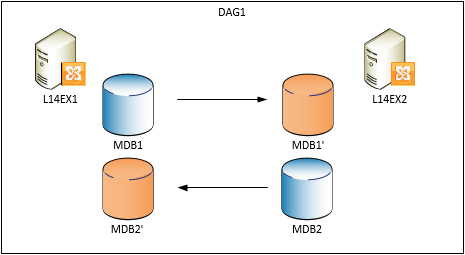
For this blog I use a small setup which consists of a single DAG (DAG1) with member servers L14EX1 and L14EX2 hosting two databases, MDB1 and MDB2; both servers host an active copy.

image

In this example we’re going to decommission DAG1, where in the end the L14EX1 will host both databases and L14EX2 is freed up.

Before we decommission the DAG, we’ll reorganize the active databases so when removing database copies we’re removing passive copies. We’ll start by checking if the health status of the DAG:

Get-MailboxDatabaseCopyStatus *

image

We see databases are mounted and copies are in a healthy state. Next, we’ll active the copies on the L14EX1, because we’ll be freeing up the L14EX2:

Move-ActiveMailboxDatabase –Server L14EX2 –ActivateOnServer L14EX1 –Confirm:$false

image

Verify the databases are now properly mounted on the L14EX1:

image

Next, we’ll be removing the passive copies hosted on the L14EX2. Use Get-MailboxDatabaseCopyStatus instead of Get-MailboxDatabase because Remove-MailboxDatabaseCopy needs the database name specified together with the server name hosting the copy, e.g. “SERVER\DATABASE”. Note that after removing the copy, the files are still present on the file system which you need to clean up manually:

Get-MailboxDatabaseCopyStatus –Server L14EX2 | Remove-MailboxDatabaseCopy –Confirm:$false

image

With all passive database copies removed, we can now remove the L14EX2 from the DAG. Note that when removing a non-last member server, the node will also be evicted from the cluster and the quorum will be adjusted when necessary.

Remove-DatabaseAvailabilityGroupServer –Identity DAG1 –MailboxServer L14EX2

image

Next, do the same thing for the remaining node, the L14EX1. Note that this server still hosts (active) database copies which is ok; the cmdlet will detect this is the last member server of the DAG and will also remove the cluster object.

image

After the last member server has been removed from the DAG, we now have an empty DAG object which we can remove:

Remove-DatabaseAvailabilityGroup –Identity DAG1 –Confirm:$false

Et voila, L14EX1 now hosts both databases and the L14EX2 is freed up and you can uninstall Exchange from that server if required.

image

Kindly leave your comments if you have any questions.