
Tagging External Messages


Update 8sep2022: In Outlook v2209 build 15629.20058 C2R Beta, native External tags appeared which might remove the need to have custom forms to display those in Outlook Desktop.

Two years ago, I posted a blog on how to implement Transport Rules in Microsoft Exchange to flag messages originating from outside the organization. Goal is to aid end users in identifying messages originating from outside of the organization, by displaying tags in the subject or body part of received messages. This to make them aware – and hopefully more cautious – when it comes to clicking links or opening attachments. Downside of this method is that every inbound message gets a bit cluttered in their subject or body with tags and notifications, which becomes more evident when replying back and forth to external messages. Back then, I already stated a sort of MailTip would be a more preferable and elegant solution.

Onward to 2021, where tagging of external messages became a generally available feature in March for Exchange Online (MC243047, announcement), when used together with Outlook for Web Access (OWA), Outlook for Mac, Outlook Mobile. Outlook for Desktop will also receive support for the feature (supported per version 2105 build 14026.20000, InsiderFast currently). To start adopting this tagging mechanism for new messages, organizations need to deploy an organization level setting using Set-ExternalInOutlook, e.g.

Set-ExternalInOutlook -Enabled $True -AllowList 'contoso.com'

This will enable the tagging of external messages in your tenant, except for domains or e-mail addresses which have been specified through the AllowList. In the example above, messages from contoso.com senders will bypass tagging. The AllowList is limited to 30 entries or 1 kB, whichever comes first. You can reconfigure the AllowList through the hashtable method, e.g.

Set-ExternalInOutlook –AllowList @{Add='fabrikam.com','john@wingtiptoys.com'; Remove='contoso.com'}

After configuring Set-ExternalInOutlook, tagging is not immediate and can take a short while to become active. To inspect current settings, run Get-ExternalInOutlook.

How tagged mail is presented depends on the client. For example, Outlook for Web Access displays an ‘External’ label in the message list, as well as a MailTip at the top of the e-mail contents:

image

Same goes for Outlook Mobile, where the message list as well as the message view will show an indicator:

image

Outlook for Desktop
However, Outlook for Desktop does not present a label in the message list, nor exposes a field to filter those external messages, only displaying a MailTip after opening the message:

image

So, people almost started asking right away if it was not possible to expose External information in the message list. Well, with a little help of “Oldskool” Outlook and forms customization, this is possible, and here is how:

First, we need information related to the MAPI attribute. As the field is not by default available in Outlook, we need to know some of its properties to define it later on. As mention in some of the documents, or Glen Scales’ article on how to identify messages using Graph or Exchange Web Services, the MAPI property tag is 41F28F13-83F4-4114-A584-EEDB5A6B0BFF and its name is IsExternalSender.

Next, we need to construct a .CFG file where we will define the property we want to expose. I’ve already done this part for you, and you can download IsExternalSender.cfg from GitHub. Also download the two .ico files and put them in the same folder as the .cfg file. Note that those .ico files only represent the form. Alternatively, you can copy the .cfg file to your Personal Forms Library folder and skip installing, but this way the instruction is a bit simpler, allows you to pick the Folder Forms Library and will skip the elevated access dialog as the Personal Forms Library is a protected folder.

Open Outlook, go to File > Options > Advanced and click the Custom Forms button. There, click Manage Forms. By default, the form is installed in your Personal Folder Library. You can also pick a mailbox to store the form, allowing it to roam together with the view changes we will perform later. Click Install and pick the prepared .cfg file you downloaded from GitHub, and the following dialog should be shown:
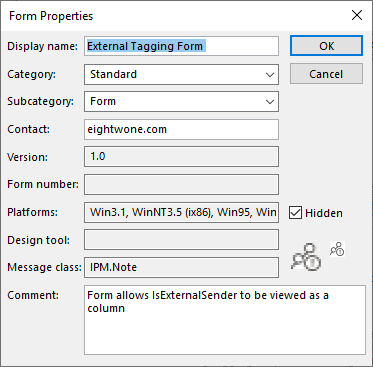
image

Click OK to confirm you want to load the information in the form file in your personal forms library and close the Forms Manager. Going back to the Outlook navigation view, you can now add an IsExternalSender field to the message list. Right-click the field header and select Field Chooser. In the drop-down list, select Forms.., and add External Tagging Form to the Selected Forms. Field Chooser should now display an available field named IsExternalSender, which you can add to your current view using drag & drop.

image

Note that the .cfg defines the IsExternalSender as Boolean and showing it as an Icon. This means that for External messages, the column IsExternalSender will contain a checkbox:

image

When you want, you can create custom fields to adjust how the information is presented. For example, you can create a custom field using a formula to display [EXTERNAL] for IsExternalSender messages, which might be more usable in certain views instead of the checkbox. To accomplish this, select New in Field Chooser,and create a field named ExternalTag, type Formula and enter the following formula:

iif([IsExternalSender]=-1,"[EXTERNAL]","")

You can then add the ExternalTag field to Compact View. Do note the text takes up a row in Compact view, thus might replace sender or the subject depending on layout and field order. On a final note, when desired you can filter, sort or create Search Folders using the new IsExternalSender field.

8sep2022: In Outlook C2R Beta Channel, native tags for external messages are showing, but not (immediately) on every client, so might be part of an A/B test. The look is similar to that of Outlook Mobile:
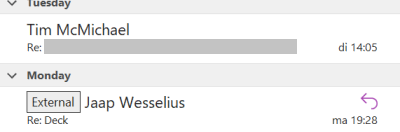
If this feature goes GA, there’s no more need to create custom forms to have External tags showing up in Outlook for Desktop. However, there is no way to sort or filter on them, so you still might prefer that over visible-only clues.

Exchange On-Premises
Organizations running Exchange Hybrid, routing inbound messages through Exchange Online, are not able to benefit from external e-mail tagging. IsSenderExternal is only stamped on messages destined for mailboxes in Exchange Online. These organizations have therefor no way to identify these messages landing in their Exchange on-premises environment, and may require them to deploy the less elegant Transport Rules solution regardless.

Outlook Connectivity changes per Nov2021


In the past, using outdated clients with Microsoft 365 services was a matter of being in an unsupported state with all the risks that go with it. This meant, that things might not work or you could experience reduced functionality. Overall, things usually kept working with a few consequences or glitches here and there.

A change in this stance was announced today per Message Center bulletin MC229143:

To ensure that we meet performance expectations, we are updating the supported versions of Outlook for Windows that can connect to Microsoft 365 services. Effective November 1, 2021, the following versions of Outlook for Windows, as part of Office and Microsoft 365 Apps, will not be able to connect with Office 365 and Microsoft 365 services.

This means, running old unsupported Outlook versions will go from “possible performance and reliability issues” to becoming actively blocked. This block will apply to these versions in the table below; as indicated, these builds were surpassed somewhere in 2017:

ApplicationAffected BuildsBuild Superseded
Office 201315.0.4970.9999
and older
October 2017
Office 201616.0.4599.9999
and older
October 2015
Microsoft 365 Apps for Enterprise
(formerly Office 365 ProPlus)

Microsoft 365 Apps for Business
(formerly Office 365 Business

1705 and olderJune 2017

While it is true that many customers are stretching the lifetime of their on-premises products beyond their support dates, I’m sure – apart from functionality and management options – performance and reliability is becoming more and more of an issue.

Finally, when this notice concerns you, it means you have not been updating your clients for at least 3 years. So, get planning, as you have around 11 months to update your clients. It also may affect any existing plans of moving to Exchange Online in the future, as getting your client-base in a supported state will become a requirement, and will no longer be a serious recommendation.

Ignite: Outlook Calendaring Update


In the Ignite talk Outlook Calendar: Fundamentals and Collaboration, the unequaled Julia Foran laid out tons of new and coming features for the various Outlook platforms in relation to calendaring. You can watch the video on the Virtual Hub.

I tried to capture those in below table. For more information for some of these features, please watch the recording

FeatureWinMacOWAiOSAnd
Personal calendar side-by-side
(Hotmail/Live/MSN, Google)
Connect Shared & Delegated Mailboxes
Importing of ICS attachments🕒
Calendar To-Do pane (My Day)
Calendar To-Do pane showing Tasks (My Day)🕒
Calendar To-Do pane multiple Months support1
Suggested Times🕒🕒
Advanced Room Finder1
Room Suggestions for Recurring Meetings🕒
Room Suggestions showing Room Capabilities
(leverages Set-Place / Places REST API)
🕒
Room Suggestions and Policies integration
AllowRecurringMeeting, BookingWindowInDays, EnforceSchedulingHorizon, MaximumDurationInMinutes
🕒🕒🕒🕒🕒
Finding a Workspace
1
Teams meeting quick-join
In-Calendar, Inbox or Search
Online meetings by default – Outlook🕒
Built-in Breaks – End Late
Built-In Breaks – Start Late
Setting roams clients, org-wide config coming soon

🕒
🕒🕒🕒
Meeting Insights – Outlook
Meeting Insights – Teams
🕒
🕒

🕒


Full Mailbox Delegates
Delegates receive full calendar permissions instead of the organisation (default) permissions
Week Numbers
Setting not roaming yet
Scheduling with time zone selection
Sync local device calendars
Sync back in progress, controllable with InTune policy
Flexible Week View
Travel detection with time zone adjustment
Automatic Removal of orphaned attendees
Attendees that left company get removed from meeting after first NDR to organizer.
🕒🕒🕒🕒🕒

Legend
✔ : Already available
🕒 : Coming
⭐ : New Feature
❔ : Undetermined

Notes
1) Currently available to Office Insiders

iOS 9 Outlook App & Lync 2013 App Issues


iphone6After Apple released iOS 9 to the public yesterday. From an Exchange or Office 365 perspective, iOS 9 supports the enhanced calendar features of Office 365 and Exchange 2016 when that is released. Unfortunately, incidents have been reported with the Outlook app and the Lync 2013 App.

Regarding the Outlook App, iOS9 users might not be able to start the Outlook App or the Outlook app will just crash. The far from ideal workaround offered by the Outlook team, is to reinstall the Outlook app.

outlookappcrash

Of course, this also requires users to reconfigure accounts and Outlook App settings, so organizations can expect some calls to the service desk by users who upgraded. Organizations can report on the currently registered iOS8 devices that syned in the last 30 days, using:

Get-MobileDevice | Where-Object {$_.DeviceOS -like 'iOS 8*' -and $_.whenChanged -gt (Get-Date).AddDays(-30)} | Select UserDisplayName, FriendlyName, DeviceModel, DeviceOS, whenChanged

This will product a list of users, the name of their device, the device model and OS and when it last synced with Exchange. This information can be useful when you want to proactively approach users with iOS8 devices.

For Lync 2013 users, there are sign-in issues when they have configured different region and language settings on their iOS device. Those users will be presented the following:

Lync2013SignInIssue1

The issue has officially been confirmed through publication of KB3096704, which states:

“This problem is fixed in the Microsoft Skype for Business for iOS app that will replace Lync for iPhone and Lync for iPad when it’s released. No fix for this issue is scheduled for the current releases of Lync for iPhone and Lync for iPad”.

Since the Skype for Business app is not available yet, this is not good news. Mitigation is possible by matching the region with the language setting (or the other way around), after which you need to reinstall the Lync 2013 app from the store.

With all this in mind, should organizations wish to first test the new iOS against their Exchange environment for potential other issues, you can block iOS 9 from accessing your Exchange 2013 environment, or Office 365 tenant if you must, using the Access/Block/Quarantine feature. First you need to retrieve the reported DeviceOS string for iOS 9 for a device:

Get-MobileDevice | Where-Object {$_.DeviceOS -like “iOS 9*”} | Select DeviceModel, DeviceOSLanguage, DeviceOS

The reported DeviceOS strings then is used to create an ActiveSync device rule. For example, my iPhone 6 reports DeviceOS as “iOS 9.0 13A344”. To block these devices with iOS 9.0 and put them in quarantine, run the following:

New-ActiveSyncDeviceAccessRule -QueryString "iOS 9.0 13A344" -Characteristic DeviceOS -AccessLevel Quarantine

If you would like to know more about the Access/Block/Quarantine option, check out this article.

Outlook 2010 gets MAPI/http support


Office-2010-Outlook-Icon[1]Update: Hotfix KB2899591 pulled in Dec2014 due to possible issues, replaced in Jan2015 by KB878264.

A quick heads-up today as the recently released KB878264 hotfix adds MAPI/http support for Outlook 2010 clients. This will benefit organizations using Exchange 2013 SP1 or later considering switching from RPC/http to MAPI/http. The KB article includes details on additional fixes that are included in this hotfix as well.

You can request the hotfix for x86 and x64 versions of Outlook 2010 here.

Links to background information on MAPI/http, its impact on client performance, and impact on network traffic in an earlier blog post here.
