Clearing AutoComplete and other Recipient Caches


Exchange 2010 Logo

Last version: 1.21, April 28th, 2021: Updated formatting and link to GitHub

Anyone who has participated in migrations or transitions to Exchange has most likely encountered or has had to work around potential issues caused by the nickname cache. A “cache,” also known by its file extension, NK2 in older Outlook clients, is a convenience feature in Outlook and Outlook WebApp (OWA) which lets users pick recipients from a list of frequently-used recipients. This list is displayed when the end user types in the first few letters.

The potential issue revolves around end users using those lists to send messages, as the list contains cached recipient information. Because this information is static, it may become invalid at some point. Thus, when users pick recipients when sending messages, they may be sending messages to non-existent recipients or invalid e-mail addresses, which create issues like non-delivery of e-mail.

Read the full article over on ENow Solutions Engine blog.

Clean-AutoComplete

Using the script mentioned in the article, which can be used to clear cached recipient information, is straightforward. It requires Exchange 2010 or later and Exchange Web Services Managed API 1.2 (or later) which you can download here. Alternatively, you can copy the Microsoft.Exchange.WebServices.DLL with the script as it will also look for it in the current folder.

The script Clean-AutoComplete.ps1 has the following syntax:

Clear-AutoComplete.ps1 [-Mailbox] <String> [-Server <String>] [-Impersonation] [-Credentials <PSCredential>] [-Type <Array>] [-Pattern <String[]>]

Where:

  • Mailbox is the name or e-mail address of the mailbox.
  • Server is the name of the Client Access Server to access for Exchange Web Services. When omitted, the script will use AutoDiscover.
  • Switch Impersonation specifies if impersonation will be used for mailbox access, otherwise the current user context will be used.
  • Credentials specifies the user credentials to use.
  • Type specifies what cached recipient information to clear. Options are Outlook  (Outlook AutoComplete stream), OWA (OWA Autocomplete stream), SuggestedContacts, RecipientCache or All. Default is Outlook,OWA.
  • Pattern is the pattern of e-mail entries to remove from cache. Only works with OWA, SuggestedContacts and RecipientCache type clearances.

So for example, suppose you want to clear the Autocomplete stream used by Outlook on a mailbox, you can use:

Clear-AutoComplete.ps1 -Identity Olrik -Type Outlook -Verbose
ScreenCap

To remove the Autocomplete stream used by OWA on your Office 365 account, you can use:

Clear-AutoComplete.ps1 -Identity olrik@office365tenant.com –Credentials (Get-Credential) –Type OWA

Be advised that clearing the Outlook AutoComplete stream will only have effect for Outlook running in Online mode. Outlook caches this information as well in the OST file, leaving the options of running Outlook with the /CleanAutocompleteCache switch, or remove and let Outlook recreate the OST file. The temporary Stream_AutoComplete *.dat files created under %USERPROFILE%\AppData\Local\Microsoft\Outlook\RoamCache are used by Outlook to speed things up.

Disabling Auto-Complete and Suggested Contacts
Alternatively, you can disable Auto-Complete, the equivalent of unchecking the Outlook option ‘Use Auto-Complete List to suggest names when typing in the To, Cc and Bcc line‘, by setting the following registry key:

Note: In the examples below, you need to modify the version number in the examples corresponding to the Outlook version you wish to apply these settings against. Use 16.0 as indicated for Outlook 2016, but change it to 15.0 for Outlook 2013, or 14.0 for Outlook 2010.

HKEY_CURRENT_USER\Software\Microsoft\Office\16.0\Outlook\Preferences\
ShowAutoSug=0 (REG_DWORD)

To configure this setting using a Group Policy, use the following registry setting:

HKEY_CURRENT_USER\Software\Policies\Microsoft\office\16.0\Outlook\Preferences\ShowAutoSug=0 (REG_DWORD)

You can also disable Suggested Contacts folder, the equivalent of unchecking the Outlook option ‘Automatically create Outlook contacts for recipients that do not belong to an Outlook Address Book’, with the following registry key:

HKEY_CURRENT_USER\Software\Microsoft\office\16.0\Outlook\Contact\CreateContactsForOneOffs= 0 (REG_DWORD)

The related Group Policy setting is:

HKEY_CURRENT_USER\Software\Policies\Microsoft\office\16.0\Outlook\Contact\CreateContactsForOneOffs= 0 (REG_DWORD)

Feedback
Feedback is welcomed through the comments. If you got scripting suggestions or questions, do not hesitate using the contact form.

Download
You can download the script from GitHub here.

Internal Message Classifications visible in Outlook


Ex2013 LogoMessage classifications were introduced with Exchange 2007 which seems like ages ago now. They are a piece of metadata which you can assign to messages, for example the intended audience or sensitivity of messages. These message can then be treated accordingly by the recipient or you can leverage transport rules functionality and Rights Management Services to act on or protect these messages.

Let’s assume you have created a custom message classification using the following cmdlet:

New-MessageClassification –Name ‘InternalUseOnly’ –DisplayName ‘Internal Use Only’ –SenderDescription ‘This message is for internal use only.’

When you retrieve the list of message classifications using Get-MessageClassifications you will notice three additional classifications:

image

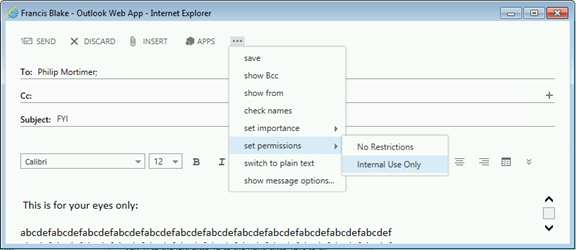
Exchange comes with these message classifications which are used by Exchange internally: ExAttachmentRemoved, ExOrarMail and ExPartnerMail. These should not be used by users, let alone be visible. To make them hidden, the PermissionMenuVisible attribute is set to $false for these classifications. This will make them not show up in Outlook WebApp:image

Now, using classifications in Outlook is less admin-friendly and requires exporting of classification information and configuring Outlook to read these classifications from a file. In short, the process described on TechNet TechNet to use message classifications from Outlook is as follows:

From the Exchange Management Shell, run the Export-OutlookClassification.ps1 script from Exchange scripts folder, e.g.

& ‘C:\Program Files\Microsoft\Exchange Server\v15\Scripts\Export-OutlookClassification.ps1’ | Set-Content ‘C:\OutlookClass.xml’

Next, copy the XML file to a location on the client or networked location which is readable by Users. On the client, make the following registry changes:

[HKEY_CURRENT_USER\Software\Microsoft\Office\15.0\Common\Policy]
"AdminClassificationPath"="c:\\Classifications.xml"
"EnableClassifications"=dword:00000001
"TrustClassifications"=dword:00000001

Note: For the purpose of this example the XML is stored as C:\Temp\OutlookClass.xml . Note that “15.0” is for configuring Outlook 2013, replace with 14.0 for Outlook 2010 and 12.0 for Outlook 2007.

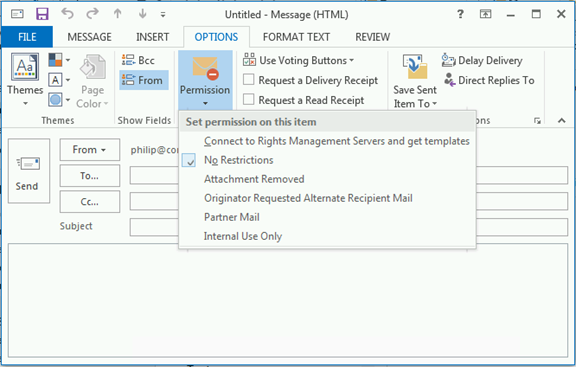
Restart Outlook so it will use these settings. When composing a message you will now see the message classification options appear under Options > Permission:

image

Apart from the message classification “Internal Use Only” we created, you will also see that Outlook shows the internal classifications by their display name. That should not be happening.

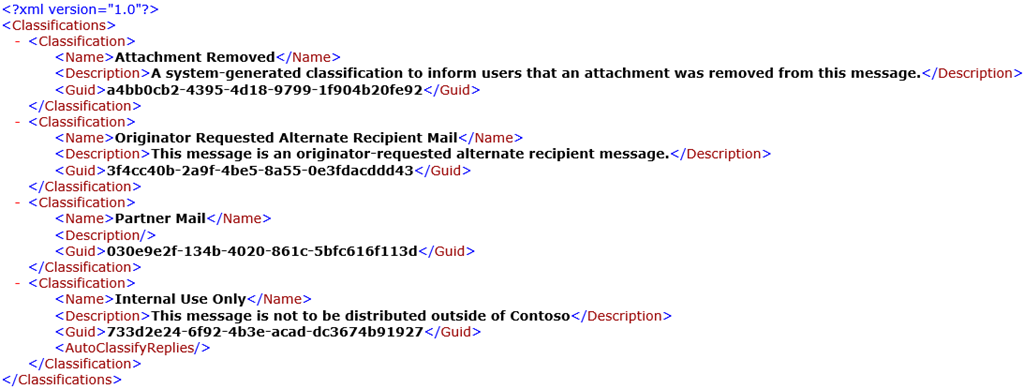
When you open up the Outlook classifications export file, you will spot that it contains all classifications, including the internal ones:image

So, what you can do now and what the documentation seems to fail to mention, is that after exporting message classifications you may want to remove the internal classifications “Attachment Removed” (ExAttachmentRemoved), “Originator Requested Alternate Recipient Mail” (ExOrarMail) and “Partner Mail” (ExPartnerMail) from the XML export file. Downside is that message with these internal classifications will not display the related description in Outlook, but that should not be an issue and a better option than users being able to select them.

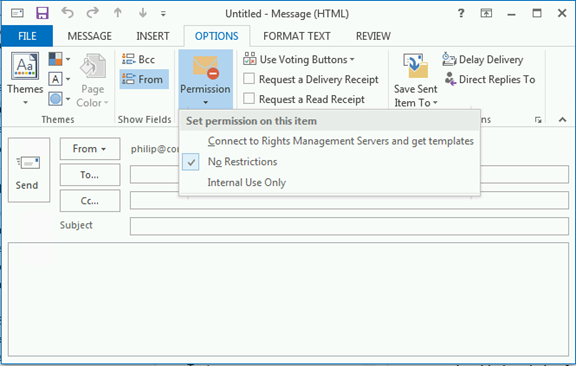
When you have removed the three entries from the XML file and restarted Outlook, the built-in options will no longer be on the permission menu:

image

So long RPC/HTTP, Hello MAPI/HTTP


Ex2013 LogoMicrosoft published three sessions from the Redmond Interoperability Protocols Plugfest 2013 on Channel 9 on the protocol MAPI over HTTP or MAPI/HTTP which looks scheduled to arrive with Exchange 2013 Service Pack 1.

This protocol is set to (over time!) replace the RPC/HTTP protocol we all know. RPC/HTTP, or Outlook Anywhere, is used by Outlook to communicate with Exchange Server and is most often seen with clients working remotely. With Exchange Server 2013, support for MAPI was dropped and RPC/HTTP became the only protocol. With Exchange 2013 SP1 it seems we will receive an alternative which is set to replace RPC/HTTTP, MAPI/HTTP.

Of course, the information is preliminary and subject to change as Exchange 2013 SP1 hasn’t been released yet, but it won’t harm to get familiar with the planned changes. It also remains to be seen how quick organizations will adopt this new protocol, which I’m pretty sure we will soon see getting supported by Office 365.

MapiHttp in Exchange 2013 SP1
Joe Warren, Principal SDE at Microsoft delivering a presentation covering the Exchange 2013 MapiHttp protocol implementation in Exchange 2013 SP1. Topics: What is MAPI-HTTP?, Why do MAPI-HTTP?, Goal of MAPI-HTTP, Why not rebuild with EWS?, Existing RPC-HTTP, New MAPI-HTTP, What does a MAPI-HTTP request look like?, What does a MAPI-HTTP response look like?, Session Context, Request Types, Sequencing & Protocol Failures. Click here.

Outlook 2013 Client Protocols
Shri Vidhya Alagesan, SDE at Microsoft presenting on Outlook 2013 Client Protocols from a client’s perspective. Topics: Client side view of Outlook-Exchange MAPI-HTTP protocol using WinHTTP, Error Handling & RPC Vs. MAPI-HTTP with sub-topics of Architecture Overview, Outlook & WinHttp, Cookies, Connection Status Dialog, Timeout, Pause/Resume & Protocol Switching. Click here.

Exchange 2013 Protocols
Andrew Davidoff, Senior Software Developer Engineer in Test at Microsoft presenting on the Exchange 2013 protocol families and important protocol updates for Exchange 2013. Click here.

Apart from these sessions on protocol change announced for Exchange Server 2013 SP1, Microsoft also published some other interesting Exchange-related sessions:

Exchange 2013 Web Services Overview
Harvey Rook, Principal Development Lead, and Naveen Chand, Senior Program Manager Lead, deliver a presentation on Exchange Web Services best practices. Click here.

Exchange RPC and EWS Protocol Test Suites
Jigar Mehta, Software Development Engineer in Test provides an in depth overview of the test suite packages for the Exchange RPC and Exchange Web Services protocols. Click here.

Outlook versions supporting Personal Archives and Retention Policies


Outlook 2013 IconIn an earlier article here, I mentioned which Outlook 2010 versions were eligible for Personal Archives.

Now, with the release of Office 2013, and Outlook 2013 in particular, it’s good to get an update on the Outlook versions and their support of Personal Archives and Retention Policies in Exchange Server 2010 or Exchange Server 2013.

The following Outlook versions support Personal Archives and Retention Policies:

Retail Licenses Volume Licenses
  • Outlook 2013 stand-alone
  • Outlook 2010 stand-alone
  • Outlook 2007 stand-alone
  • Outlook 2007 included with Microsoft Office Ultimate 2007
  • Outlook 2013 stand-alone
  • Outlook 2013 included with Microsoft Office Professional Plus 2013
  • Outlook 2010 stand-alone
  • Outlook 2010 included with Microsoft Office Professional Plus 2010
  • Outlook 2007 stand-alone
  • Outlook 2007 included with Microsoft Office Professional Plus 2007
  • Outlook 2007 included with Microsoft Office Enterprise 2007

Few notes:

  • As mentioned here, Outlook 2007 doesn’t support adjusting retention policies;
  • Personal Archives and Retention Policies require an Microsoft Exchange Server Enterprise Client Access License.

Discontinued support of ActiveSync in GMail


TechTarget QuoteFew days ago, Stuart J. Johnston of TechTarget approached me and several other Exchange fellows to ask how we thought the discontinued support of ActiveSync in GMail, part of Google’s “Winter Cleaning” operation, would impact users. You can read Stuart’s article here.

For reference and because Stuart only used a single quote from my (I think) extensive response, I’ve included my take on the situation below. Interestingly, today it turns out Google lost an ActiveSync patent case against Microsoft in a British court. Exchange fellow Tony Redmond did a nice writeup on that case and his personal involvement in that case here.

PS: I’ve already asked Stuart to fix my last name in the quote.

Regarding the discontinued support of ActiveSync in GMail, I think impact on both the Exchange as well as the GMail population varies.

First of all, the measure is aimed at new, free GMail accounts. I don’t know exact numbers, but I can imagine the number of people still not having a free GMail account is relatively minimal. Also, EAS will remain available to paid accounts.

Second, EAS is a means – no end – to synchronize information like mail, contacts or agenda. Consumers will adapt and switch to alternative protocols (or plugins) to synchronize this information between their Google account and their device. I think the effect of the information exchange becoming less efficient and the lack of information push is negligible.

Thirdly, Android and iPhone – covering 85% over the smartphone market – provide apps specifically aimed at GMail or other Google services. For those not using Google’s apps, the end user experience may be affected and all the additional tools required to fully synchronize with desktops won’t help.

Worst off are Windows Phone users or Windows 8 users using the built-in Mail app (Surface RT). While the Windows Phone user base may be relatively small, the Windows 8 user base is growing and they are both forced to use IMAP, which only does mail and there are – AFAIK – no *DAV apps in the Store to synchronize calendar or contact information.

While I do understand Google’s case, which is probably more a cost reduction and (resource) focus shift measure rather than another act in the Google vs Microsoft war, I also believe there might be a fair chance of Google shooting itself in the foot by dropping EAS. Microsoft’s free outlook.com service keeps supporting EAS (not surprisingly) and Microsoft has already taken up on plugging outlook.com as the alternative for Google

Finally, I’m in favor of competition which drives innovation. The whole GMail versus Hotmail/Office365 is no exception. However, it gets annoying when vendors drop functionality end users are accustomed to, making them have to put energy into looking at solutions or alternatives, which may become tiresome at some point.