 Note: At TechEd NA 2011 session EXL326, announcing Exchange 2010 SP2 features (e.g. GAL segmentation), Greg Taylor stated that SP1 breaks MsExchQueryBaseDN in Exchange 2010. This might explain the behaviour as described in this article.
As you may know, the msExchQueryBaseDN attribute can be used to limit a user’s scope of the global address book and address searches (also see kb817218). This is helpful for restricting access in environments consisting of multiple organizations or organizations with a substantial number of mail-enabled objects. The attribute is part of the user object and you configure it by pointing it to a DN of the OU or address list of choice, e.g. OU=sales,DC=company,DC=com. Note that by default msExchQueryBaseDN is empty, so that user will search the whole domain the user’s part of.
With Exchange 2010 SP1, the following unexpected behavior is encountered in Outlook when you’ve set the msExchQueryBaseDN attribute:
msExchQueryBaseDN Set
When msExchQueryBaseDN is set to a valid DN, Outlook WebApp (OWA) will show the default global address with elements from the configured msExchQueryBaseDN downwards. Outlook 2007/2010 will show an empty global address list; other global address lists are invisible. Searching the address book in OWA works, in Outlook it doesn’t because Outlook thinks the address list is empty:
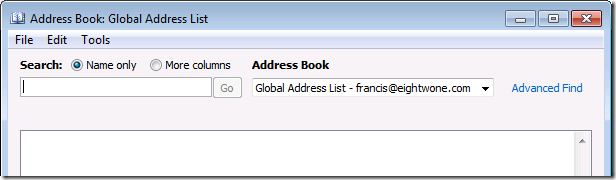
Note that if the structure contains many elements, opening the global address list in OWA may result in the following exception:
Url: https://…/owa/forms/premium/SubPageContainer.aspx?ae=AddressList&t=Recipients&subpage=DirectoryView.ascx
User host address: …
User: Blake, Francis
EX Address: /o=…
SMTP Address: francis@eightwone.com
OWA version: 14.1.270.1
Mailbox server: ex2010a.domain.local
Exception
Exception type: Microsoft.Exchange.Data.Directory.ADVlvSizeLimitExceededException
Exception message: Active Directory operation failed on ex2010a.domain.local. There are too many entries which exceed limit of Virtual List View. Additional information: The directory service encountered an unknown failure. Active directory response: 000020EF: SvcErr: DSID-03140350, problem 5010 (UNAVAIL_EXTENSION), data 0
The message indicates it tries to fit too many elements in the list.
MsExchQueryBaseDN cleared
When msExchQueryBaseDN is cleared, Outlook and OWA will show the default global address list as well as other address lists. Also, even though the number of elements is equal or larger than when msExchQueryBaseDN is set, the global address list will show in OWA. So, apparently the number of elements isn’t an issue, which makes the exception you get in OWA when msExchQueryBaseDN is set confusing.
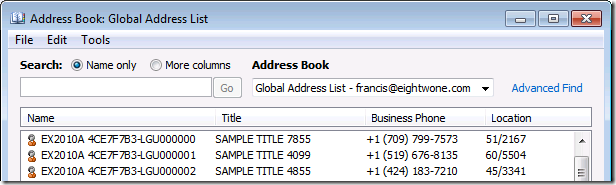
After some digging, I think this behavior is related to dropping address list segregation support for on-premises Exchange 2010 and moving several functions and support for it to Exchange 2010 hosting mode. A possible clue can be found in the Exchange 2010 mailbox attribute QueryBaseDNRestrictionEnabled, which description reads:
The QueryBaseDNRestrictionEnabled parameter specifies whether to restrict a user’s ability to view or search for other mailboxes in their organization. If this parameter is set to $true, the global address list (GAL) of the specified mailbox user isn’t populated. Specifically, if the user views the GAL, it will appear empty. If this parameter is set to $false, users can use the GAL to view all mailboxes in their organization, including mailboxes for which this parameter is set to $true. The default value is $false.
This empty GAL behavior when QueryBaseDNRestrictionEnabled is set to $true matches the behavior encountered when setting the msExchQueryBaseDN attribute.
So be advised that while we wait for Service Pack 2, of which the Exchange Team said it will contain some form of (still undisclosed) address list segregation (announcement here),you will run into the issues described above when using msExchQueryBaseDN in an Exchange 2010 SP1 environment.
To bulk clear the msExchQueryBaseDN attribute for a whole domain, execute the following command from the Exchange Management Shell:
Get-Mailbox –ResultSize Unlimited | ForEach {$o=[ADSI](“LDAP://”+$_.distinguishedName);$o.PutEx(1,”msExchQueryBaseDN”,0);$o.SetInfo()}
Updated: Added SP2 announcement mentioning to broken MsExchQueryBaseDN (May 18th).

 Multifactor Authentication is a must-have for services based in the cloud, especially for accounts with administrative purposes. We have already covered what Office 365 Multifactor Authentication is and how to configure it in Office 365 tenants with the Office 365 admin center, and we briefly showed the end user experience. Now we will look at how we can use the Azure Active Directory Module for Windows PowerShell to configure Office 365 authentication with MFA.





 EighTwOne (821)