Unknown's avatar

About Michel de Rooij

Michel de Rooij, with over 25 years of mixed consulting and automation experience with Exchange and related technologies, is a consultant for Rapid Circle. He assists organizations in their journey to and using Microsoft 365, primarily focusing on Exchange and associated technologies and automating processes using PowerShell or Graph. Michel's authorship of several Exchange books and role in the Office 365 for IT Pros author team are a testament to his knowledge. Besides writing for Practical365.com, he maintains a blog on eightwone.com with supporting scripts on GitHub. Michel has been a Microsoft MVP since 2013.

YAII (or Yet Another IOS Issue) (Update)


iPhone iOSL’Histoire se rĂ©pète. After the meeting issues with iOS 6.0, which were fixed in 6.0.1, you could have assumed Apple learned a lesson. Unfortunately, there are again reports of misbehaving iOS devices; this they’re on iOS 6.1.

As reported by Exchange fellows Tony Redmond and Paul Robichaux today, there are reports iOS 6.1, released end of January, may generate excessive transaction log growth. A report on the F5 forum states the issue may lie in the improper handling of Meeting Responses by iOS 6.1 devices, causing some sort of loop.

Since Exchange is a business critical platform and excessive log growth can have severe consequences when not properly monitored (storage space running out, impact on replication or backup), it is recommended to take the following steps until the situation becomes more clear (and Apple releases a fix):

  • Inform iOS users and discourage them to upgrade at the moment (you can’t uninstall it). To create an inventory of iOS 6.1 users, use Steve Goodman’s Export-iOSDeviceStatistics script (available here) or use Get-ActiveSyncDevice, e.g.
    Get-ActiveSyncDevice | where {$_.DeviceOs -match “iOS 6.1”}
  • Consider implementing an access rule to block IOS 6.1 users (see below);
  • When experiencing the issue, report it to Apple.

When you want to block iOS 6.1 users, specifically the MeetingResponses, you need to filter on User Agent “^Apple.*1002.*” and check the URI for “Cmd=MeetingResponse” (so iOS 6.1 users can keep having e-mail but not send meeting responses). Your options and implementation depend on the components user in your organization:

  • You can block iOS 6.1 devices using Exchange 2010’s Allow/Block/Quarantine mechanism, e.g.
    New-ActiveSyncDeviceAccessRule -QueryString “iOS 6.1 10B142” -Characteristic DeviceOS -AccessLevel Block
  • Alternatively, you can install and utilize the IIS Rewrite Module;
  • When running TMG/ISA, you can utilize the http filter to block iOS 6.1, i.e. select the ActiveSync publishing rule, Configure HTTP, tab Headers. Unfortunately, wildcards are not supported, so you need to enter each iOS6.1 User-Agent variation by using Add / Request headers and entering the exact string like (list not complete):
    • Apple-iPhone4C1/1002.142
    • Apple-iPad2C1/1002.141
    • Apple-iPad3C3/1002.141
  • F5 has guidance on creating a blocking iRule to block MeetingResponse requests for iOS devices on their forum here.

Generally speaking, like implementing Service Packs or Rollups straight after their release in a production environment is a bad idea, the same rule should apply to clients of all types. I know this might sound challenging with the whole Bring Your Own movement and the adoption of iPhones/iPads, I think blocking or quarantining newly released iOS versions and only allowing them after a few weeks (“incubation period”) can be a wise strategy. Also, this strategy can be part of your communications or house rules for end users when they connect their own or company devices to your corporate environment.

Update (11Feb): It is reported the issue won’t occur after deleting the partnership and setting it up again doing a full sync. To delete a partnership from Exchange’s perspective, use Remove-ActiveSyncDevice, e.g.

Get-ActiveSyncDeviceStatistics –Mailbox Olrik | Where {$_.DeviceOS –match “iOS 6.1”} | Remove-ActiveSyncDevice.

Note that the iOS 6.1.1 update released by Apple today is for iPhone 4S only and fixes 3G issues.

Update (12Feb): Microsoft published KB2814847. They added the option of mitigating the issue by introducing a throttling policy, which Exchange admins need to assign to iOS 6.1 users. Note that this only applies to Exchange 2010 and up and will only slow down the process of transaction log generation, but users can keep using their device. It’s then recommended to instruct iOS 6.1 users to restart their devices if their device complains it can’t connect. Looking at the article, Office 365 already has throttling in-place for all users.

Update (13Feb): Apple has published a support article as well (TS4532). Their suggestion; Turn calendars off, wait 10 seconds then turn calendars back on again. Yes, really. They mention it’s related to responding to recurring meeting exceptions and state a fix is in the works.

Update (15Feb): As it turns out, he meeting response issue isn’t the worst issue in iOS 6.1; apparently you can easily bypass the lock screen on iPhones due to a glitch in the emergency calling feature, allowing anyone to use your phone for calling or accessing your contacts.

Update (16Feb): Rumors are Apple will release iOS 6.1.2 early next week but before February, 20th.This update should fix this meeting bug as well as the lock screen issue.

Update (19Feb): Today, after more than 10 days after initial reports of the issue, Apple released iOS 6.1.2, which supposedly fixes the meeting bug which caused excessive transaction log generation and battery drain. Given Apple’s track record, I’d test this properly first in your environment before waving the green flag to all your iPhone and iPad users. Note that according to reports, the lock screen glitch hasn’t been fixed in 6.1.2.

Decommissioning Exchange 2010 DAG


Exchange 2010 LogoI received a question on if it was possible to decommission a DAG, so that the Exchange 2010 servers would become stand-alone Exchange servers and the databases remain available on one server, freeing up other mailbox servers. I assume the customer has valid reasons for wanting to do so, like downsizing without requirements justifying the DAG. To answer that question: of course that is possible. Now, while many blogs are happy to tell you how to create a DAG there aren’t many on how to dismantle one, so here goes.

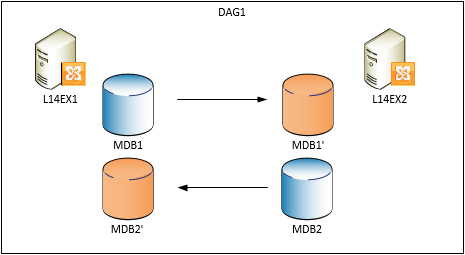
For this blog I use a small setup which consists of a single DAG (DAG1) with member servers L14EX1 and L14EX2 hosting two databases, MDB1 and MDB2; both servers host an active copy.

image

In this example we’re going to decommission DAG1, where in the end the L14EX1 will host both databases and L14EX2 is freed up.

Before we decommission the DAG, we’ll reorganize the active databases so when removing database copies we’re removing passive copies. We’ll start by checking if the health status of the DAG:

Get-MailboxDatabaseCopyStatus *

image

We see databases are mounted and copies are in a healthy state. Next, we’ll active the copies on the L14EX1, because we’ll be freeing up the L14EX2:

Move-ActiveMailboxDatabase –Server L14EX2 –ActivateOnServer L14EX1 –Confirm:$false

image

Verify the databases are now properly mounted on the L14EX1:

image

Next, we’ll be removing the passive copies hosted on the L14EX2. Use Get-MailboxDatabaseCopyStatus instead of Get-MailboxDatabase because Remove-MailboxDatabaseCopy needs the database name specified together with the server name hosting the copy, e.g. “SERVER\DATABASE”. Note that after removing the copy, the files are still present on the file system which you need to clean up manually:

Get-MailboxDatabaseCopyStatus –Server L14EX2 | Remove-MailboxDatabaseCopy –Confirm:$false

image

With all passive database copies removed, we can now remove the L14EX2 from the DAG. Note that when removing a non-last member server, the node will also be evicted from the cluster and the quorum will be adjusted when necessary.

Remove-DatabaseAvailabilityGroupServer –Identity DAG1 –MailboxServer L14EX2

image

Next, do the same thing for the remaining node, the L14EX1. Note that this server still hosts (active) database copies which is ok; the cmdlet will detect this is the last member server of the DAG and will also remove the cluster object.

image

After the last member server has been removed from the DAG, we now have an empty DAG object which we can remove:

Remove-DatabaseAvailabilityGroup –Identity DAG1 –Confirm:$false

Et voila, L14EX1 now hosts both databases and the L14EX2 is freed up and you can uninstall Exchange from that server if required.

image

Kindly leave your comments if you have any questions.

Outlook versions supporting Personal Archives and Retention Policies


Outlook 2013 IconIn an earlier article here, I mentioned which Outlook 2010 versions were eligible for Personal Archives.

Now, with the release of Office 2013, and Outlook 2013 in particular, it’s good to get an update on the Outlook versions and their support of Personal Archives and Retention Policies in Exchange Server 2010 or Exchange Server 2013.

The following Outlook versions support Personal Archives and Retention Policies:

Retail Licenses Volume Licenses
  • Outlook 2013 stand-alone
  • Outlook 2010 stand-alone
  • Outlook 2007 stand-alone
  • Outlook 2007 included with Microsoft Office Ultimate 2007
  • Outlook 2013 stand-alone
  • Outlook 2013 included with Microsoft Office Professional Plus 2013
  • Outlook 2010 stand-alone
  • Outlook 2010 included with Microsoft Office Professional Plus 2010
  • Outlook 2007 stand-alone
  • Outlook 2007 included with Microsoft Office Professional Plus 2007
  • Outlook 2007 included with Microsoft Office Enterprise 2007

Few notes:

  • As mentioned here, Outlook 2007 doesn’t support adjusting retention policies;
  • Personal Archives and Retention Policies require an Microsoft Exchange Server Enterprise Client Access License.

The case of the not updating Outlook for Mac 2011


exchange2007logo2[1]I had contact with a Twitter user on an issue with Outlook for Mac 2011 talking against Exchange Server 2007 on Small Business Server 2008.

When configuring a new account, Outlook for Mac reported “Account cannot be added.  Note that Outlook 2011 requires Exchange Server 2007 SP1 Update Rollup 4 or later.”

image

However, that couldn’t be right because that user claimed to be running a higher version of Exchange 2007. After manually entering the server name, a connection could be established and an initial download of folders and contents took place. However, items weren’t updated and contacts and calendar remained empty.

After trying and checking some things, I asked to turn on Outlook for Mac’s logging hoping to find something in the Exchange Web Services log (Outlook for Mac 2011 is EWS based). You can enable logging by checking Window > Error Log > Errors > Settings > Turn on logging for troubleshooting. After a while I was sent the log file Microsoft Outlook_Troubleshooting_0.log which contained the following excerpt:

2013-01-24 08:55:34.392,0xFFFFFFFF,Outlook Exchange Web Services,Info,"EWS: Response data received on thread=0x7d27bdb4, XML data=
<?xml version=""1.0"" encoding=""utf-8""?><soap:Envelope xmlns:soap=""http://schemas.xmlsoap.org/soap/envelope/"" xmlns:xsi=""http://www.w3.org/2001/XMLSchema-instance"" xmlns:xsd=""http://www.w3.org/2001/XMLSchema""><soap:Header><t:ServerVersionInfo MajorVersion=""8"" MinorVersion=""3"" MajorBuildNumber=""297"" MinorBuildNumber=""0"" Version=""Exchange2007_SP1"" xmlns:t=""http://schemas.microsoft.com/exchange/services/2006/types"" /></soap:Header>

First, Exchange reports version 8.3.297.0 which corresponds with Exchange 2007 SP3 RU9 (EWS can report slightly different version than actual version), so something else was wrong while that’s well above Exchange 2007 SP1 RU4.

2013-01-24 08:55:39.355,0xFFFFFFFF,Outlook Exchange Web Services,Info,"EWS: Sending request on connection=0x7dc89be8, URL=/EWS/Exchange.asmx, SoapAction=""http://schemas.microsoft.com/exchange/services/2006/messages/SyncFolderItems"""
2013-01-24 08:55:39.358,0xFFFFFFFF,Outlook Exchange Web Services,Info,EWS: Received response on connection=0x7d31dae8; status=500
..
2013-01-24 08:55:49.861,0xFFFFFFFF,Outlook Exchange Web Services,Info,"EWS: Sending request on connection=0x7d71a648, URL=/EWS/Exchange.asmx, SoapAction=""http://schemas.microsoft.com/exchange/services/2006/messages/GetItem"""	
2013-01-24 08:55:49.863,0xFFFFFFFF,Outlook Exchange Web Services,Info,EWS: Received response on connection=0x7dc26638; status=500
..
2013-01-24 08:55:39.359,0xFFFFFFFF,Outlook Exchange Web Services,Info,"EWS: Sending request on connection=0x7d31dae8, URL=/EWS/Exchange.asmx, SoapAction=""http://schemas.microsoft.com/exchange/services/2006/messages/GetItem"""	
2013-01-24 08:55:39.477,0xFFFFFFFF,Outlook Exchange Web Services,Info,EWS: Received response on connection=0x7d7005c8; status=200

I then noticed various EWS requests returned http status code 200 (means OK) but also 500’s, which correspond to “Internal Server Error”. It happened after various requests (e.g. SyncFolderItems, GetFolder, GetItem) but not for all requests.

Now, code 500 isn’t very helpful (general terminal failure) and a quick restart of IIS with iisreset /restart /noforce didn’t solve things.

After some digging it turned out the seemingly unrelated KB2264110 pointed in the right direction. I say unrelated, because it’s on messages not being updated on Blackberry Internet Service (BIS) after installing Exchange Server 2007 SP2. Turned out the performance counters on the Exchange 2007 server were corrupt and rebuilding them solved the issue.

To rebuild the performance libraries, perform the following steps from an elevated command prompt:

  1. CD %SystemRoot%\System32
  2. Run lodctr /R (/R is case-sensitive) which will rebuild all known counters
  3. Run wmiadap /f which will update the WMI performance classes
  4. Restart the Exchange 2007 server

After these steps, Outlook for Mac 2011 could sync again with Exchange Server 2007 SP3.

Exchange 2013 Help Files Updated


Ex2013 LogoA quick post as the Exchange 2013 Help (.CHM) files on the Microsoft Download Center have been updated. The offline help files files are convenient if you’re on the road or in a location without internet connection.

You can download the updated files dated January 18th, 2013 for On-Premise and Hybrid deployments of Exchange 2013 here.

On another note, there’s a new Office Visio 2013 stencil for Exchange 2013, including on-premise and hybrid deployments. You can download it here.