Switching E-mail Domains


Suppose you work at an organization that is about to change it’s primary e-mail domain and that organization doesn’t use e-mail address policies. Changing e-mail domains isn’t unlikely because of mergers or rebranding and yes, there are organizations out there not utilizing e-mail address policies for various reasons.

This post will describe what steps are involved and how to accomplish this task using PowerShell. I’ll use a phased approach since organizations performing all these steps at once are rare. Note that examples below will use oldcorp.com for the old e-mail domain and newcorp.com for the new e-mail domain. 

First, we’ll start off by adding the new domain to the list of accepted e-mail domains in the Exchange organization. We’re authoritative for the new e-mail domain, so use the the New-AcceptedDomain cmdlet in conjunction with the Authoritative as DomainType to add this e-mail domain using Exchange Management Shell:

New-AcceptedDomain -Name "New Corp" -DomainName newcorp.com -DomainType Authoritative

Next, configure the MX records for the newcorp.com domain on DNS. Let them point to your inbound SMTP server or appliance and, if required, configure your anti-spam/anti-virus solution accordingly.

Now for the more interesting part: how to add the new e-mail domain to objects and make the switch from oldcorp.com to newcorp.com in bulk. We’ll start by adding newcorp.com proxy addresses (the EmailAddresses property) for all existing olddomain.com e-mail addresses using Set-Mailbox, using the current user part (the part before the “@”). Take caution when adding an e-mail address to EmailAddresses, since EmailAddresses is an array and you could end up overwriting all current proxy addresses with a single element when used like this:

Set-Mailbox mderooij -EmailAddresses michel.de.rooij@newcorp.com

Instead, we need to utilize the Add method. All roads lead to Rome, so I’ll pick the most efficient manner as shown in the script below. Be advised that the script as shown processes all mail-enabled objects which primary address is @oldcorp.com (as a form of filtering). Therefore, take caution and use it in your test environment first when appropriate.

Get-Mailbox -ResultSize Unlimited | Where { $_.WindowsEmailAddress -like "*@oldcorp.com" } | ForEach { 
    $This= $_
    $_.EmailAddresses | where { $_.SmtpAddress -like "*@oldcorp.com" } | ForEach {
        $NewMailAddress= $_.SmtpAddress.ToString().Split( "@")[0] + "@newcorp.com"
        "Adding $NewMailAddress for "+ $This.WindowsEmailAddress
        Set-Mailbox $_.Identity -EmailAddresses @{Add=$NewMailAddress}
    }
}

Now, inbound e-mail for newcorp.com is accepted and accounts are configured to receive e-mail on the new newcorp.com e-mail domain.

Add a certain point in time, we’ll make the switch from oldcorp.com to newcorp.com, so all outbound e-mail will use the new e-mail address. To do this, we need to use the Set-Mailbox cmdlet in conjuction with the PrimarySmtpAddress parameter. We’ll only look at the WindowsEmailAddress, which holds the current Primary SMTP address:

Get-Mailbox -ResultSize Unlimited | Where { $_.WindowsEmailAddress -like "*@oldcorp" } | ForEach {
    $ID= $_
    $NewPrimary= $_.WindowsEmailAddress.ToString().Split( "@")[0] + "@newcorp.com"
    "Promoting "+ $NewPrimary
    Set-Mailbox $ID -PrimarySmtpAddress $NewPrimary
}

The last thing to do after determining everything is working fine and everyone is used to the new e-mail domain is removing those @olddomain.com secondaries. We’ll take the current set of EmailAddresses, filter on not having the olddomain.com e-mail domain, and put the filtered result back in the EmailAddress property.

Get-Mailbox -ResultSize Unlimited | Where { $_.WindowsEmailAddress -like "*@newcorp.com" } | ForEach {
    $NewSecondaries= ($_.EmailAddresses | where { $_.SmtpAddress -notlike "*@oldcorp.com" })
    Set-Mailbox $_ -EmailAddresses $NewSecondaries
}

I hope you find this information useful. If you have questions, do not hesitate asking me in the comments.

Exchange & PowerShell Presentation (Dutch)


After last years NGN Exchange event, where I presented a session on Exchange Autodiscover,  it was time for a followup. This event took place on May 19th and had a turn up of about 80 attendees, which was better than expected given the fact this was a non-free NGN event unlike last year. Early questions indicated large part of the attendees are still on Exchange 2003, though the figure has dropped a bit from last year’s 80%.

I held a duo-presentation with Maarten Piederiet on the topic PowerShell and the Exchange 2003 Administrator. A fingers up poll also showed lots of people still working with batchfiles, VBScript or KiXtart. This was expected, so our topic was spot on since we included PowerShell primer topics. Of course, this 45 minute session doesn’t replace a proper PowerShell course, let alone a course for decent development skills but our goal was to get people enthusiastic by demonstrating how simple yet powerful PowerShell is.

Besides presenting, which went a lot better than last year on a side note, it was also a time to catch up with fellow Exchange MVPs and enjoy discussions with attendees during the Ask The Expert breaks.

Below you’ll find the presenters’ slidedecks in PDF format. Note that the presentations are in Dutch.

Unfortunately, NGN decided not to publish the recorded sessions so I can’t share those with you.

Disabling Distribution Group Expansion in Outlook


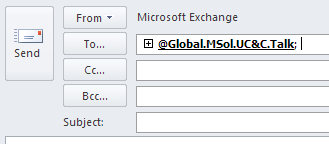
A customer was using moderated distribution groups and asked if it was possible to disable the expansion of distribution groups in Outlook. As you probably know, after entering a distribution group in the address bar, Outlook will show a “+” sign next to it which will let you replace the distribution group with all its members as recipients. Especially with moderated distribution groups this might be found an issue, because customers might want to hide membership information from senders.

image

Unfortunately, hiding isn’t  a real option because distribution groups are universal distribution groups and its members are readable. Fiddling around with the ACL sounds like a viable option (remove permissions to read members) but sounds like a potential cause for other issues so I wouldn’t recommend that.

What you could do is remove the option to expand the distribution group by setting one of the following a registry keys, depending on your Outlook client version:

Outlook 2013
HKCU\Software\Microsoft\Office\15.0\Outlook\Options\Mail\DisableDLExpansion=1 (REG_DWORD)

Outlook 2010
HKCU\Software\Microsoft\Office\14.0\Outlook\Options\Mail\DisableDLExpansion=1 (REG_DWORD)

Outlook 2007
HKCU\Software\Policies\Microsoft\Office\12.0\Outlook\Options\Mail\DisableDLExpansion=1 (REG_DWORD)

Outlook 2003 or earlier
Outlook 2003 or earlier versions don’t have this option.

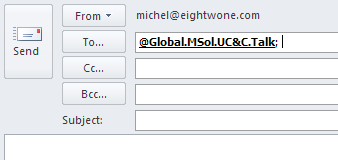
After you set this key and restart Outlook, you’ll see the “+” sign is gone:

image

If you want to roll out this change throughout your organization, use this key in a custom GPO template or utilize the GPO templates that ship with Office (OutlkNN.adm, where NN is determined by the Outlook version), and configure the GPO accordingly.

Be advised that setting this registry key disables expansion for all distribution groups. Specifically disabling it for moderated groups is impossible, since Outlook has – and should have – no knowledge of the type of distribution group.

Note that the distribution group expansion option is something typical of the Windows version of Outlook, since Outlook for Mac nor Outlook WebApp (OWA) have this option.

TechEd North America 2011 sessions


With the end of TechEd NA 2011, so ends a week of interesting sessions. Here’s a quick overview of recorded Exchange-related sessions for your enjoyment:

Remote PowerShell to Office 365


imageWhile trying Office 365 you might want to connect your to a remote Exchange Management Shell session instead of using the portal interface. Here’s how to proceed.

Start up a PowerShell session. The first thing we’re going to do next is store credentials in a variable for later usage:

$cred= Get-Credential

A popup will be displayed where you can enter your Office 365 admin credentials, e.g. myadminname@yourdomain.onmicrosoft.com.

Next, create a new remote PowerShell session using the following cmdlet:

$o365= New-PsSession -ConfigurationName Microsoft.Exchange -ConnectionUri https://ps.outlook.com/powershell -Credential $cred -AllowRedirection -Authentication Basic

image

Next, we can import the session. However, this might be confusing since you have no context; are you creating a mailbox local or in the Office 365 environment?

The cool thing is that with Import-Session you can specify a prefix. This prefix can be specified before the cmdlet noun so that PowerShell knows which session you want the cmdlet to run against. As you probably know, cmdlets are normally constructed using <verb>-<noun> syntax, but this should be <verb>-<session prefix><noun>. When the session prefix is omitted, PowerShell assumes the current session.

For example, let’s import our Office 365 session with a prefix of “o365”:

Import-PsSession $o365 –Prefix o365

image

Now, we can use that “o365” prefix before the noun. For example, to get a list of our Office 365 mailboxes, you’d use something like:

Get-o365Mailbox

image

Cool and simple, eh?

Don’t forget to close your online session afterwards using:

Remove-PsSession $o365

Have fun exploring Office 365 using PowerShell.