

A long overdue blog on a solution which was created per request of an Exchange fellow. The original scenario is an organization spinning off, thereby changing their primary e-mail domain. They wanted to inform relations and partners using the old e-mail addresses of this change. However, this solution might also be helpful to organizations after merger and acquisitions or rebranding.
For the sake of the example, let us suppose Fabrikam was acquired by Contoso. Targeted mailboxes are migrated from the Fabrikam tenant to the Contoso tenant. Fabrikam will contain Mail-Enabled Users forwarding messages to their Contoso mailbox counterparts. The migrated mailboxes now hosted in Contoso will be configured to send notifications to senders which sent mail to the old Fabrikam address.
While organizations can resort to 3rd party tools to set up an Exchange Transport Rule with a generic message, a little script might also do the job, offering a more granular and controlled solution.
Solution
The scripted solution is available on GitHub here. It will configure an Inbox rule on the targeted Exchange mailbox(es), which would be the new/migrated mailbox. The rule will trigger when messages land in the inbox which were sent to a specific e-mail address, i.e. the previous e-mail address. It will send out an automatic response, which can consist of a custom subject, message body with an optional embedded image. The configuration of the response is defined in an customizable external XML file:
<?xml version="1.0" encoding="ISO-8859-1"?>
<config>
  <rule>Contoso Autoresponder</rule>
  <subject>Please update your email recipient to Contoso</subject>
  <body>Dear Sender,

Thank you for your message. Fabrikam is now a whole Contoso subsidiary, and the fabrikam.com e-mail address will change to contoso.com. Your e-mail was forwarded to my new e-mail address.

Please update contact information, distribution lists, etc. to update [OldMail] e-mail references with my new [Identity] e-mail address.

[logo]
The Contoso Corporation is a multinational business with its headquarters in Paris.</body>
  <logo>Contoso.png</logo>
</config>
The elements that can be used in the config are:
- <rule> defines the name of the Inbox rule to be created. When the script runs, it will update any existing previously created inbox rules of the same name.
- <subject> defines the subject of the response.
- <body> defines the message body. You can use the following macros here:
- [OldMail] will get replaced with the original e-mail address.
- [Identity] will get replaced with the new e-mail address.
- [Logo] will get replaced with the embedded image.
- Optionally, <logo> refers to the file name of the image to embed.
Requirements
To run the script, you need the following:
- Exchange Server 2013 SP1 or later, or Exchange Online.
- Exchange Web Services (EWS) Managed API 2.21 or later (how to, NuGet package exchange.webservices.managed.api).
- When using modern authentication or OAuth2, the MSAL library is required (NuGet package Microsoft.Identity.Client). Also, you need to have registered an App in Azure Active Directory with sufficient permissions (e.g. full_access_as_app). After registering the app, Tenant ID, Application ID and certificate or secret is what you need to use with the script to run successfully.
- In addition to installing the NuGet packages, you can also store their DLLs in the same folder as the script for portability.
Usage
The syntax to run the script is as follows:
.\Set-AutoResponderNotification.ps1 -Identity <Identity> -TemplateFile <File> [-TenantId <TenantId> -ClientId <ClientId> [-CertificateThumbprint <ThumbPrint>] [-CertificateFile <File> -CertificatePassword <SecureString>] [-Secret <SecureString>]] [-Credentials <PSCredential>] [-Clear] [-Overwrite] [-Impersonation] [-TrustAll]The available parameters and switches are as follows:
- Identity specifies one or more e-mail addresses of mailboxes to process. Identity supports the pipeline (see examples).
- OldMail specifies one or more old e-mail addresses to use when configuring the autoresponder message. When specifying multiple identities,
the number of OldMail entries need to match the number of identities. - Server specifies the Exchange Web Services endpoint, for example outlook.office365.com for Exchange Online. When omitted, Autodiscover will be used.
- Impersonation to use impersonation when accessing the mailbox. When using modern authentication, impersonation is mandatory.
- TrustAll to accept all certificates including self-signed certificates.
- TenantId specifies the ID of the Tenant when using a mailbox hosted in Exchange Online.
- ClientId to specify the Application ID of the registered application in Azure Active Directory.
- Credentials to specify the Basic Authentication credentials for on-premises usage or against Exchange Online when modern authentication is not an option.
- CertificateThumbprint is the thumbprint of the certificate to use for modern authentication. The certificate with the public key needs to stored with the registered application for authentication. The certificate with the private key should be present in the local certificate store.
- CertificateFile and CertificatePassword can be used to specify a certificate file to use. The file should contain the private key; the password protecting the certificate file can be specified using CertificatePassword as a secure string.
- Secret can be used to specify the secret to authenticate using the registered application. The secret needs to be provided as a secure string.
- Template
specifies the XML template file to use when configuring or clearing the autoresponder inbox rule. The format has explained above. - Clear specifies if any you want to remove the inbox rules with name specified in the template. Use this when you want to remove autoresponder rules from mailboxes. When using Clear, you don’t need to specify OldMail.
- Overwrite specifies if any existing inbox rules with name specified in the template should be overwritten. When omitted, the script will skip processing
mailboxes with inbox rules with conflicting names. Use this when you want to configure the autoresponder only on mailboxes which do not have the rule.
Note that usage of the Verbose, Confirm and WhatIf parameters are supported.
Examples
Nothing more explanatory than an example. When we want to configure the autoresponder on a single mailbox, we can use something like:
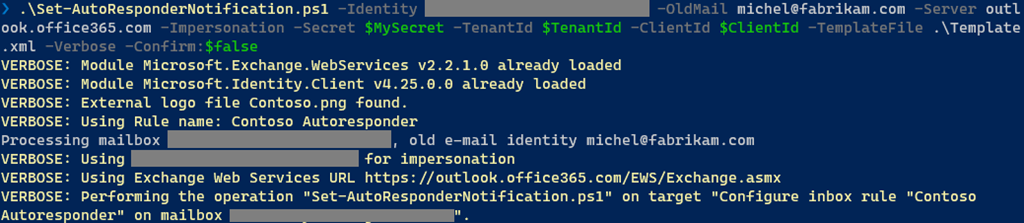
Here, the autoresponder will get configured on the specified mailbox, triggering when mail has been sent to michel@fabrikam.com using the configuration defined in template.xml. Modern authentication will be used for authentication, using variables for Tenant, Client and in this case secret.
When you want to configure autoresponder for multiple mailboxes, you can for example use a CSV file. It needs to contain two elements which will be passed through pipeline, Identity and OldMail:
Identity,OldMail
philip@contoso.com,p.mortimer@fabrikam.com
francis@contoso.com,f.blake@fabrikam.com
After defining the response in a file template.xml, we can use this CSV to configure inbox rules on the Contoso mailboxes identified by Identity, triggering when mail is sent to their OldMail addresses:
Import-CSV -Path Users.csv | .\Set-AutoResponderNotification.ps1 -Server outlook.office365.com -Impersonation -TemplateFile .\Template.xml -TenantId <TenantId> -ClientId <ClientId> -Overwrite -CertificateThumbprint <Thumbprint>What will happen is that for every set of Identity and OldMail, the mailbox specified by Identity will be configured with an inbox rule. When an existing rule is found, which is determined using the <rule> element in the XML template, it will get overwritten. The specified certificate will be picked from the local certificate store to authenticate against Tenant with TenantId, as application specified by ClientId.
Note that when the user opens Manage Rules & Alerts in Outlook, the configured inbox rule will be visible. This allows the user to remove it when it is no longer required. After a certain period, administrators can centrally remove these rules as well running the script using the Clear switch.

And finally, an example of how this may looks to senders when they receive an autoresponse message, using the sample configuration from the beginning of this article.

Application Access Policy
When using the script with modern authentication, you can leverage features such as conditional access to set boundaries for script usage. Also, you can configure application access policies to scope the registered app (script) to a subset of mailboxes. To accomplish this, assign an ApplicationAccessPolicy to the app.
To be more convenient in managing permissions, you can define a distribution group and assign the Application Access Policy with group scope (PolicyScopeGroupId). You then only need to add/remove members as you need to configure mailboxes.
More information about Application Access Policies here. Note that the permissions mentioned to not include full_access_as_app as permission, but it works.
EWS, why not Graph?
Microsoft already announced back in 2018 that development on Exchange Web Services will halt in and focus will shift to Graph. As part of this move, a more recent statement announced deprecation of some least-used API per March 2022, stimulating organizations to switch to using Graph. However, the organization looking for a solution wished for an automatic response with HTML as well as an embedded logo. Because of this, I had to use a template as a reply action.
But where Exchange Web Services supports reply with a template, Graph does not offer this functionality. So, until there is more feature parity between Exchange Web Services and Graph, or EWS goes completely out of service, solutions may still be forced to have a look at EWS for certain tasks.





 EighTwOne (821)