

 After enjoying some days off in Austin, Texas, after the Microsoft Exchange Conference 2014 ended, it’s now time to wrap-up the event. As this was my first MEC, I have no reference but from what I heard from others who attended the MEC 2012 in Orlando, this MEC was in one word EPIC. I cannot disagree with that qualification. The event took off with what might be called a false start in the form of a somewhat uninspiring key note and substandard food, but instant enthusiasm was achieved by the hilarious Taylor/Espinoza video and Dell Venue 8 Pro giveaway. What followed was incredible quality contents and a level of interaction was beyond expectation, making this a near-perfect event.
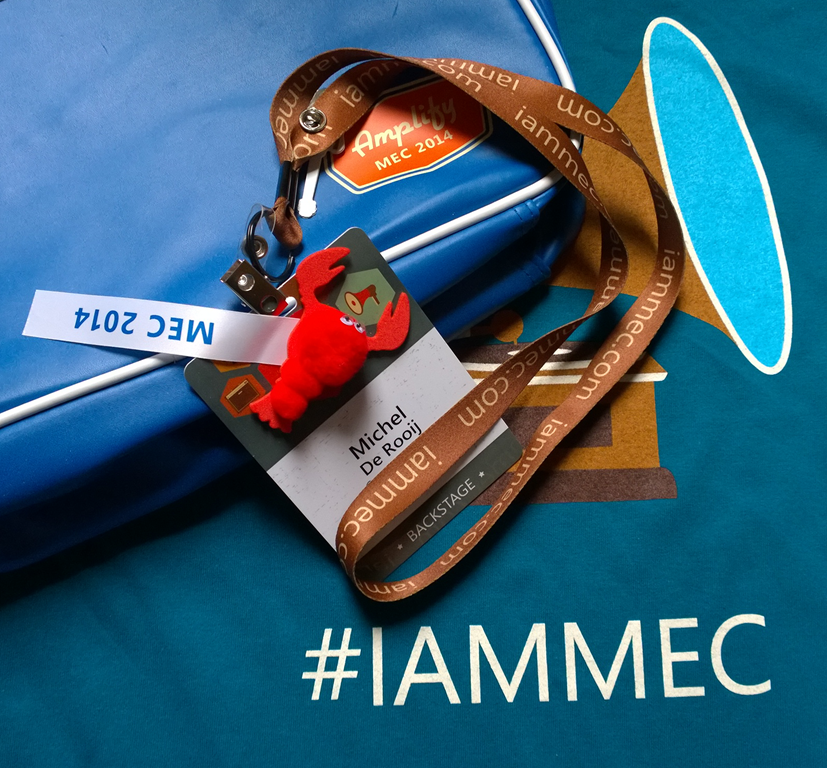 The conference featured over 100 sessions, making it impossible to catch everything with some time slots even set for 9 parallel sessions. Luckily, the sessions can be downloaded (script) by registered MEC attendees, which might explain the success of the unrecorded Unplugged sessions. Being free format, those sessions allowed for some nice Q&A between audience and panel members consisting of Product Group members, MCMs, MVPs or other SMEs.
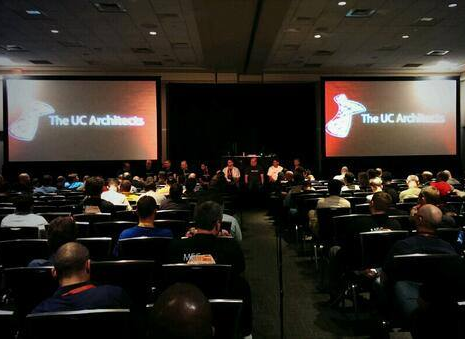 The UC Architects session on the last day in a final slot drew a bigger audience than expected, as it was parallel with one of the assumingly popular Unplugged : Exchange Top Issues session, hosted by Tony Redmond. Then again, we got Greg Taylor, Brian Day and Jeff Guillet on the show and several MSFTs were also in the house. The impact of the session’s high “sit back, relax and enjoy” factor can also not be ruled out. Nevertheless, great crowd and some great feedback after the event making it a potential recurring submission, especially on such a difficult last day/last slot where people are exhausted.
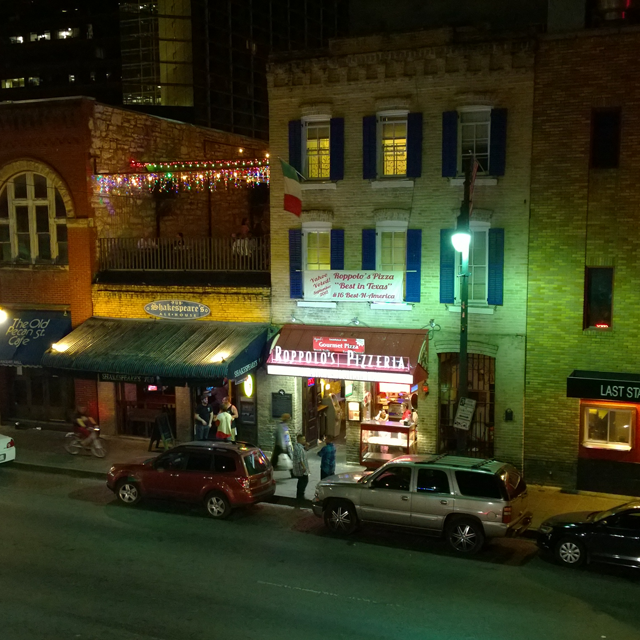 The city of Austin has proven to be a perfect host for such events, much like New Orleans was during TechEd North America last year. Everything was at walking distance and Austin’s lively nightlife, especially 6th Street, proved to be excellent for getting together with old and new friends outside of MEC social activities like MAPI Hour and the Attendee Party at Rainy Street. The reception and treatment by the friendly folks of Austin also contributed greatly to the positive experience.
 A special shout out to ENow for hosting an excellent UC Architects party at the Speakeasy. With the venue located on the rooftop, it was really amazing as it offered a nice Austin nightly backdrop while enjoying the party. The turnout was incredible, with even Julia White (GM Office) and Michael Attala (Director Office Product Management) making their presence. The party was a real success and it looks like its going to be repeated as the Scheduled Maintenance registration website now mentions TechEd, Houston TX.
Some take-aways from the conference:
- Exchange development is clearly a cloud-first strategy. Emphasis was added that cloud-first should be seen from an innovation point, as it can implemented faster due to the high level of standardization. This especially benefits OWA users directly as Outlook users need to wait for client updates. For example, Office Graph (the new container for self-learning social features such as ‘Clutter’ and ‘Groups’), will become available on Office 365 first, OWA first.
- Yammer started to make sense. During the conference, you could interact through Yammer for the session you were attending and you were able to follow the presentation via ‘Second Screen’ functionality, showing slides as they were presented. Beyond this, people seemed to ignore Yammer, which perhaps could also be attributed to the contests on Twitter.
- Using OneDrive for Business allows for storing attachments online (e.g. Office 365) while providing links to the attachment in the original e-mail, somewhat similar to Remote BLOB Store (RBS) in SQL Server which allows you to store BLOB externally, outside of the main database.
- Multi-Factor Authentication and Single Sign-On is coming to Outlook 2013 for Office 365 this year and Exchange 2013 on-premises next year.
- Updated Sizing Guidance to accommodate for for MAPI/http impact on the CAS role (+50% CPU, but still lower than Exchange 2010) but also a cap on the pagefile sizing when using more than 32 GB of memory (maximum 32,778 MB).
- With the introduction of MAPI/http will become the preferred protocol instead of Outlook Anywhere.
- Outlook WebApp for Android is coming (no ETA) with all the nice features of a dedicated app like OWA for iOS, like selective wipe.
- Clear statements on NFS not being supported to host Exchange databases. I repeat: NFS is not supported.
- Emphasis on installing .NET Framework 4.5.1.
- Recommendation to deploy 4 database copies, including 1 lagged copy, using a File Share Witness in a 3rd location.
- Lots of well attended sessions on Office 365 Hybrid solutions, which shows a rise in the interest. However, during the UC Architects session, a vast majority of the audience indicated they are still (and will be) running Exchange on-premises.
- Lots of attention for the Public Folder migration and the 10,000 folder limit raised its ugly head a few times. However, it has Microsoft’s full attention and they are working on it and are targeting a next boundary that will lie somewhere in the 1,000,000 region. However, still many customers with over 1m folders, so there was some discussion on that.
- Lots of feedback on making troubleshooting Managed Availability easier. Since it’s a task of lookups and cross-checks between Exchange and Event Viewer a.o., being a DevOp I start to think in terms of developing a useful tool. I put that on my To Do list, so hold on until MS comes up with something or I find some decent time to develop tooling, whichever comes first.
- Some requests for creating an interface for Edge Transport role as not every admin can be expected to have PowerShell skills. Same rule applies here as for the Managed Availability tool: duly noted until when time permits or MS comes up with something.
 After MEC, I joined my colleagues for a shopping spree in Round Rock Premium Outlets and enjoyed hiking in McKinney Falls State Park were we were taken on a free, unsolicited but very welcome tour by a friendly local. Unfortunately, all good things come to an end and Saturday saw a formal closing of the trip with the return flight to Amsterdam.
A big thanks to Microsoft for this well-organized, excellent event and the Exchange PG, MVPs and MCM/MCSMs and everybody attending for contributing. It makes me really proud to be part of this family as an Exchange MVP and I really look forward to the next MEC. Thanks everyone!
PS: In addition, here are additional write-ups by some Exchange fellows:
![Excel-2013[1]](https://eightwone.com/wp-content/uploads/2013/07/excel-20131-e1386194126797.png)




 EighTwOne (821)